
Envision classes are live, and you join them from the student portal. Log in, find the class on your dashboard or under Class Tools → Classrooms, and press Join Classroom. The room opens 5 minutes before the start time, and you get a reminder 10 minutes before. The same portal has your calendar, your attendance record and Ask Coach for messages. This guide shows each screen on a computer and on a phone.
If you are new to live online lessons, our guide to how online chess classes work explains what happens inside a class. This one is about finding and joining it, and keeping track afterwards.
Step 1: Log in and check your dashboard
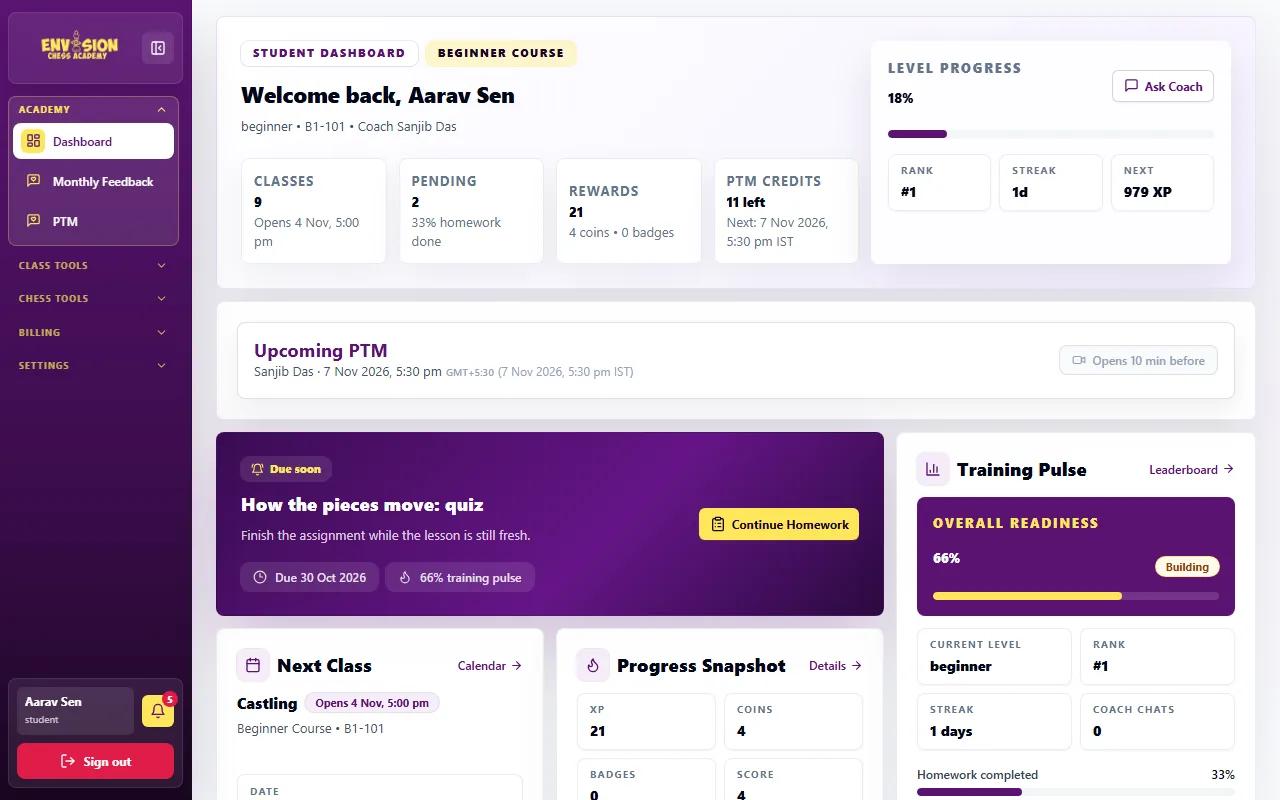
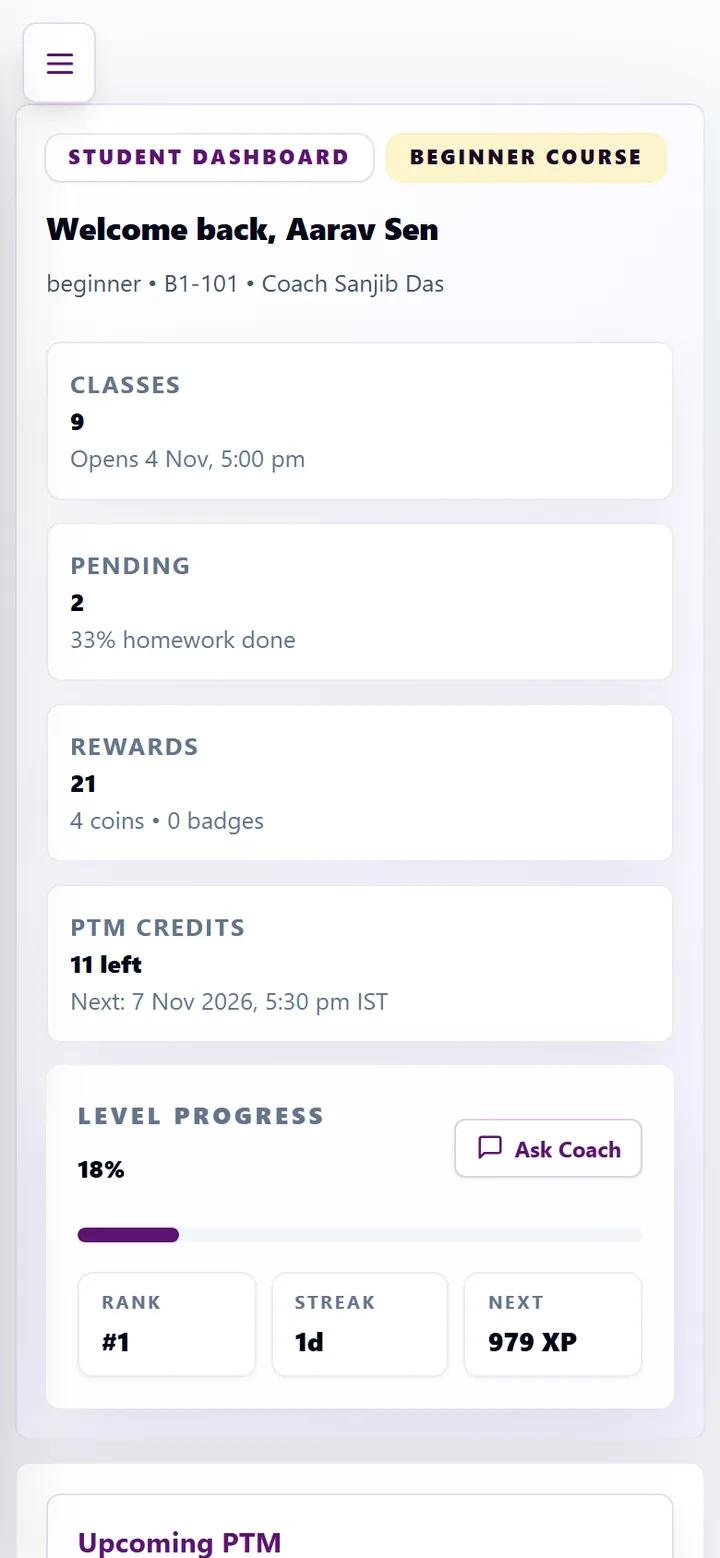
Log in at envisionchessacademy.com with your user ID (for example Aarav@ENV) or email and your password. Your dashboard opens first. The top row shows your classes, pending homework, rewards and PTM credits. The Next Class card shows the topic, date, time and length of your next class, with a Join Classroom button. Below it you will see homework that is due soon and your progress snapshot.
Step 2: Find the class in My Classes
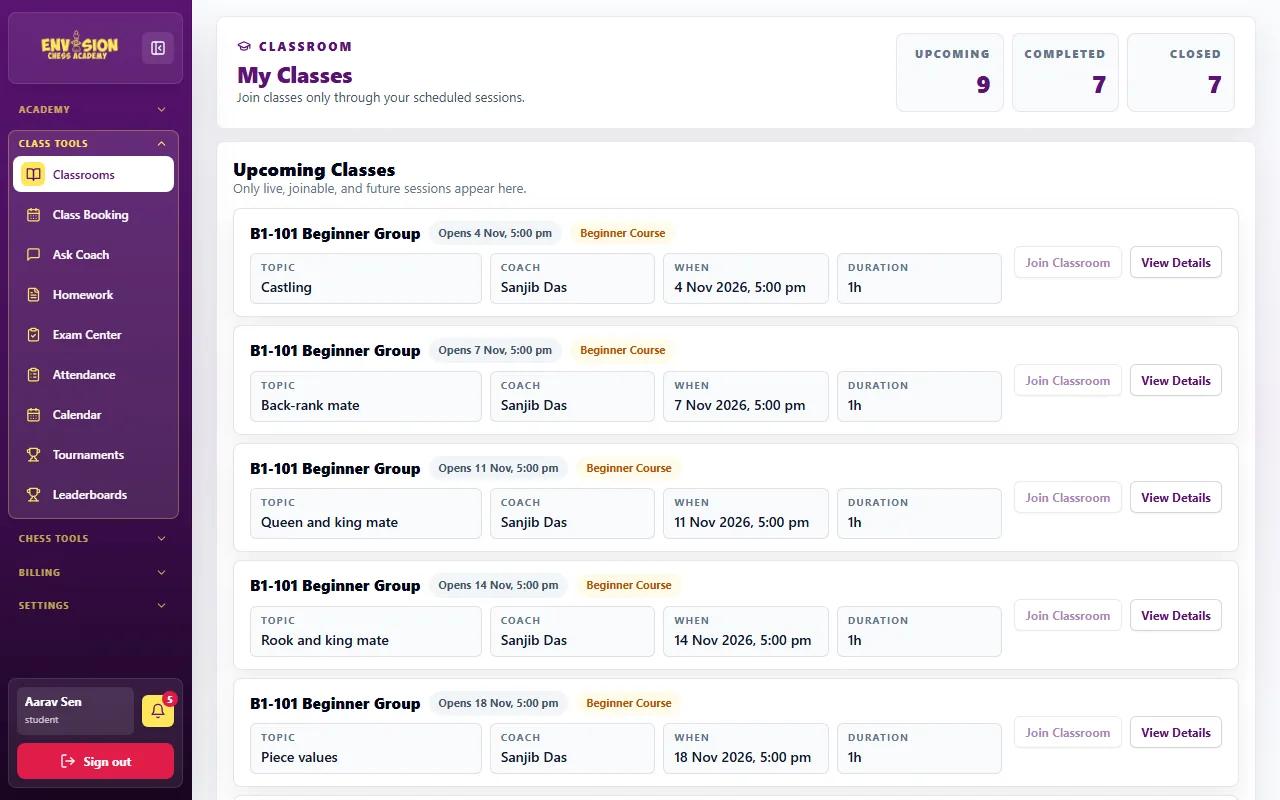
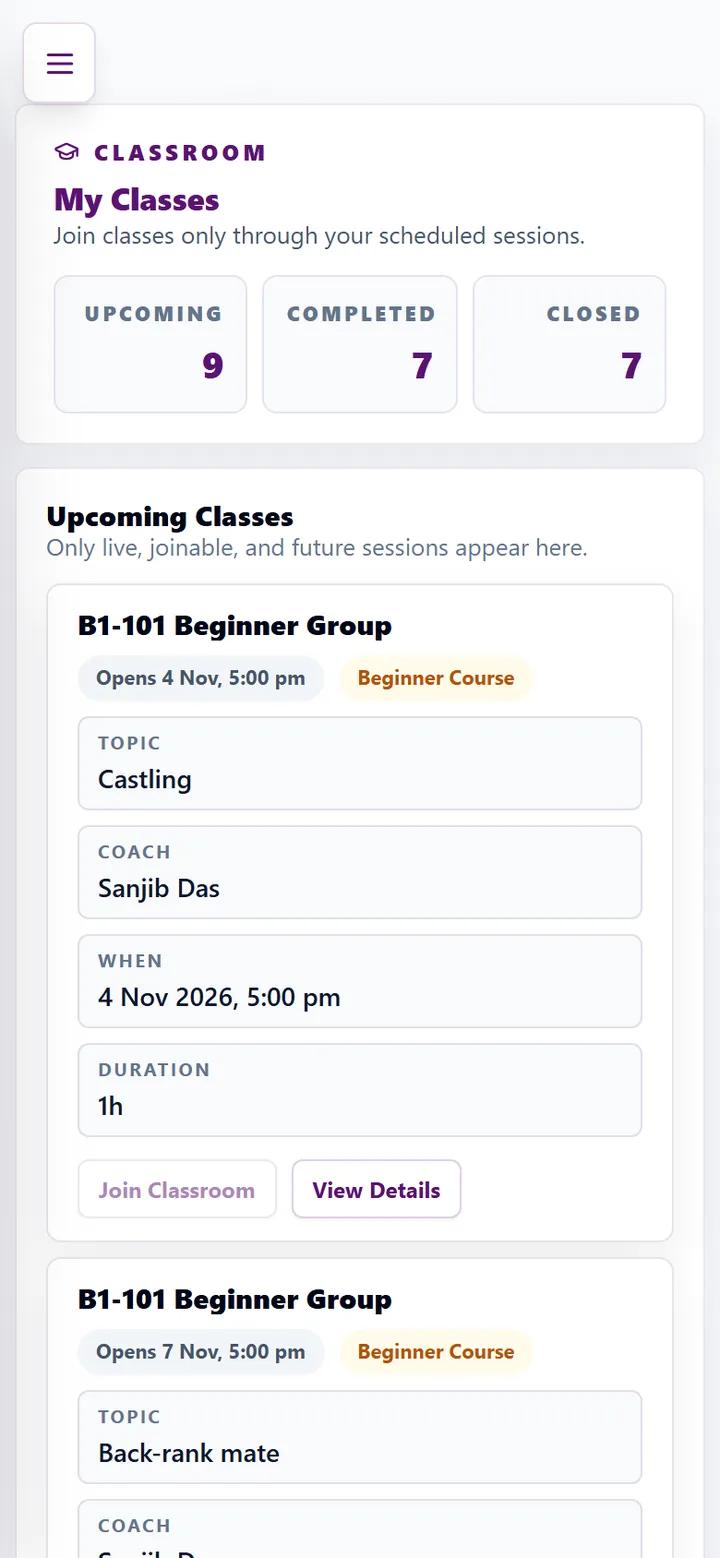
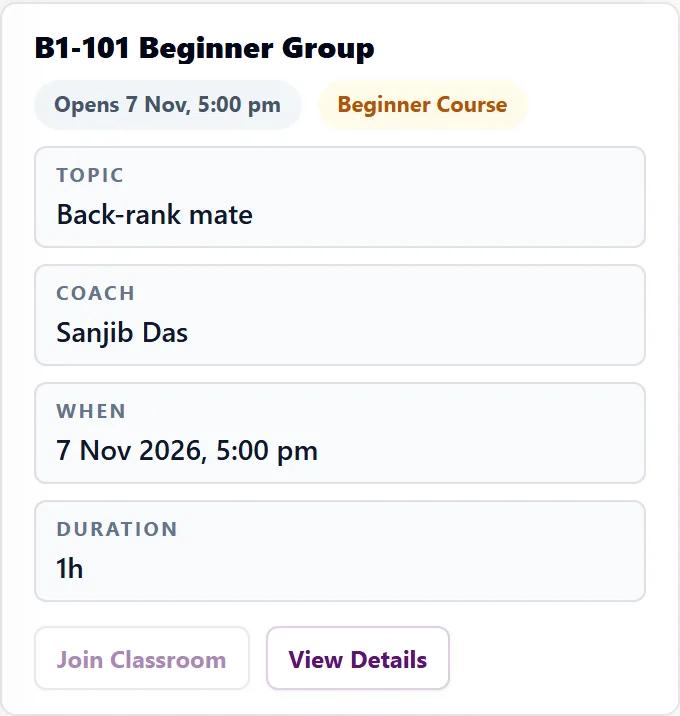
Open Class Tools → Classrooms to see My Classes. The counters show upcoming, completed and closed classes. Each upcoming class card shows the topic for that day, the coach, the date and time and the duration, with Join Classroom and View Details buttons. Times are shown in India time; families abroad should see our guide to classes across time zones.
Step 3: Join when the room opens
Until the class is about to start, Join Classroom is greyed out and the card says when it opens (for example "Opens 6 Nov, 5:00 pm"). The room opens 5 minutes before the start time; press Join Classroom then. Inside, you see the coach's board, the class chat and the questions the coach sets during the lesson.
- Join a few minutes early on a computer or tablet with a steady connection.
- Stay in the portal room for the whole class. Attendance is recorded from the class itself, and a student the room never sees can be marked absent.
- Keep notebook and pencil ready for the moves the coach shows.

What to have ready before each class
- A laptop, computer or tablet, charged or plugged in. A phone works, but the board is small.
- A steady internet connection. If the video stutters, close other apps and move closer to the Wi-Fi router.
- Headphones, so the coach is clear and the class is not distracted by background noise.
- The homework from last class, finished, so any questions can be asked at the start.
- A quiet corner, with younger children supervised by a parent nearby for the first few classes.
If your child cannot attend, tell the coach on Ask Coach before the class rather than afterwards. Missed topics are covered in the homework and the coach can suggest what to revise.
Step 4: Plan the week with the calendar
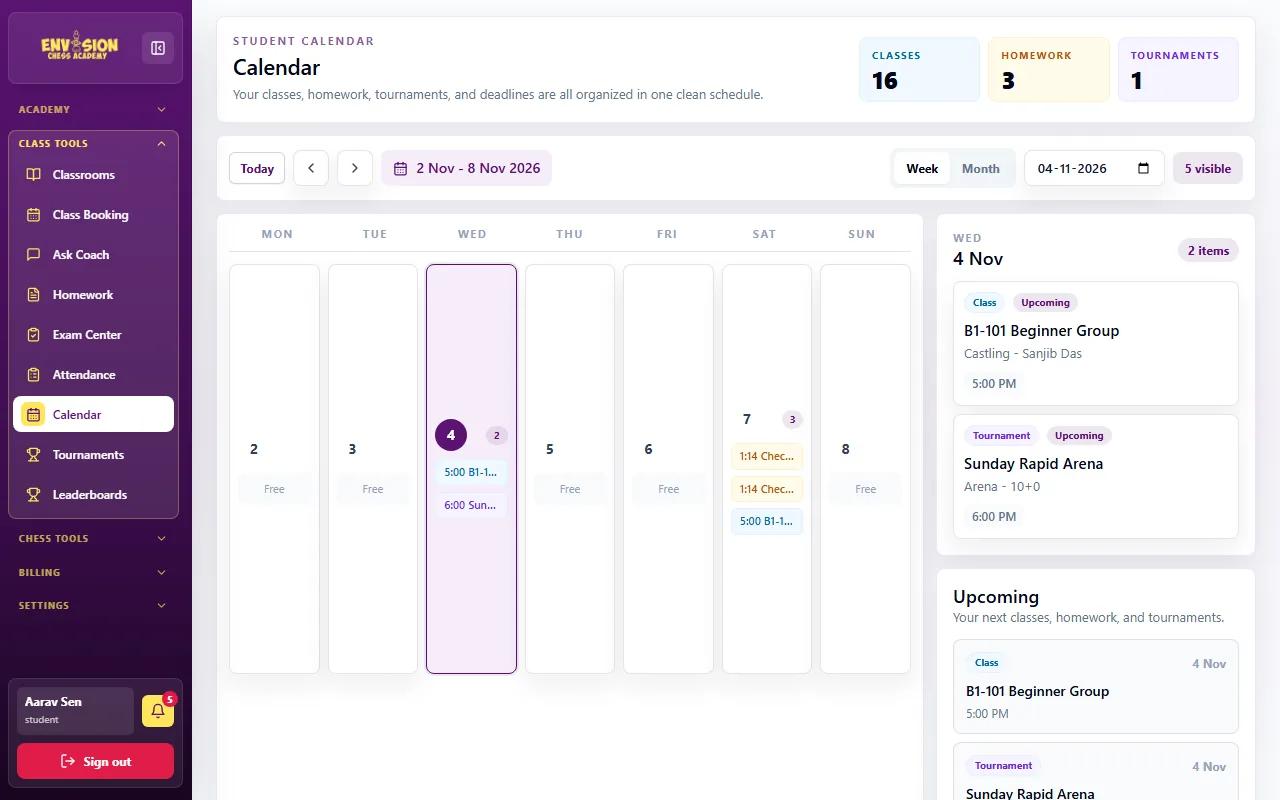
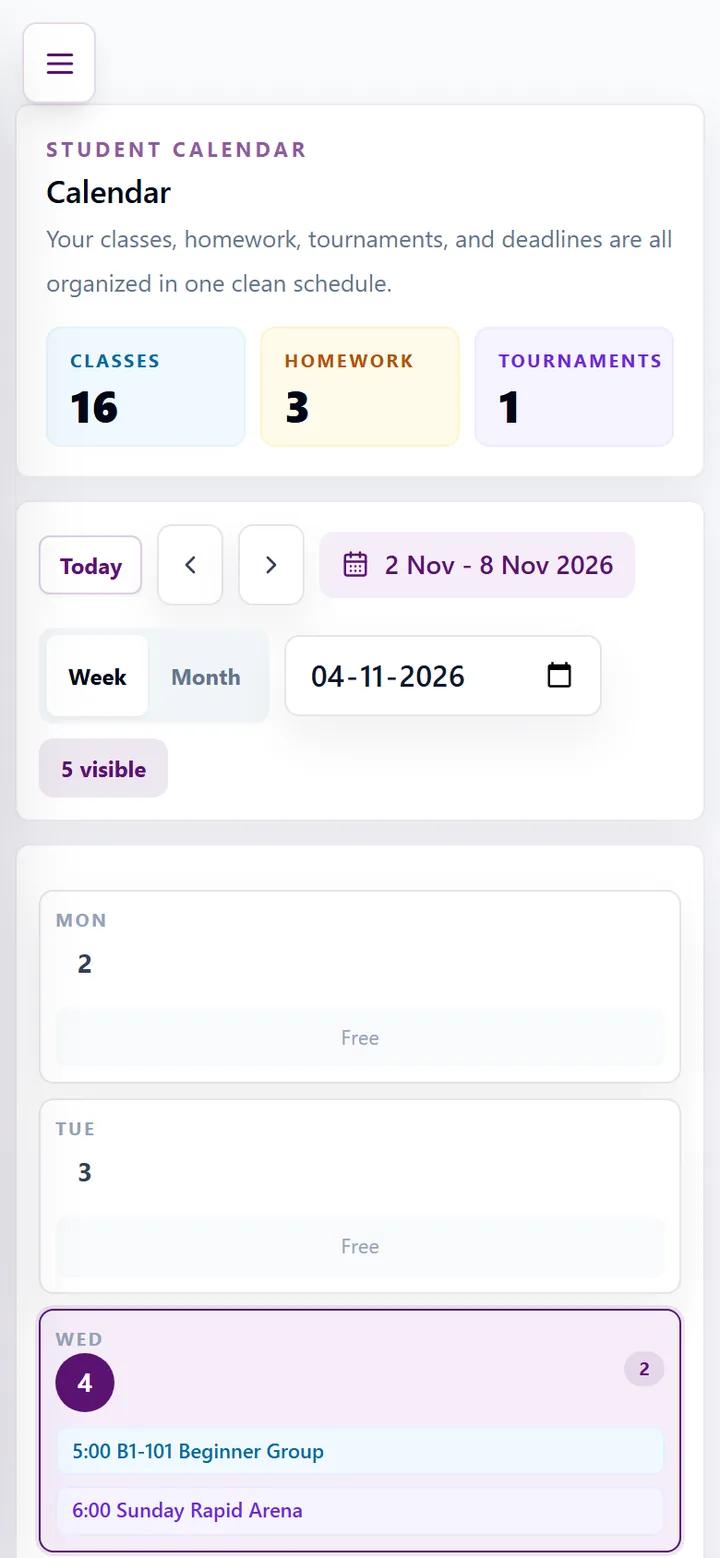
Class Tools → Calendar puts classes, homework due dates and tournaments in one view. Switch between Week and Month, step through weeks with the arrows, or jump to Today. The Upcoming list on the right shows what is next. It is the quickest way for a family to plan around school and other activities.
Step 5: Check attendance
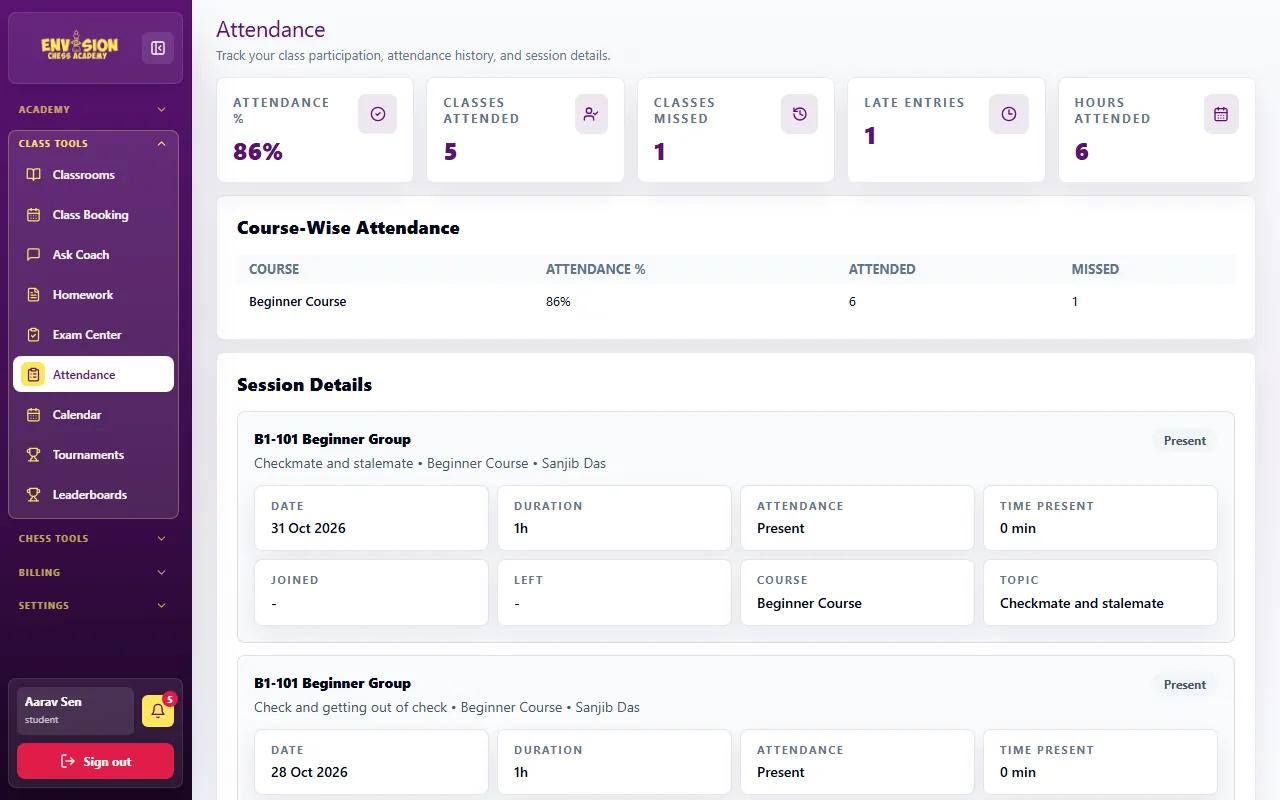
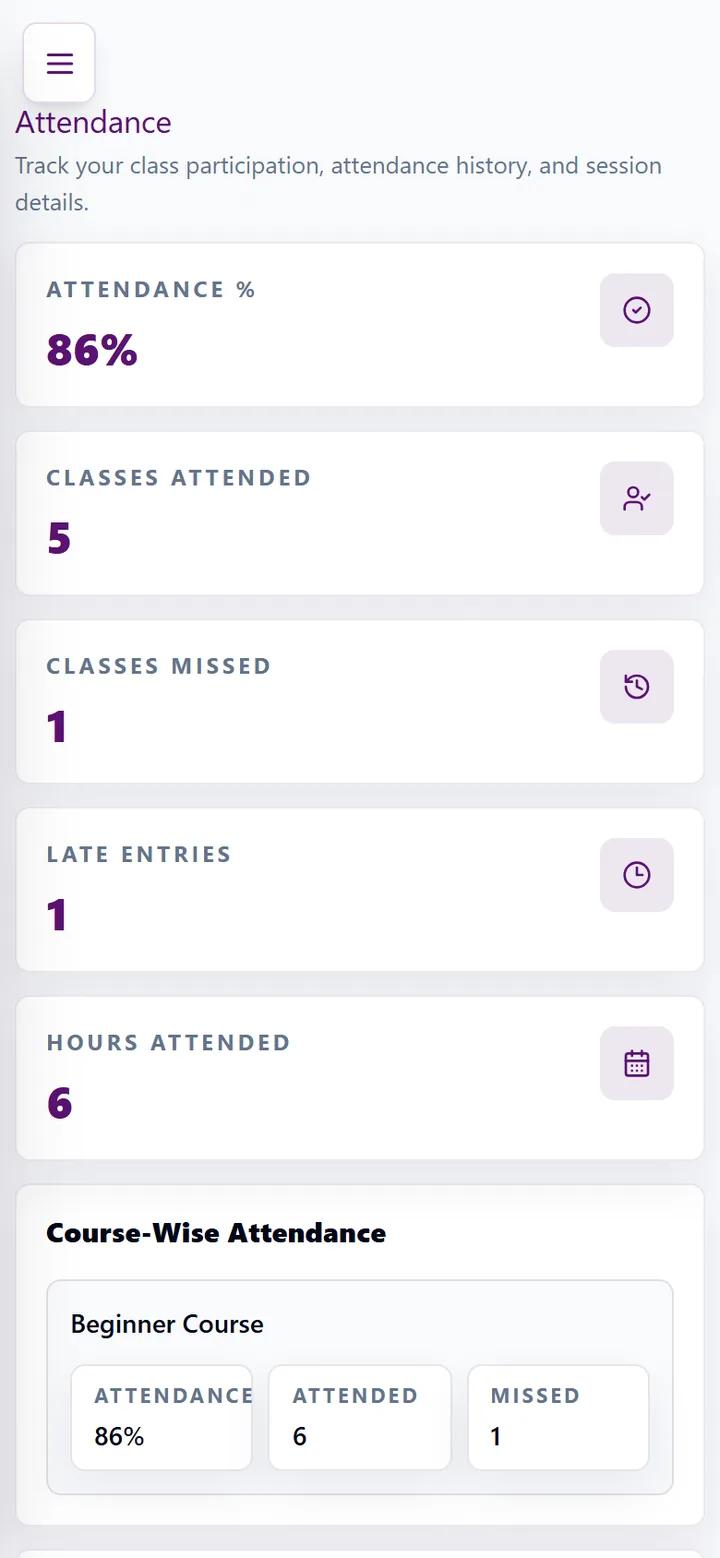
Class Tools → Attendance shows your attendance percentage, classes attended, missed and late, and total hours. Below that, every class is listed with its date, topic and status - Present, Late or Absent. On a credit plan, each class marked Present or Late uses one class credit, so this page also explains your credit balance. If a class you attended shows as absent, tell your coach or the academy so it can be corrected.
Step 6: Message your coach with Ask Coach
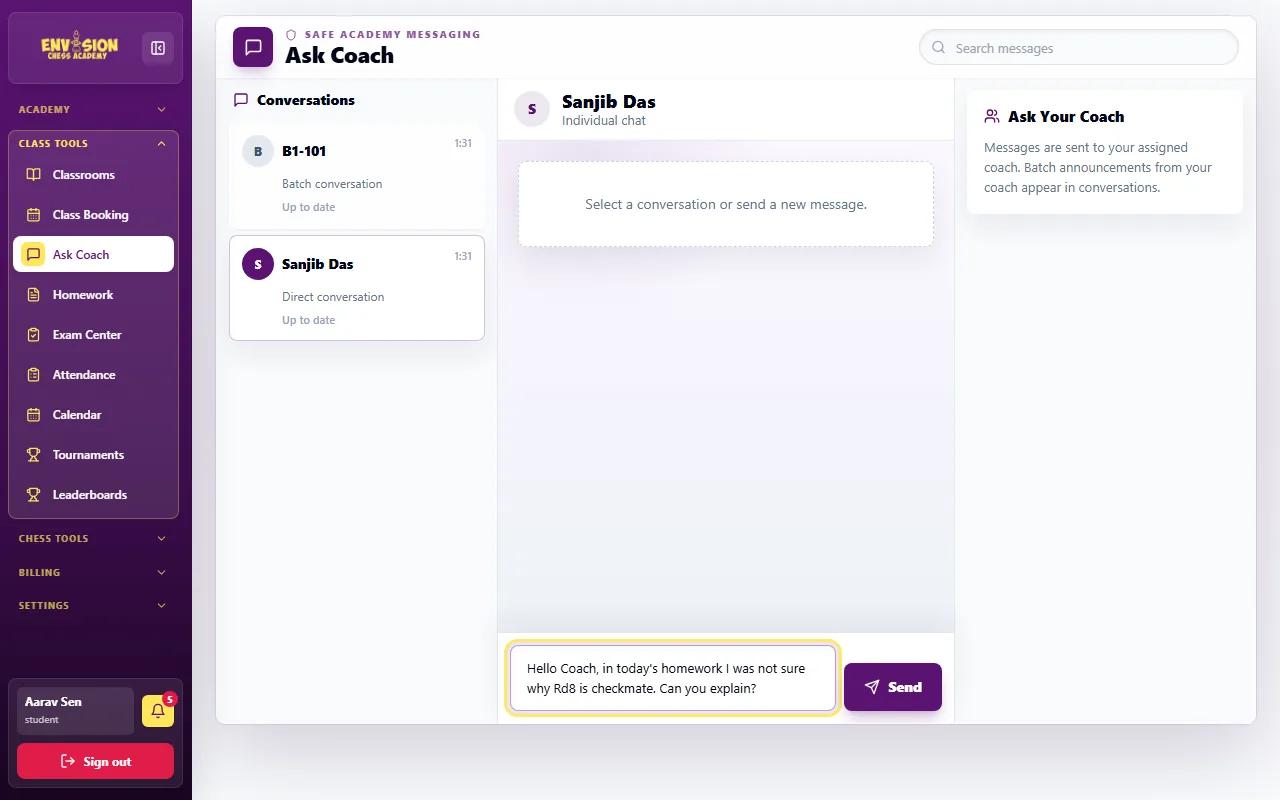
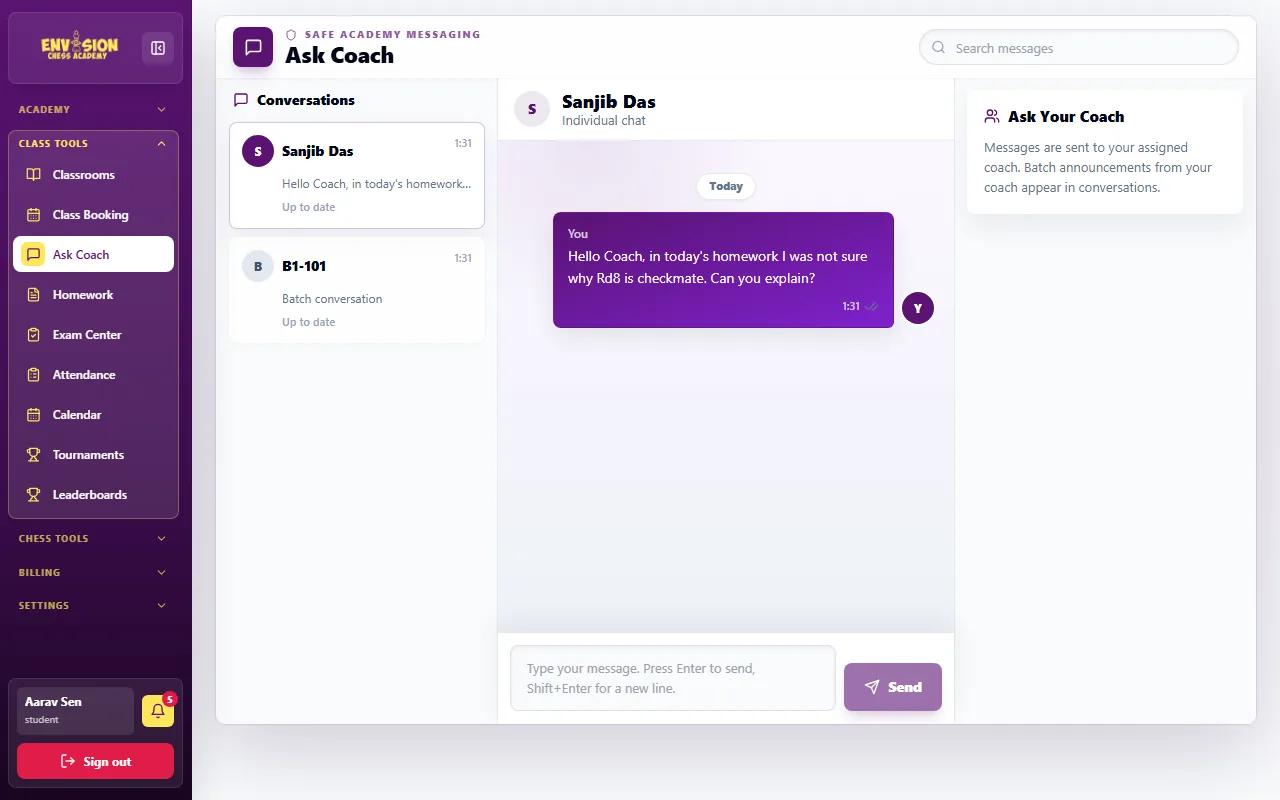
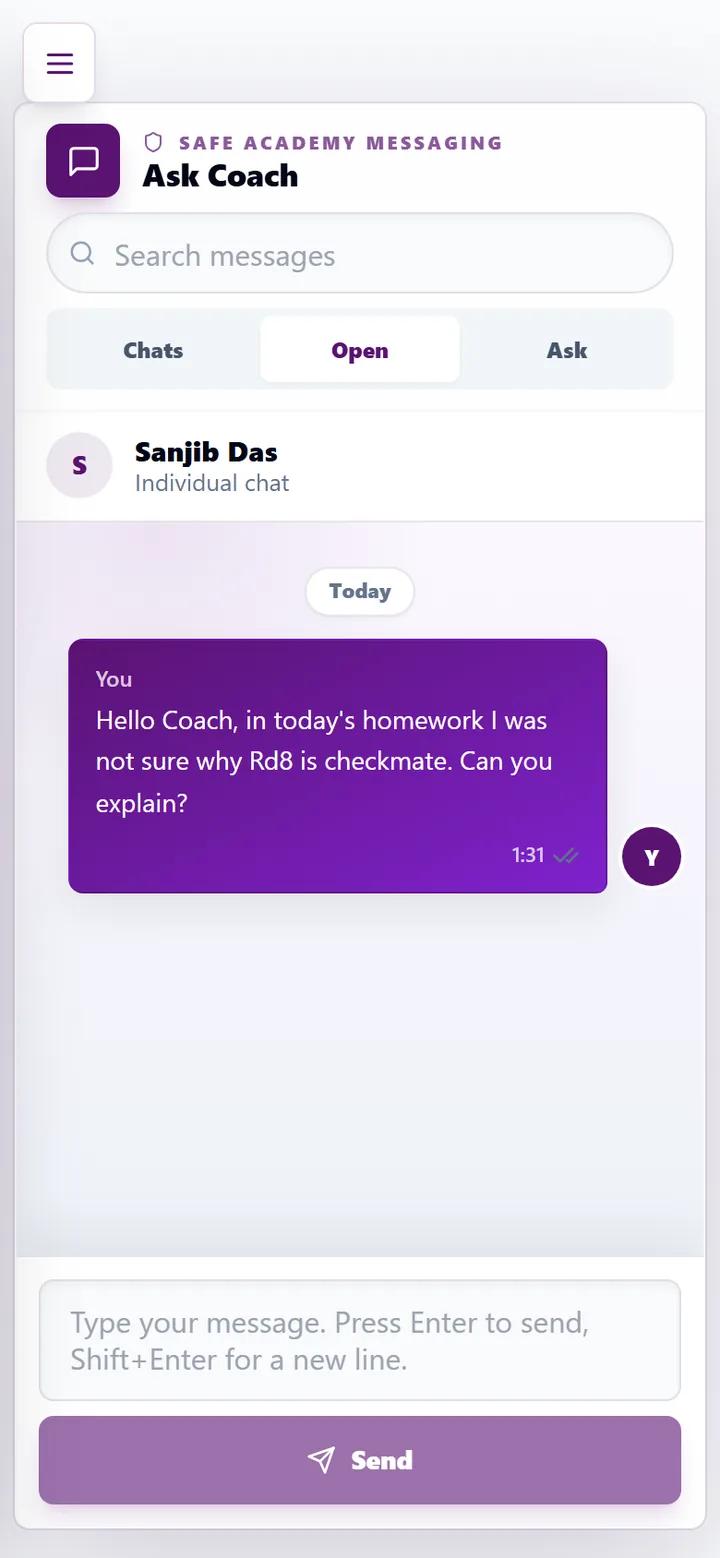
Class Tools → Ask Coach is the academy's safe messaging. There is a batch chat for your group and a direct conversation with your coach. Choose a conversation, type your message and press Send (or press Enter). Coaches reply in the portal and you see a badge when there is something new.
Ask Coach is for chess questions: a homework position you did not understand, a game you want looked at, or a missed class. Messages with phone numbers, email addresses or other apps are flagged automatically, so keep everything in the portal. For a longer conversation, book a parent-teacher meeting.
After class, the homework appears on the Homework page; our homework guide walks through it. Classes follow a set syllabus, from the beginner chess course upwards.
Frequently asked questions
When can we join the class?
The class room opens 5 minutes before the start time. Until then Join Classroom is greyed out and shows when it opens. You also get a reminder 10 minutes before.
Why does a class show as absent when my child attended?
Attendance comes from the live class room. A student who joined only the video call and never opened the portal room can appear absent. Tell the coach or the academy and it can be corrected.
What times are classes shown in?
All class times in the portal are in India time (IST). Families abroad should convert to their local time.
Can I message the coach outside class?
Yes, use Ask Coach in the portal. Keep messages to chess questions; phone numbers and outside apps are flagged.