
Once your Envision demo account is created, joining the free demo class takes four moves: log in, pick a demo time, wait for the academy to confirm a coach, and press Join Demo Class when the room opens, 5 minutes before the start. Everything happens in the same student portal an enrolled student uses, and the demo class is a real live lesson with a real coach, not a recording. This guide shows each screen on a computer and on a phone.
If you have not made an account yet, start on the free demo class page. If you would like to know what a live lesson feels like before you book, our guide to how online chess classes work walks through a typical class.
Step 1: Log in to the student portal
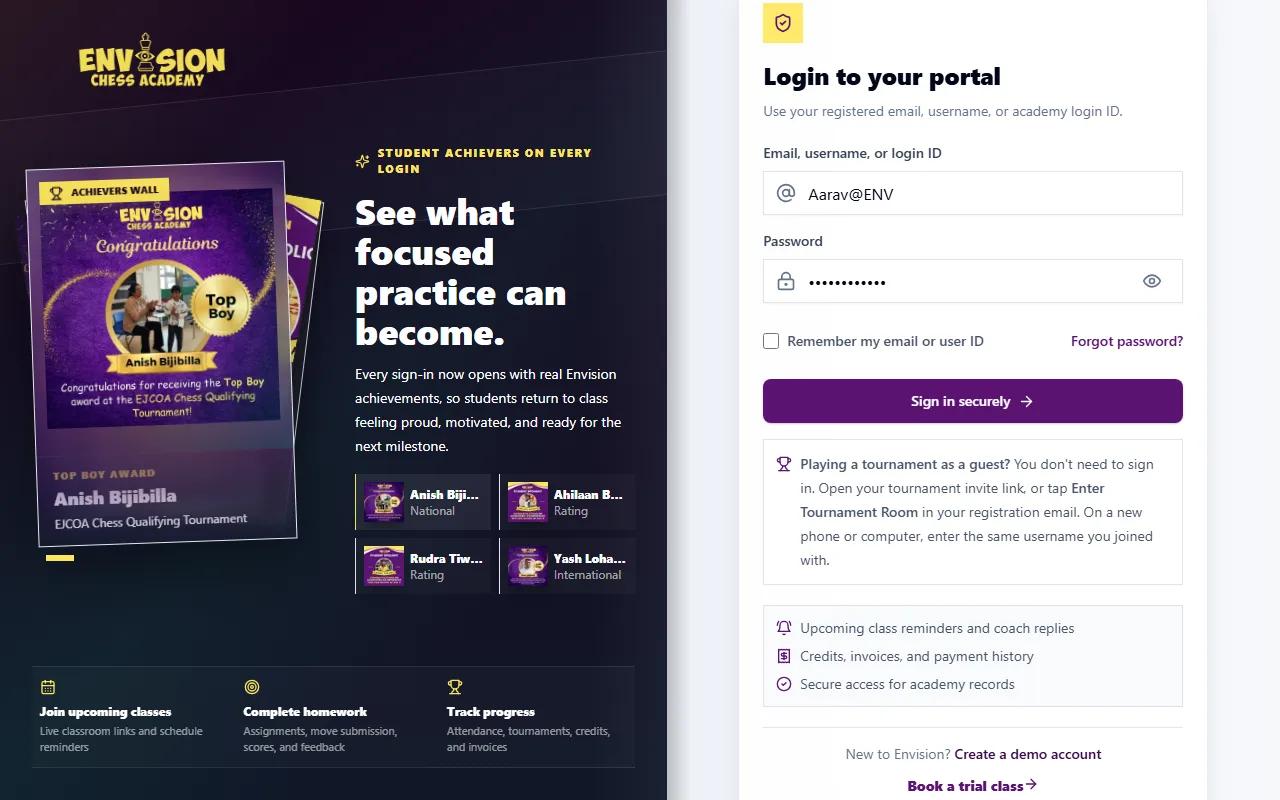
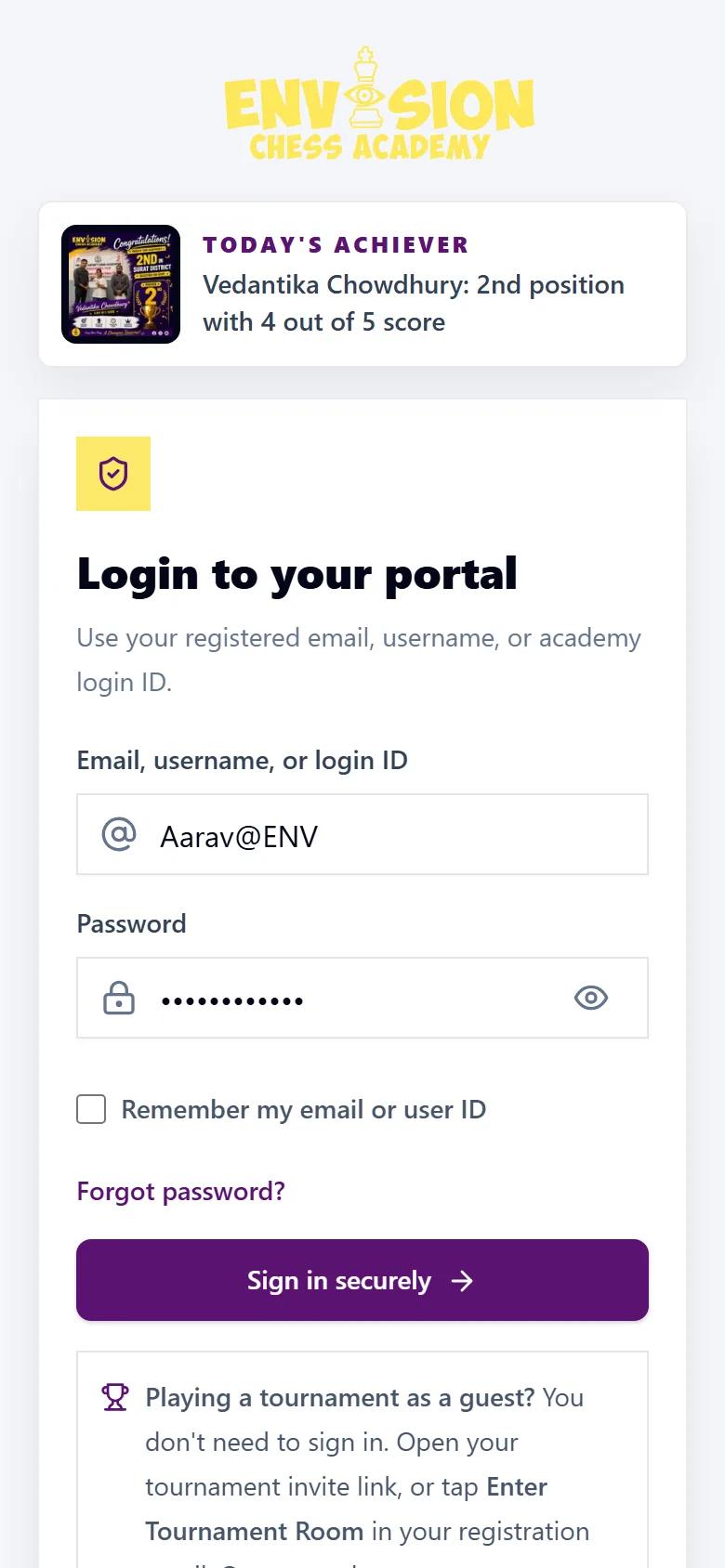
When the academy team creates your demo account, you receive a welcome email with your username (it looks like Aarav@ENV) and a temporary password. Open envisionchessacademy.com, press Login, and enter the username (or your email) and the password. Afterwards, change the temporary password to one of your own from Account Settings. If you have lost it, use Forgot password? under the password box.
If you created the account yourself on the sign-up page, you are already logged in and taken to the booking page, so skip to Step 4. And if the academy already agreed a time with you on the phone, the class may be booked before you first log in: you will see Demo class scheduled or Demo class confirmed on the dashboard and can go straight to Step 6.
Step 2: Complete your details
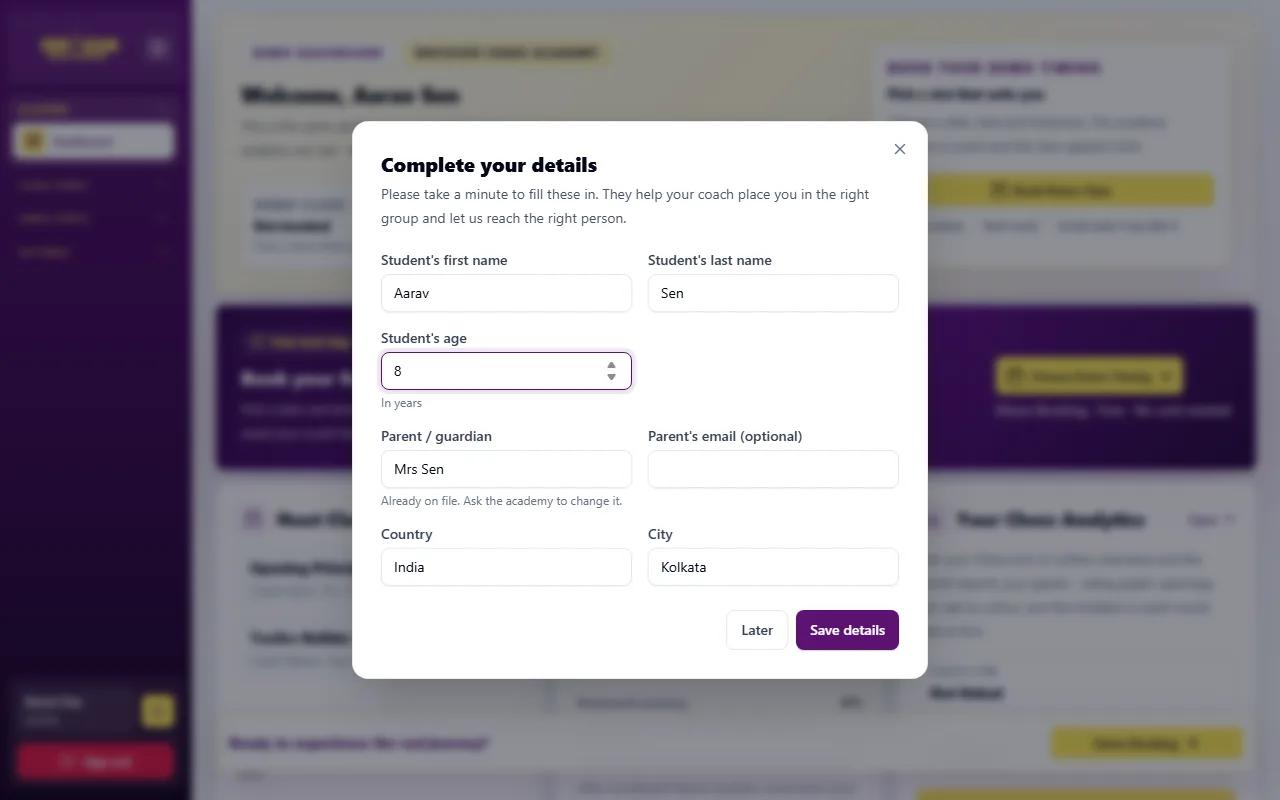
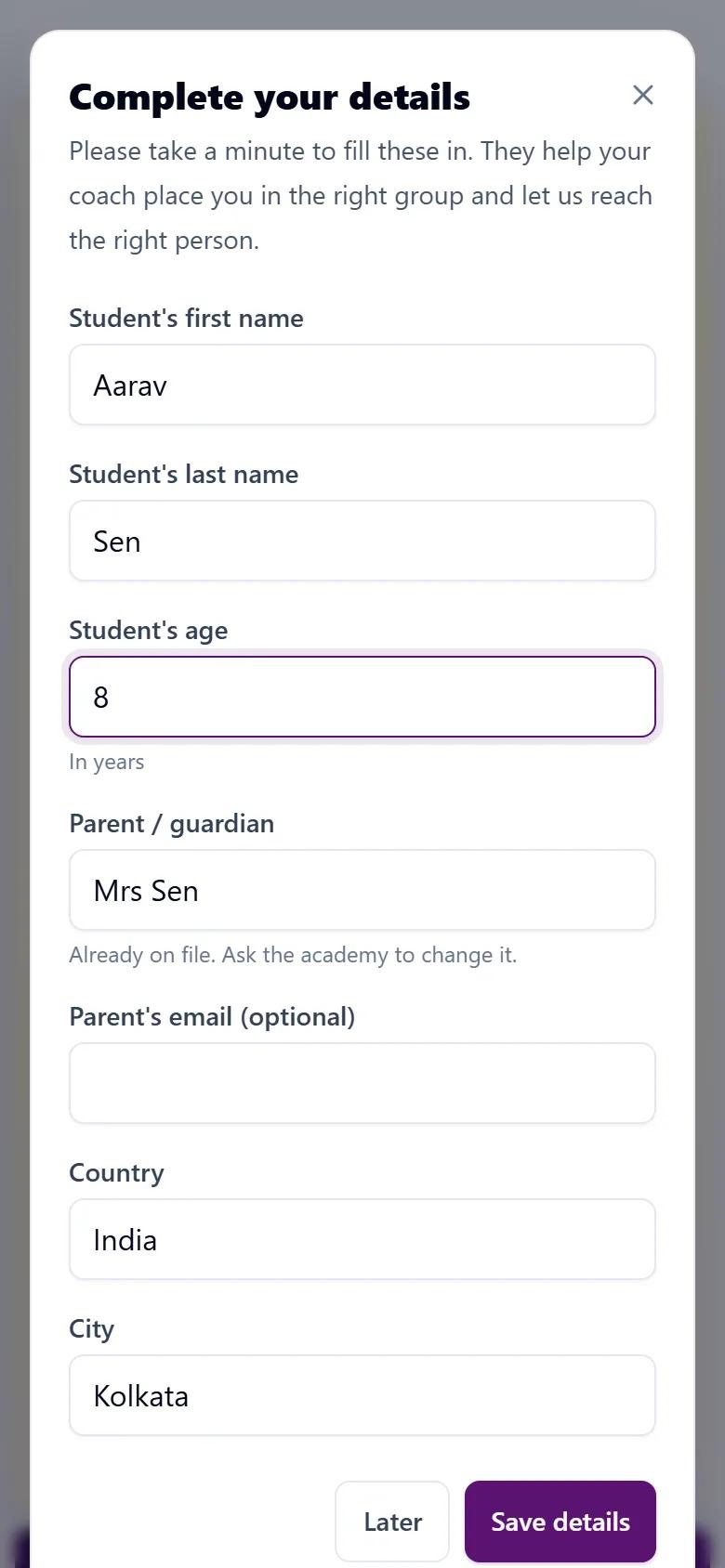
On the first login a Complete your details box opens over the dashboard. It asks for the student's first and last name, age, the parent or guardian's name, an optional parent email, and the country and city. Most of it is already filled in from the sign-up form; usually only the age is missing. Fill in what is empty and press Save details.
These details are not paperwork for its own sake. The coach uses the age and level to plan the demo, and the academy uses the parent's name and city to reach the right person afterwards. You can press Later if you are in a hurry, but the box comes back the next time you open the portal until it is complete.
Step 3: Find the demo booking on your dashboard
Your Demo Dashboard opens next. It is the same dashboard an enrolled student uses. The parts marked Demo Preview are sample data that show what you get after enrolling; your demo class, your homework and your chess analytics are real. The purple band says Book your free demo class. Press Choose Demo Timing (or Book Demo Class in the box at the top). You can also open it any time from Class Tools → Demo Booking in the menu.
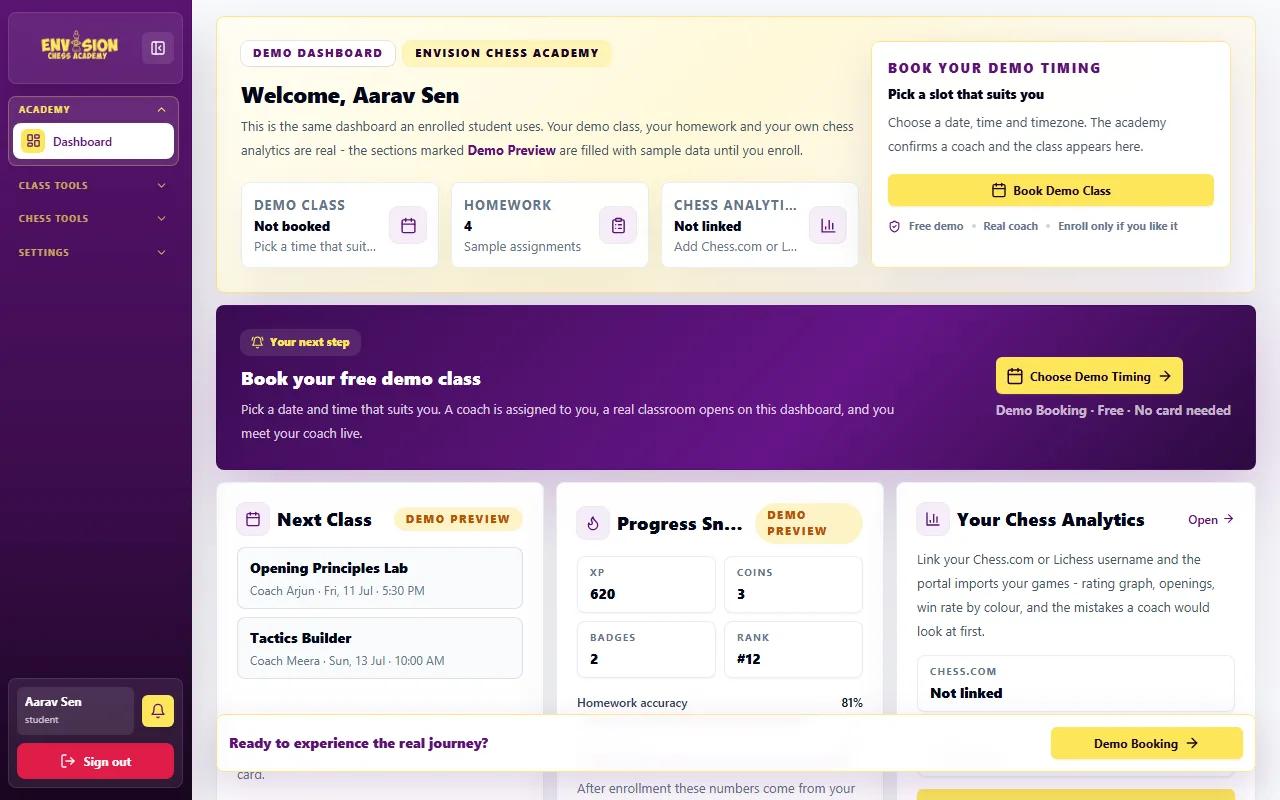
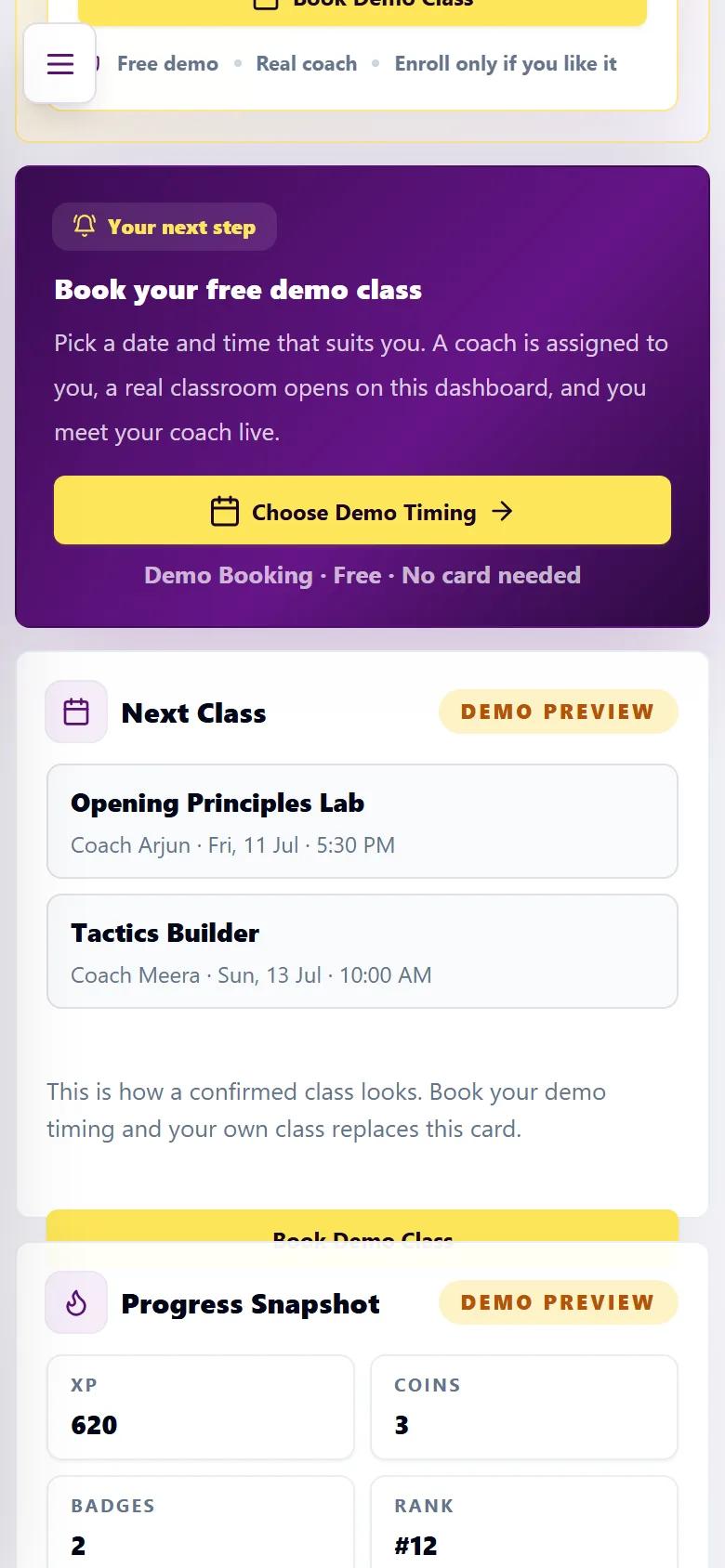
Step 4: Pick a day and time for the demo
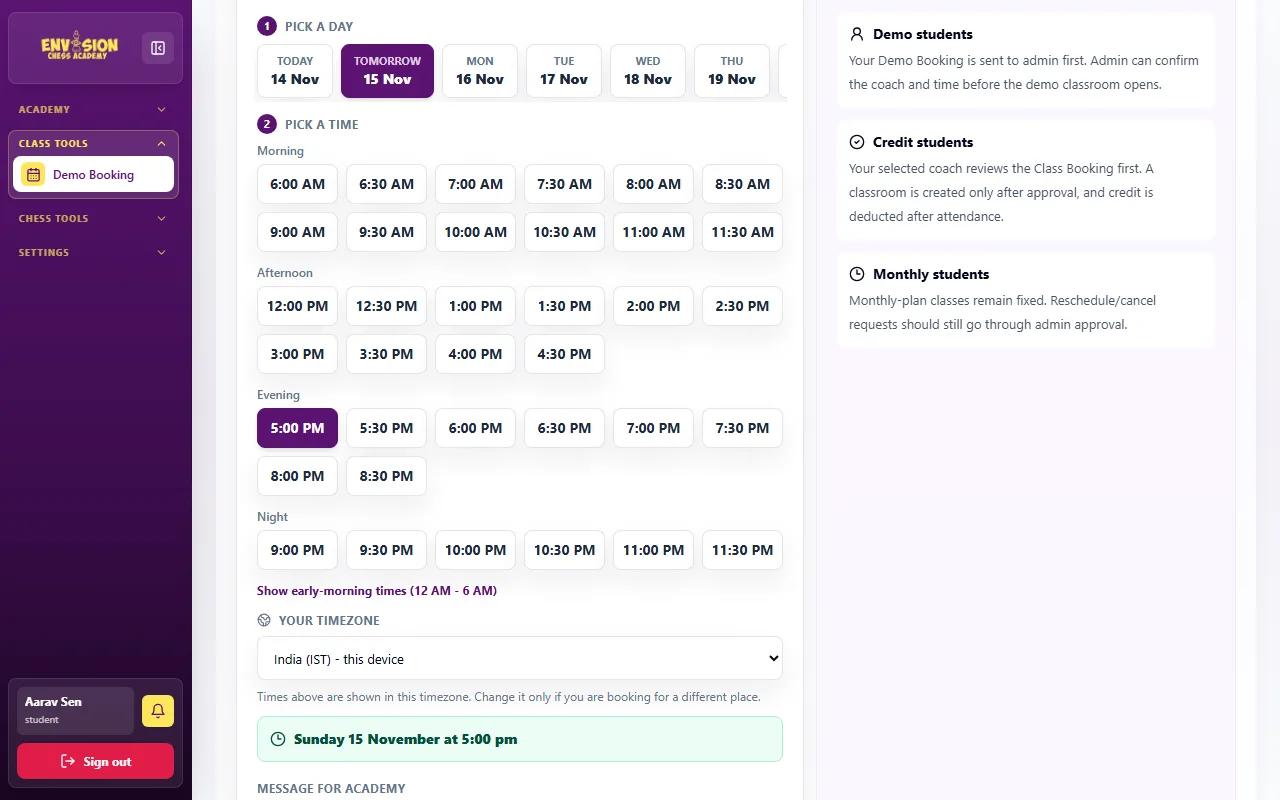
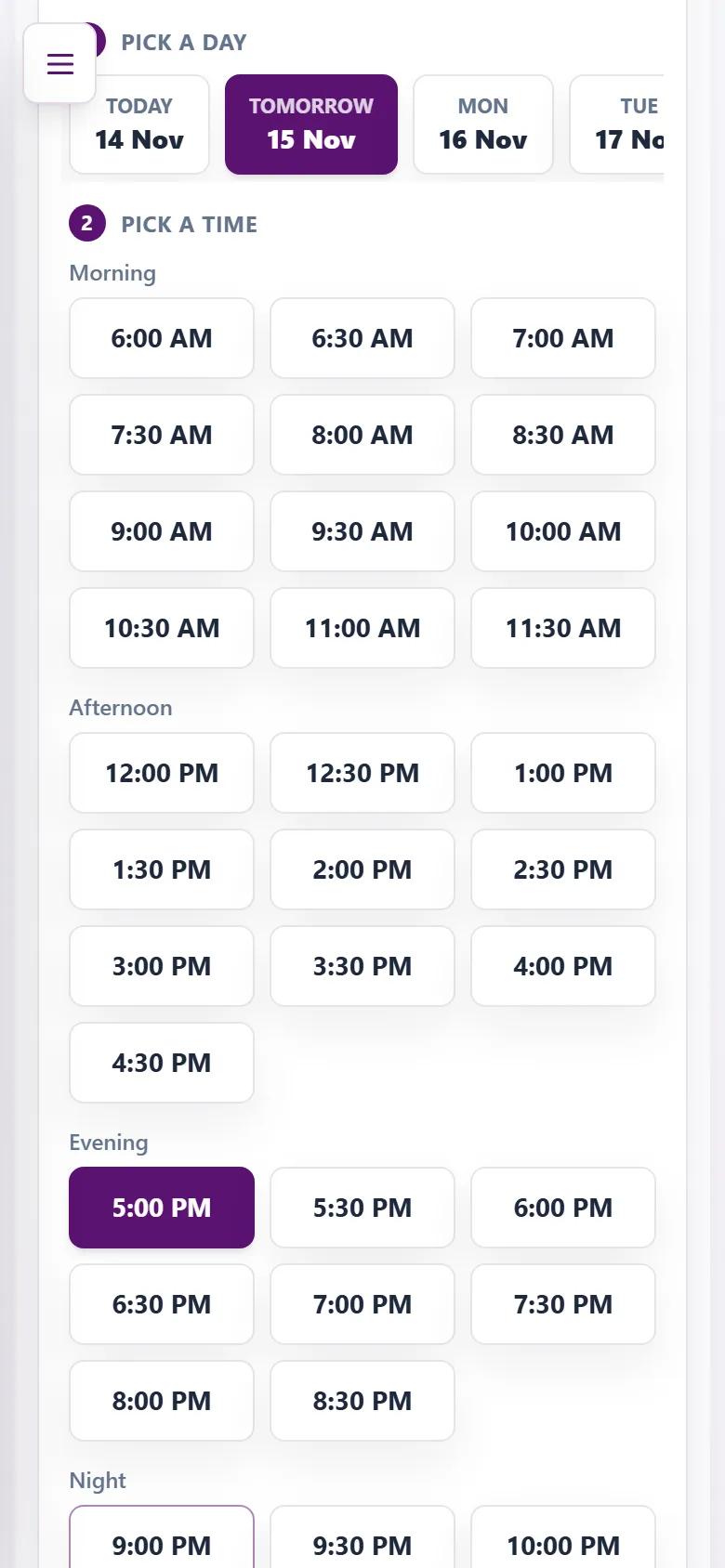
The Demo Booking page asks for your preferred time in two taps. First pick a day: the next two weeks are shown, starting with Today and Tomorrow. Then pick a time: half-hour slots grouped into Morning, Afternoon, Evening and Night. Only times at least 30 minutes away are shown, so anything you can tap is a time the academy can still arrange. Early-morning times are hidden behind a link, for families in other time zones.
- Check the time zone. The portal reads it from your device, so most families never touch it. Change it only if you are booking for someone in another place.
- Read the green line. It repeats the day and time you chose in words, for example "Sunday 15 November at 5:00 pm", so there is no confusion about AM and PM.
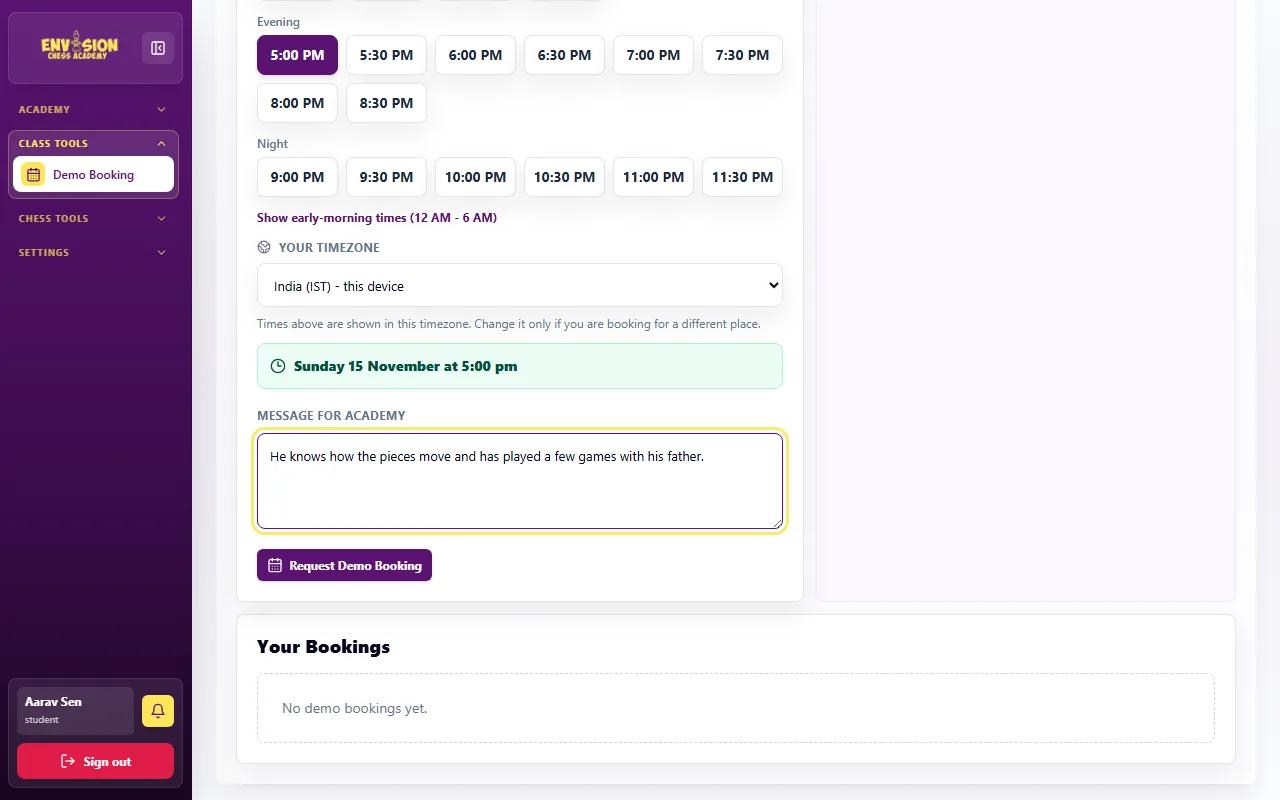
- Leave a message for the academy. A line about the child helps the coach plan: whether they know how the pieces move, whether they play at school, or what they want to learn.
Press Request Demo Booking. A message at the bottom of the screen confirms the time you asked for.
Step 5: Wait while the academy assigns a coach
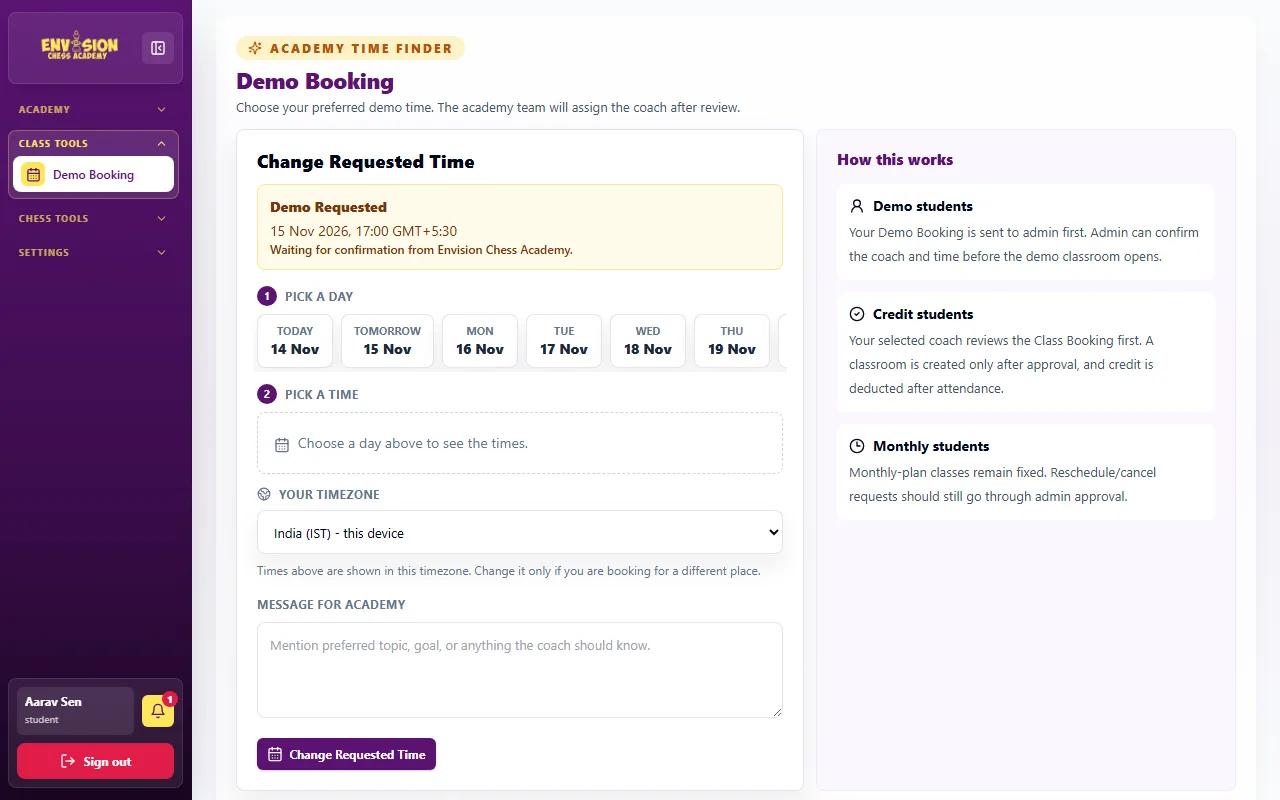
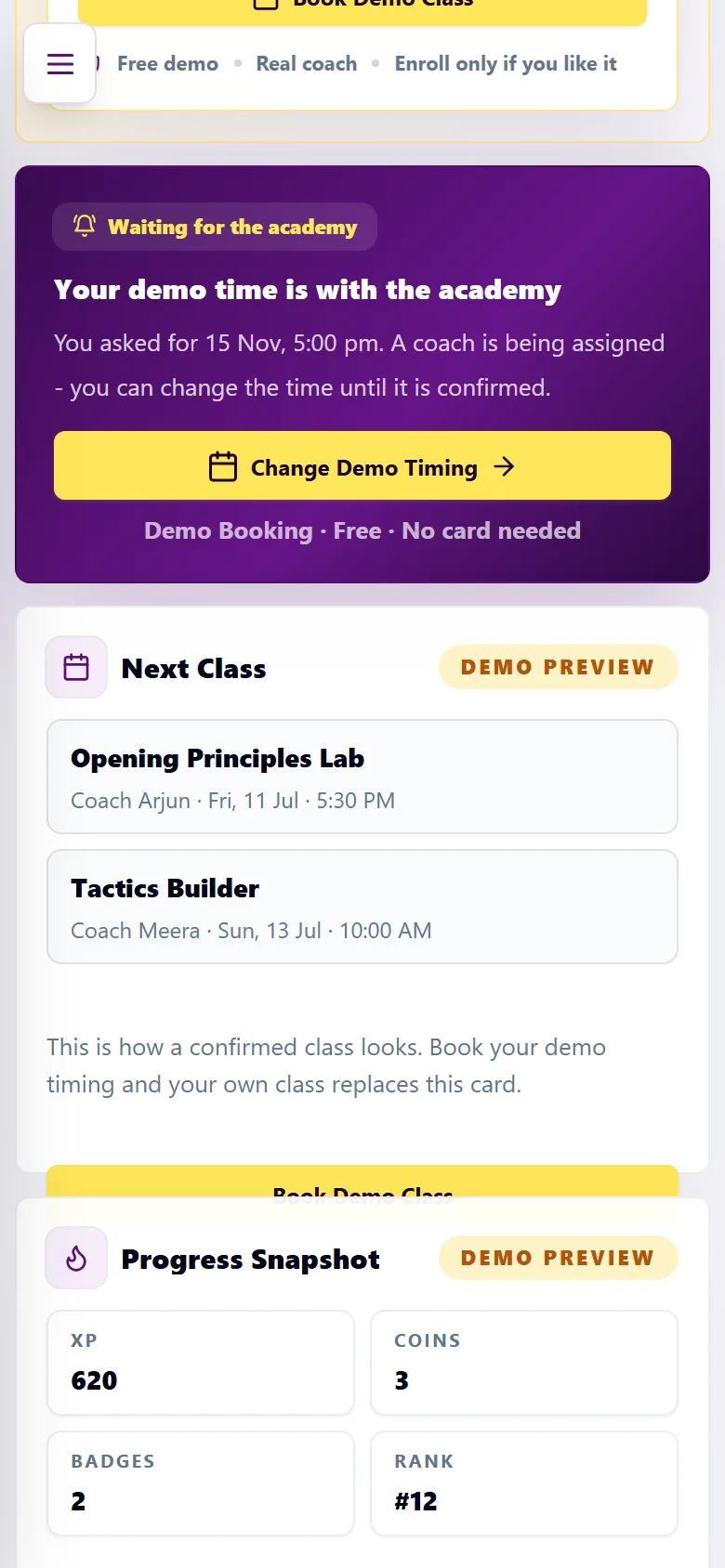
Your request now goes to the academy team, who choose a coach for the student's age and level and fix the class. Until then the booking page shows Demo Requested - Waiting for confirmation from Envision Chess Academy, and the dashboard band changes to Your demo time is with the academy.
You can still change your mind at this stage. Pick a new day and time on the same page and press Change Requested Time, or use Change Demo Timing on the dashboard. There is nothing else to do while you wait. Meanwhile, the Practice & Improve tools on the dashboard are open to demo accounts with a few tries each; our guide to practice tools for kids explains what each one trains.
Step 6: Your demo class is confirmed
When the academy confirms the class you hear about it three ways: a WhatsApp message and an email saying your demo class is confirmed, with the date and time, and a notification on the bell in the portal. The confirmed time is usually the one you asked for. If no coach was free then, the academy agrees a nearby time with you, and the confirmation shows the time that was actually booked.
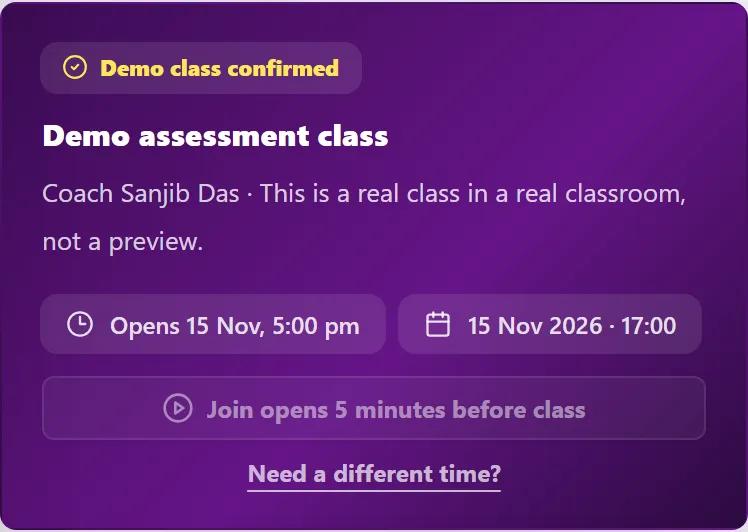
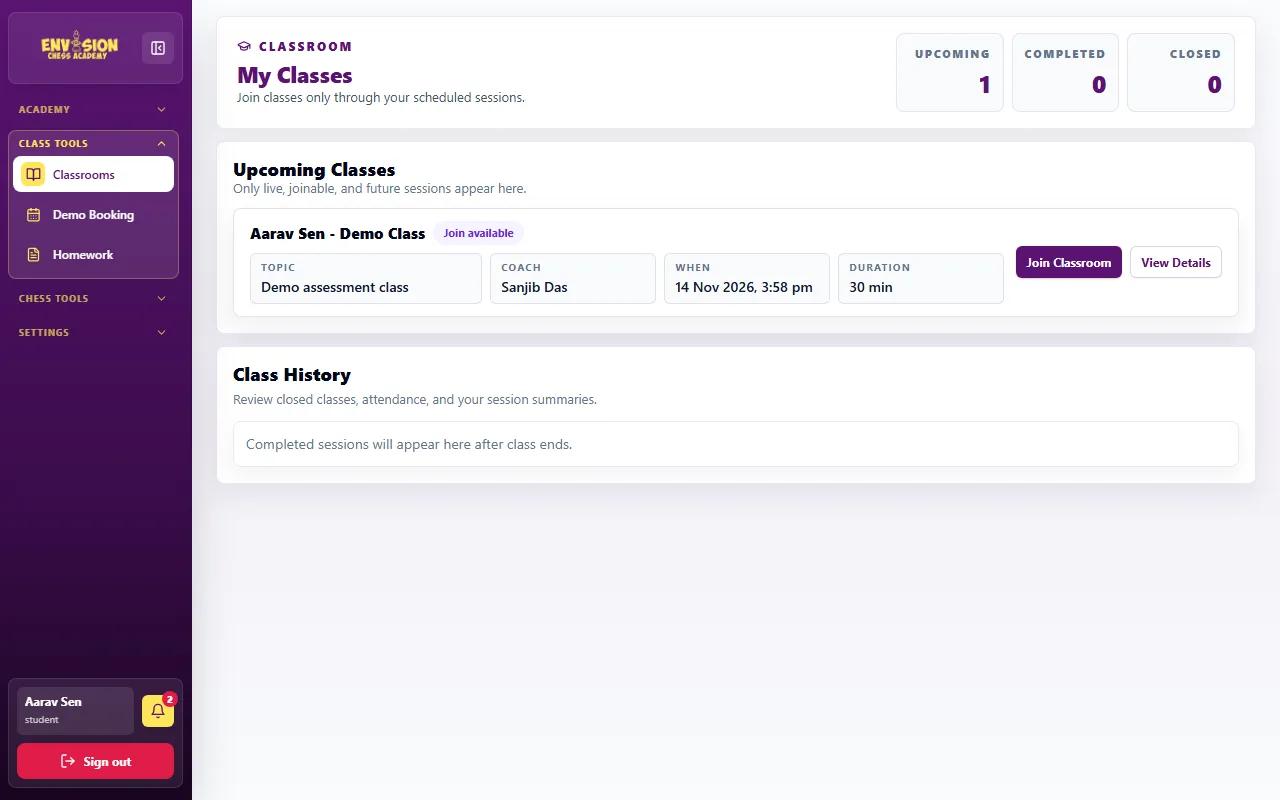
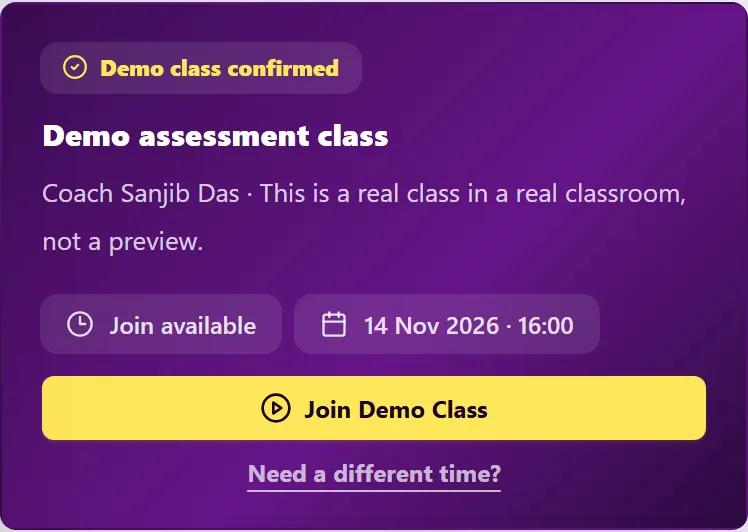
The dashboard band now says Demo class confirmed, with the coach's name, the date and the time. The class also appears under Class Tools → Classrooms, and the booking page shows Demo Class Confirmed with a Go to my classroom button. Until the room opens, the join button is greyed out and reads Join opens 5 minutes before class. If the time no longer suits you, press Need a different time? and send a new one; the academy confirms it again.

A short warm-up homework
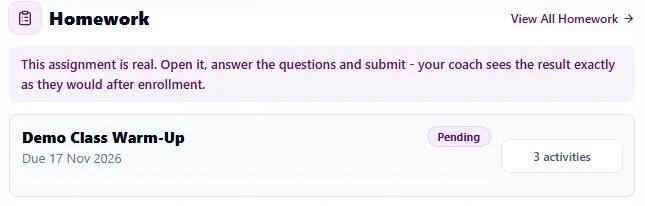
Once the class is booked, a short Demo Class Warm-Up appears in the Homework box on the dashboard, with a due date a couple of days later. It is real homework: a few questions and board tasks. Doing it before the class gives the coach a feel for the child's level and saves time in the lesson. Our homework guide shows how to open, answer and submit it.
Step 7: Join the demo class when the room opens
Reminders arrive on WhatsApp before the class: the day before, an hour before and 15 minutes before. 5 minutes before the start, the button on the dashboard turns yellow and reads Join Demo Class, and the band says Join available. The same class on the Classrooms page now has an active Join Classroom button. Use either one.
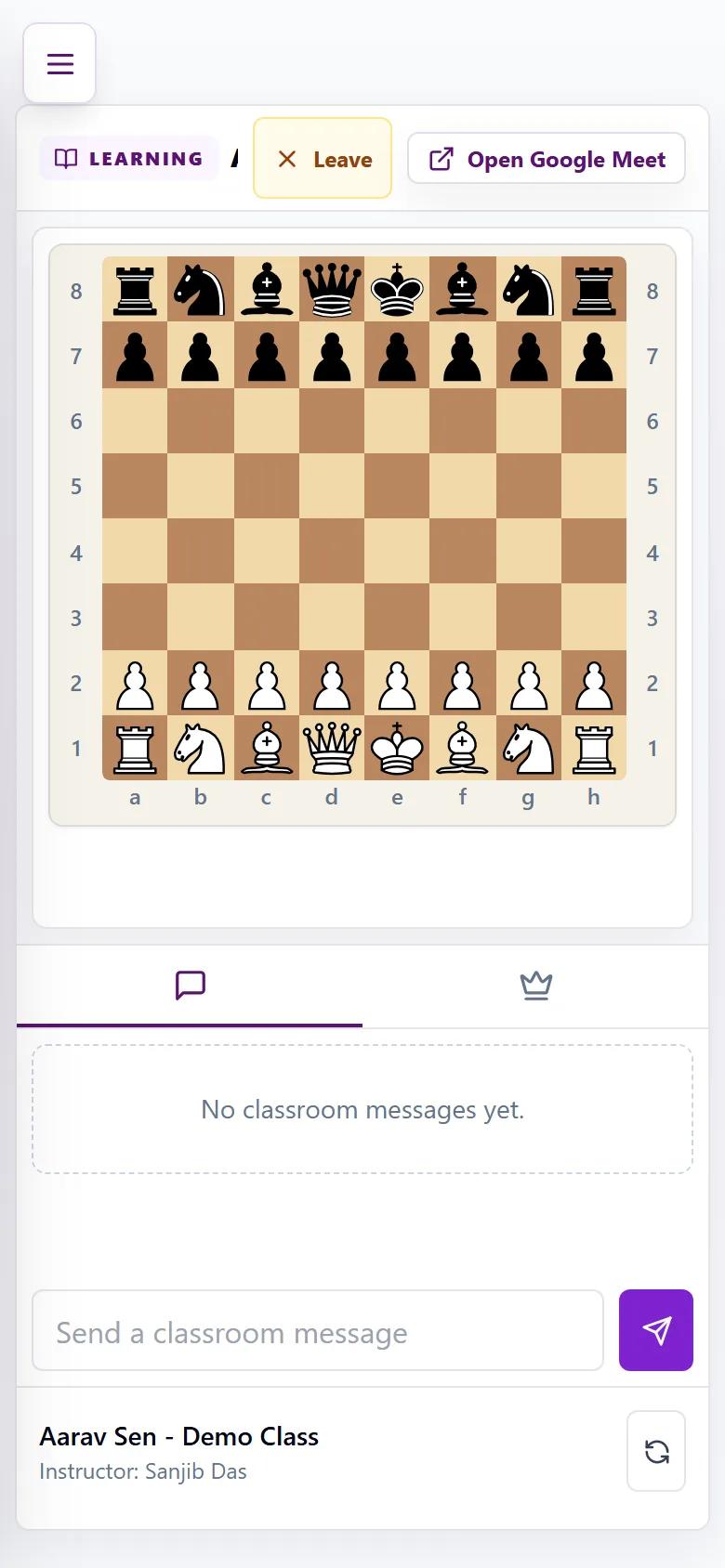
Pressing Join does two things. The class's Google Meet video call opens in a new tab, and this tab becomes the classroom board. Keep both open for the whole class: you see and hear the coach in Meet, and you play the moves on the portal board. If the Meet tab did not open (some browsers block it), press Open Google Meet at the top of the classroom. When Meet asks, allow the camera and microphone.

Step 8: Inside the live classroom
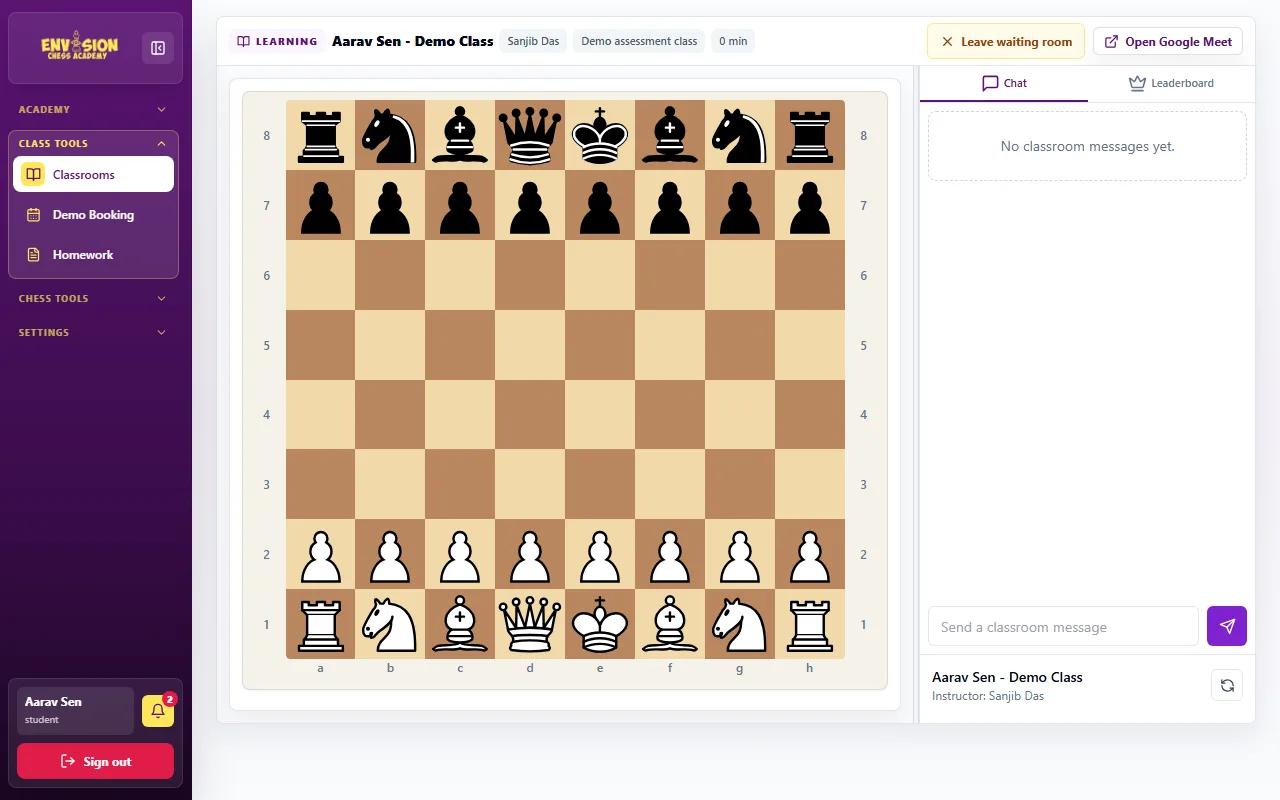
The classroom shows the board in the middle and the class chat on the right (below the board on a phone), with the coach's name and the topic across the top. If you arrive before the coach starts, you are in the waiting room: the board shows the starting position and a Leave waiting room button sits at the top. Stay where you are; the class begins when the coach starts it, and the board follows the coach from then on.
A demo class usually lasts about 30 minutes. The coach gets to know the student, plays through a few positions and checks what they already know, so they can recommend the right level. Let the child answer by themselves, even when they are unsure; the coach learns more from an honest guess than from a prompted answer.
What to have ready for the demo
- A laptop, computer or tablet, charged or plugged in. A phone works, but the board is small and switching between Meet and the board is easier on a bigger screen.
- A steady internet connection. Close other apps and videos, and sit near the Wi-Fi router if you can.
- Headphones with a microphone, so the coach is clear and the child can answer easily.
- A quiet corner and a parent nearby, especially for younger children. Parents are welcome to listen in, and the last few minutes are a good time to ask the coach questions.
- Log in 10 minutes early. If the password needs resetting or the device needs an update, there is still time before the room opens.
After the demo class
After the class the coach writes an assessment of the student's level, and the academy contacts you to talk through it: which course and level fit, which batch times are free, and what happens next. There is no obligation to enrol. If you do, the same login keeps working; the Demo Preview sections fill with your own classes, homework and progress, and our guide to joining your regular online classes covers the portal from there. Most new students start in the beginner chess course.
Frequently asked questions
When can we join the demo class?
The room opens 5 minutes before the start time. Until then the button reads Join opens 5 minutes before class. At the start, press Join Demo Class on the dashboard or Join Classroom on the Classrooms page.
How do we know the demo is confirmed?
You get a WhatsApp message and an email with the date and time, and a notification in the portal. The dashboard band changes to Demo class confirmed and shows the coach's name.
Can we change the demo time?
Yes. Before the class is confirmed, pick a new time on the Demo Booking page and press Change Requested Time. After it is confirmed, use Need a different time? on the dashboard and the academy confirms the new time.
Do we need Google Meet as well as the portal?
Yes. Join opens the Google Meet video call in a new tab and the classroom board in the portal. Keep both open; if Meet does not open, press Open Google Meet at the top of the classroom.
Is the demo class free?
Yes. The demo class is free and needs no card. Enrol only if you like it.