
Envision students have five online chess practice tools in the portal, all under Chess Tools in the menu: Learn Chess (step-by-step lessons), Tactics Trainer (puzzles at your level), King Hunt (checkmate puzzles), Square Trainer (a board-vision game) and Play vs Computer. Ten minutes a day on any of them builds the patterns that win games. This guide shows what each tool does, on a computer and on a phone.
Practice is different from homework. Homework is set by the coach and has a due date; the practice tools are open any time, as often as you like, and the puzzles and games you solve earn XP and coins for the academy leaderboard. A good routine is homework first, then a few minutes of puzzles.
Learn Chess: lessons step by step
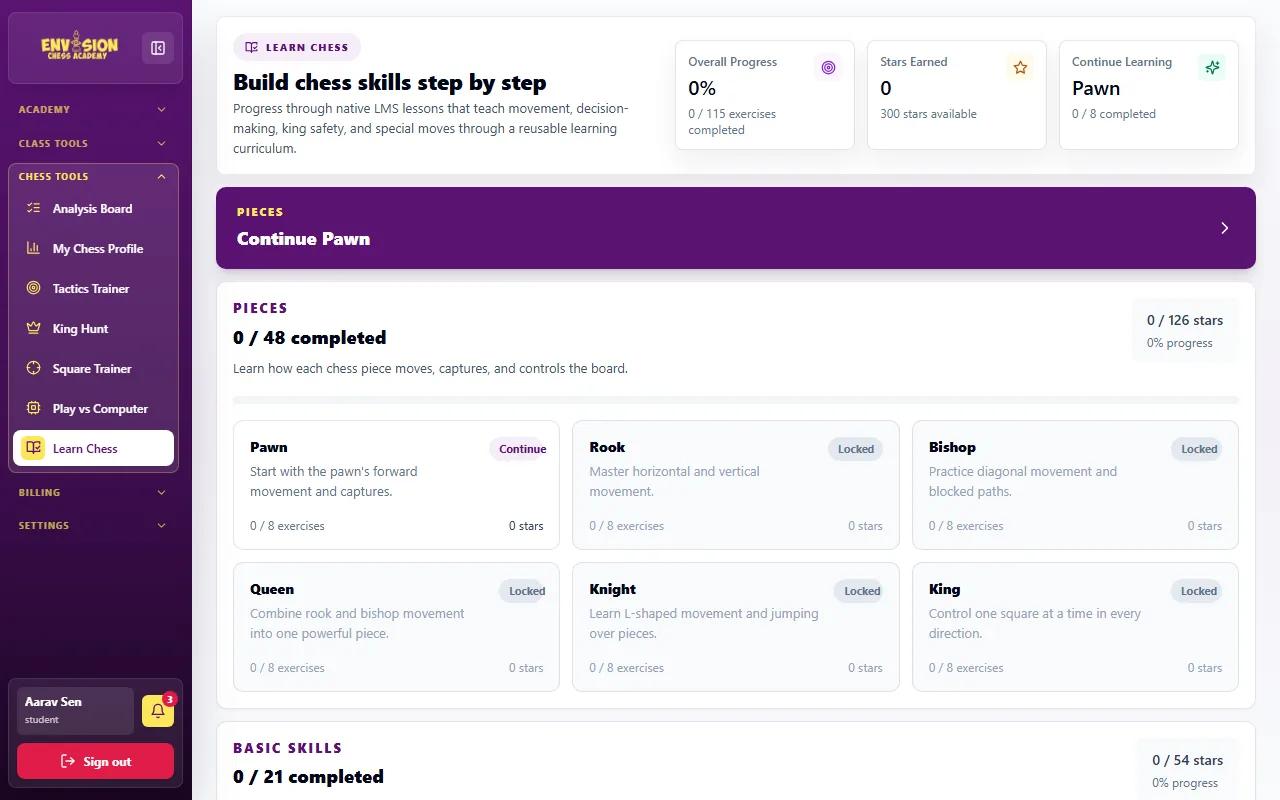
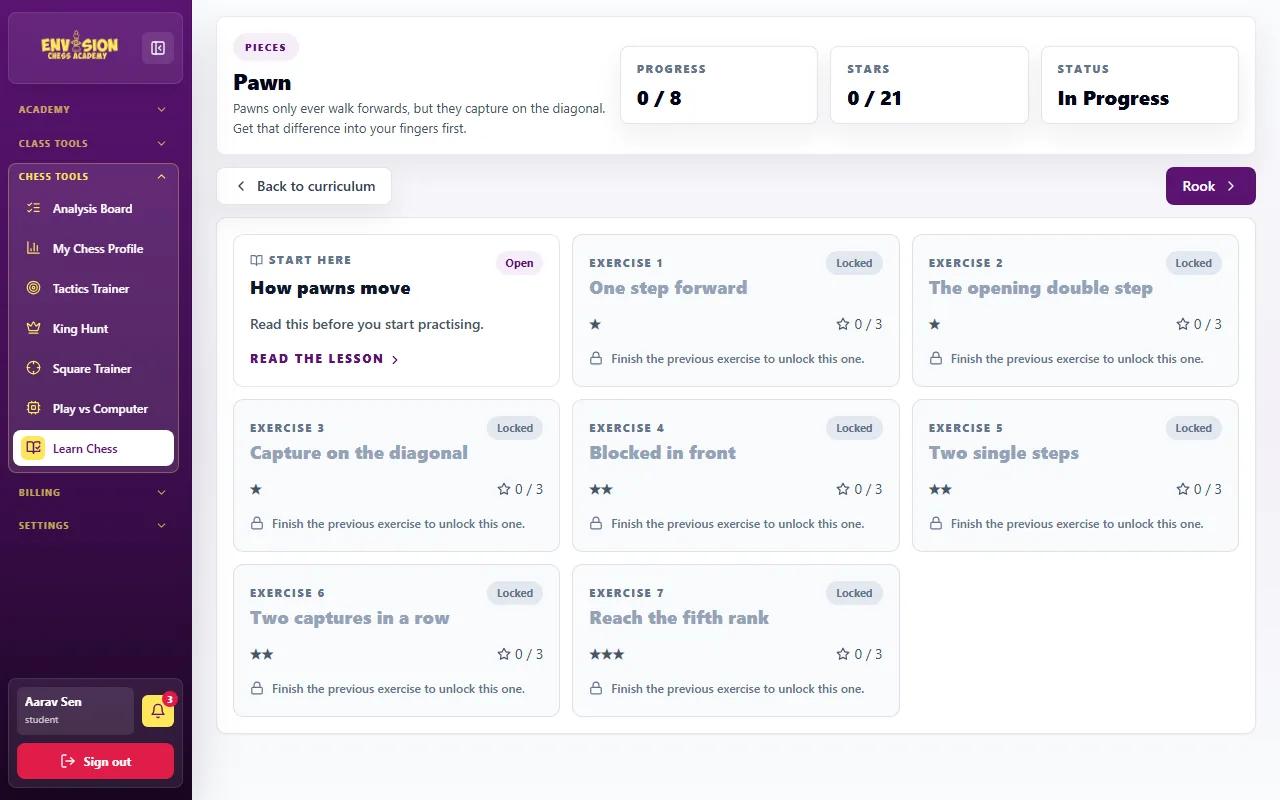
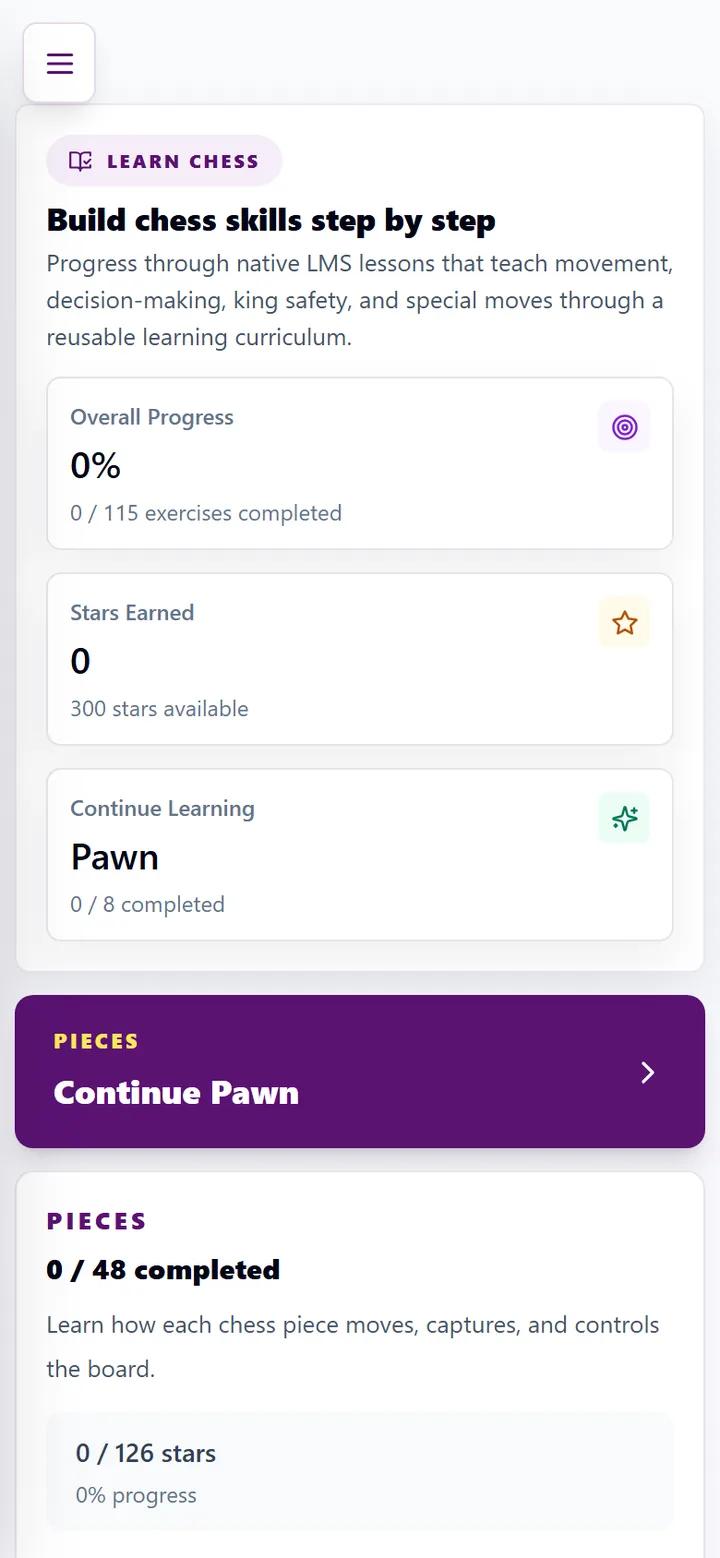
Learn Chess is a guided course inside the portal. It starts with how each piece moves - the pawn first, then the rook, bishop, queen, knight and king - and moves on to basic skills. Each lesson has short exercises, and each exercise earns up to three stars. Lessons unlock in order: finish one to open the next. The top of the page shows your overall progress and stars, and Continue takes you straight to where you left off.
It is ideal for new beginners and younger children, and a quick refresher for anyone unsure about a rule. Our written guide to how chess pieces move covers the same ground with diagrams.
Tactics Trainer: puzzles at your level
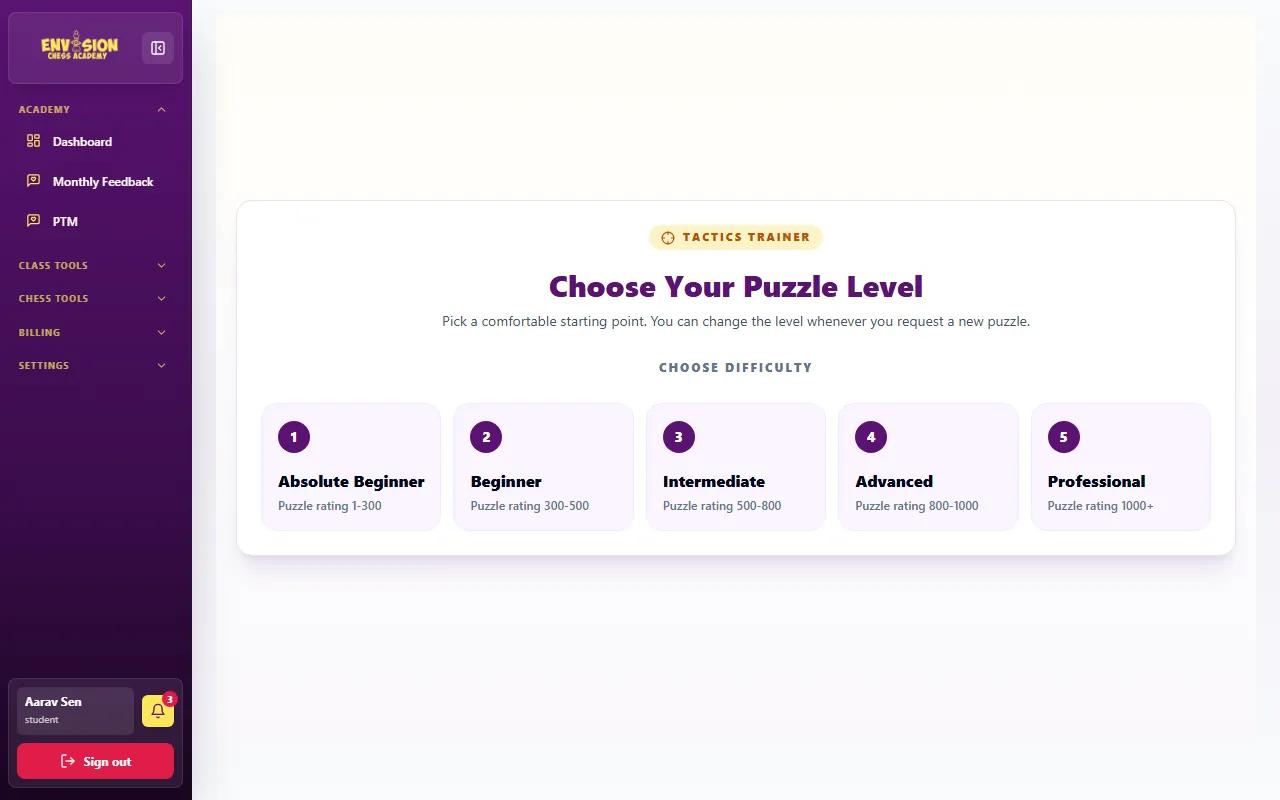
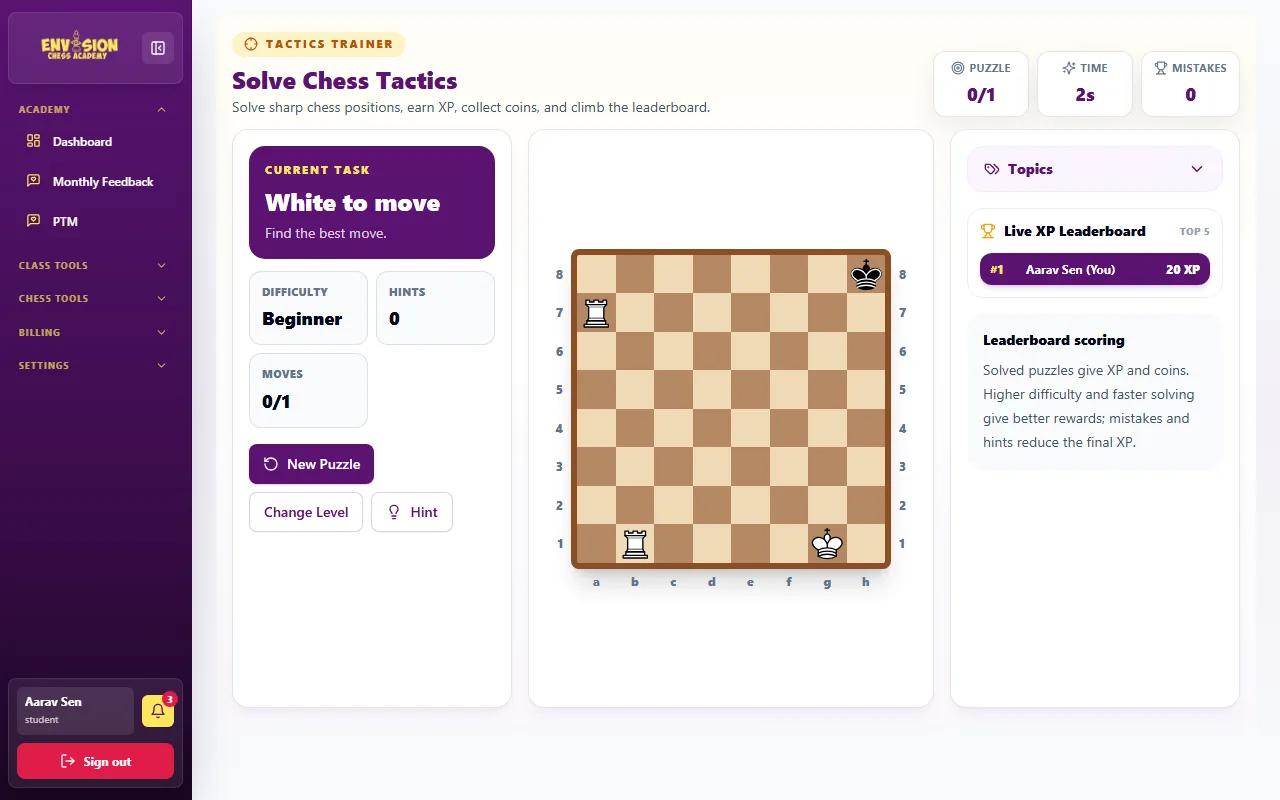
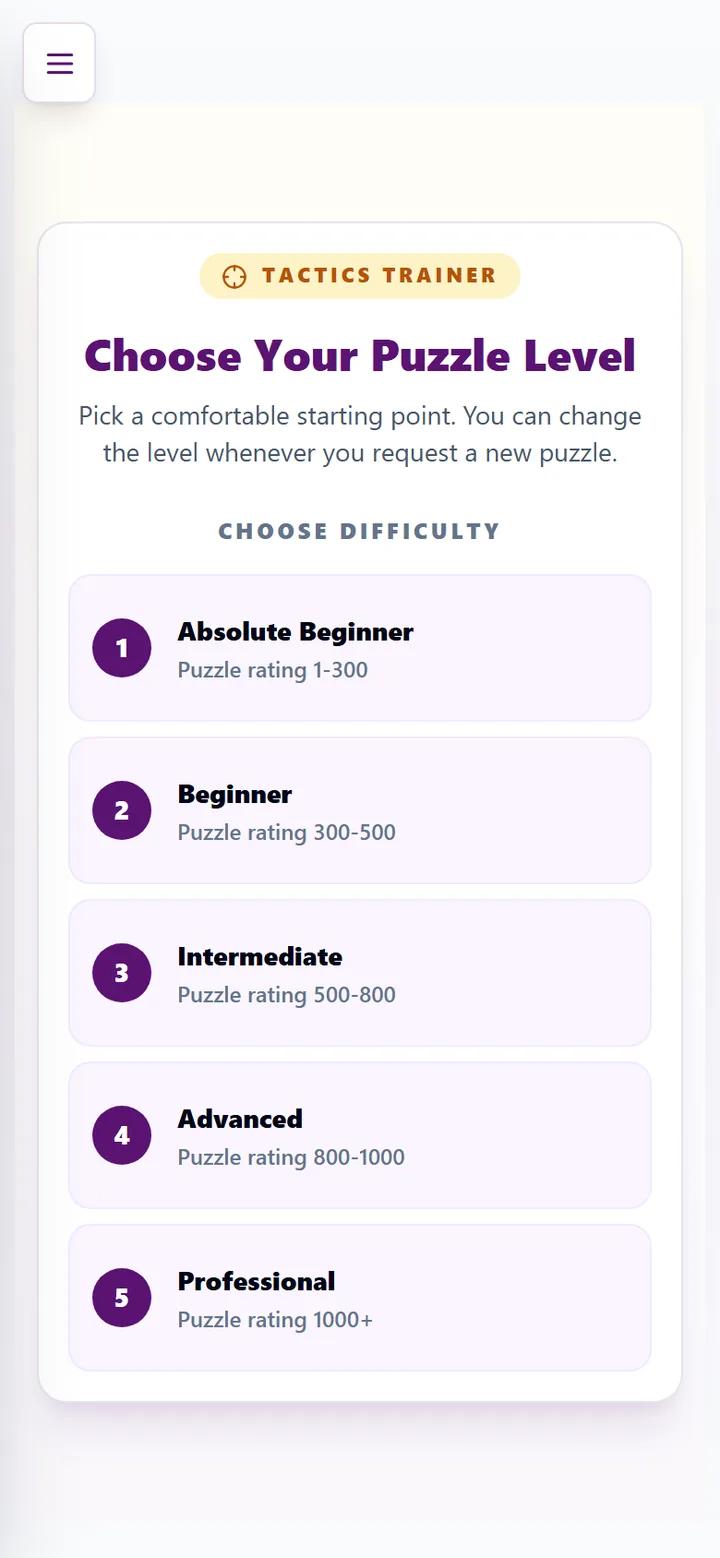
Tactics Trainer gives you one puzzle at a time from a large puzzle collection. First choose a level - Absolute Beginner (puzzle rating 1-300), Beginner (300-500), Intermediate (500-800), Advanced (800-1000) or Professional (1000+) - and the first puzzle opens. The opponent has just moved; find the best reply. Drag or tap the pieces as usual. A Hint helps when you are stuck, and the next puzzle is one click away. You can change level at any time.
Start one level lower than feels comfortable and move up when you solve most puzzles first time. The ideas you meet most often - forks, pins and skewers - are explained in our guide to chess tactics.
King Hunt: checkmate puzzles
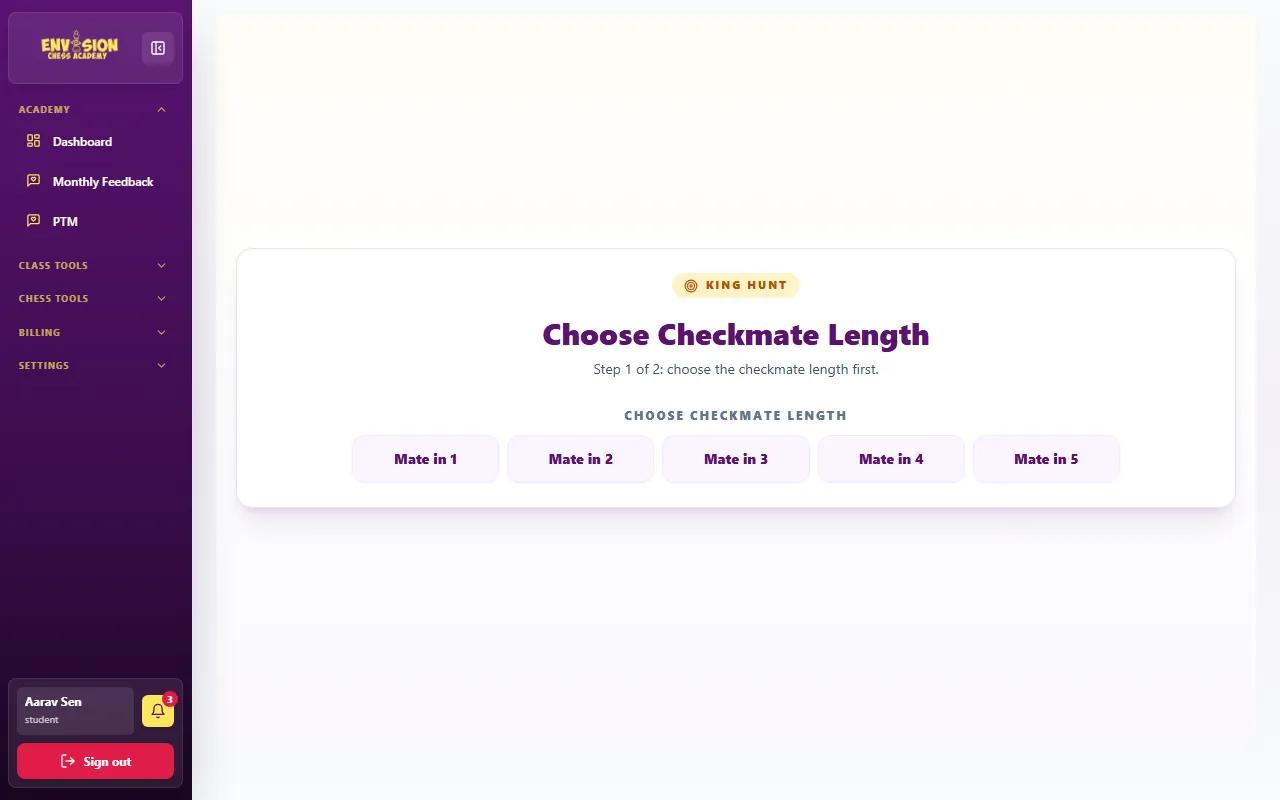
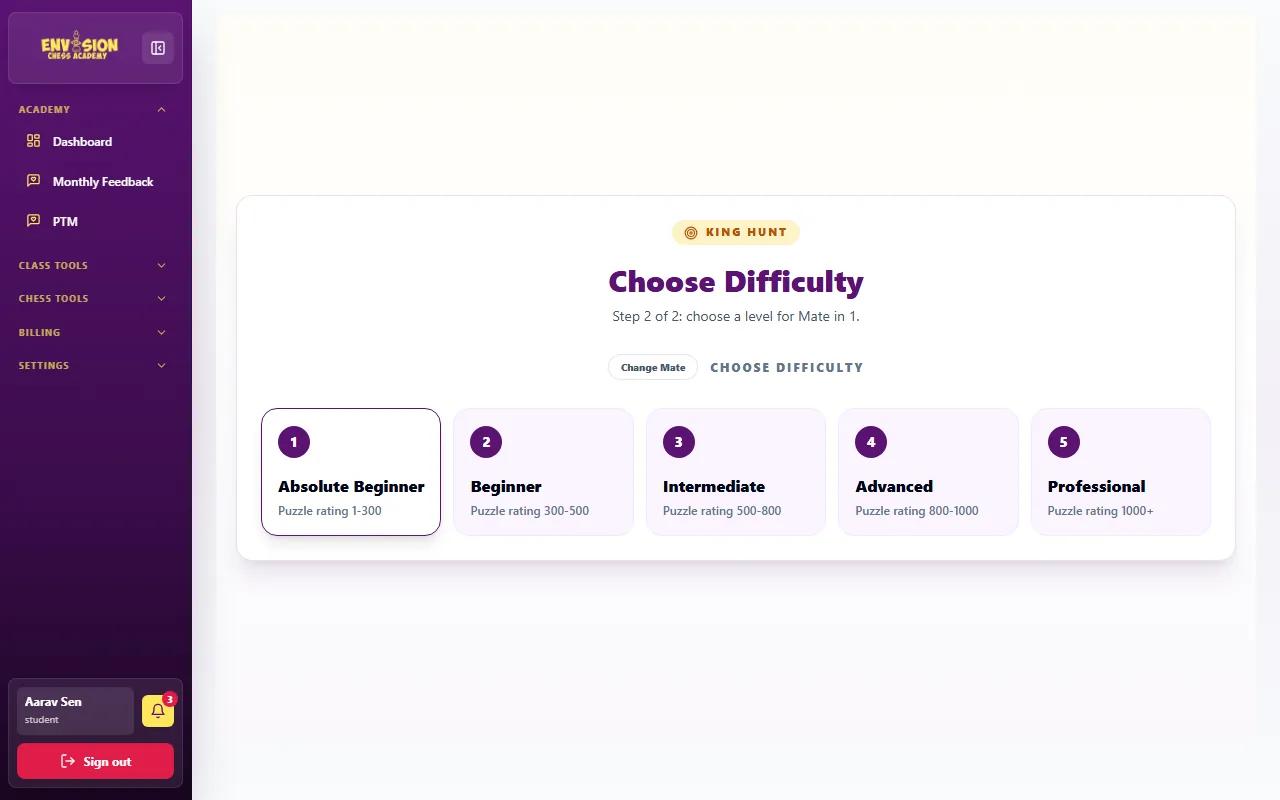
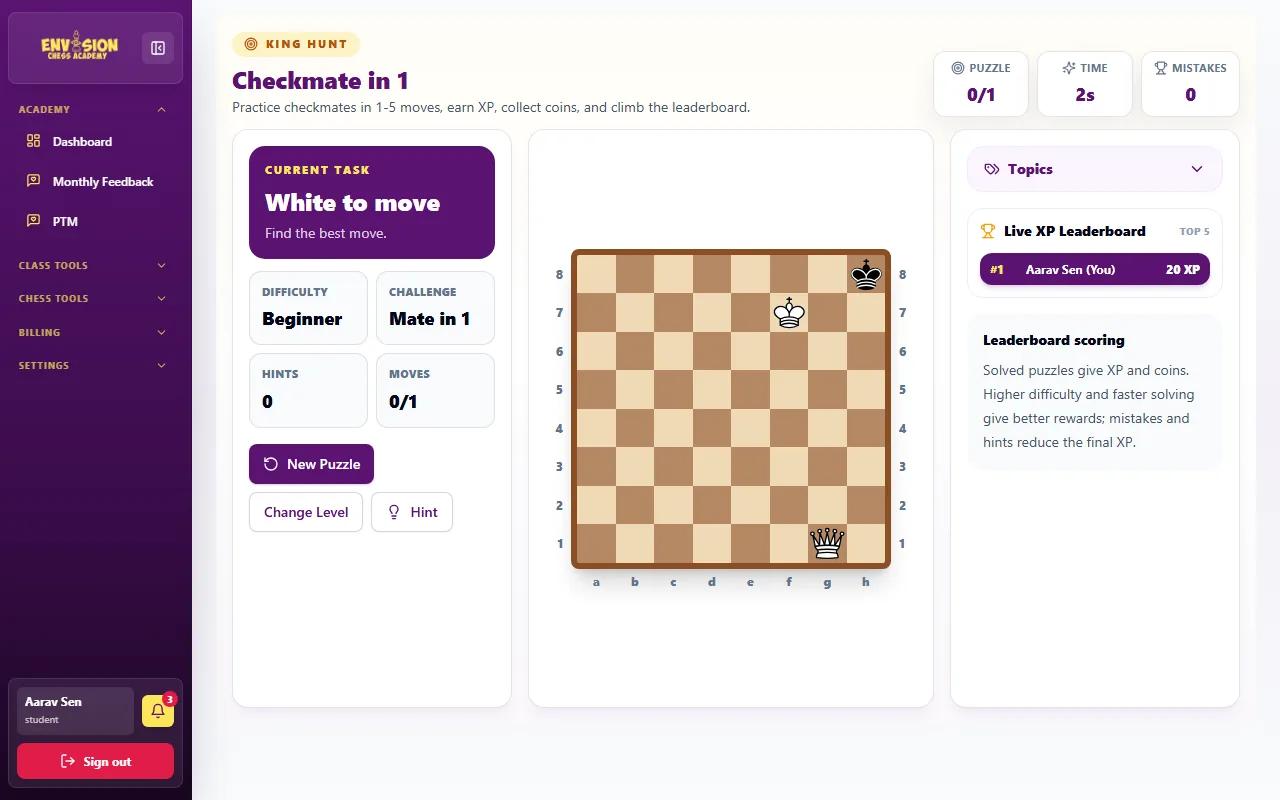
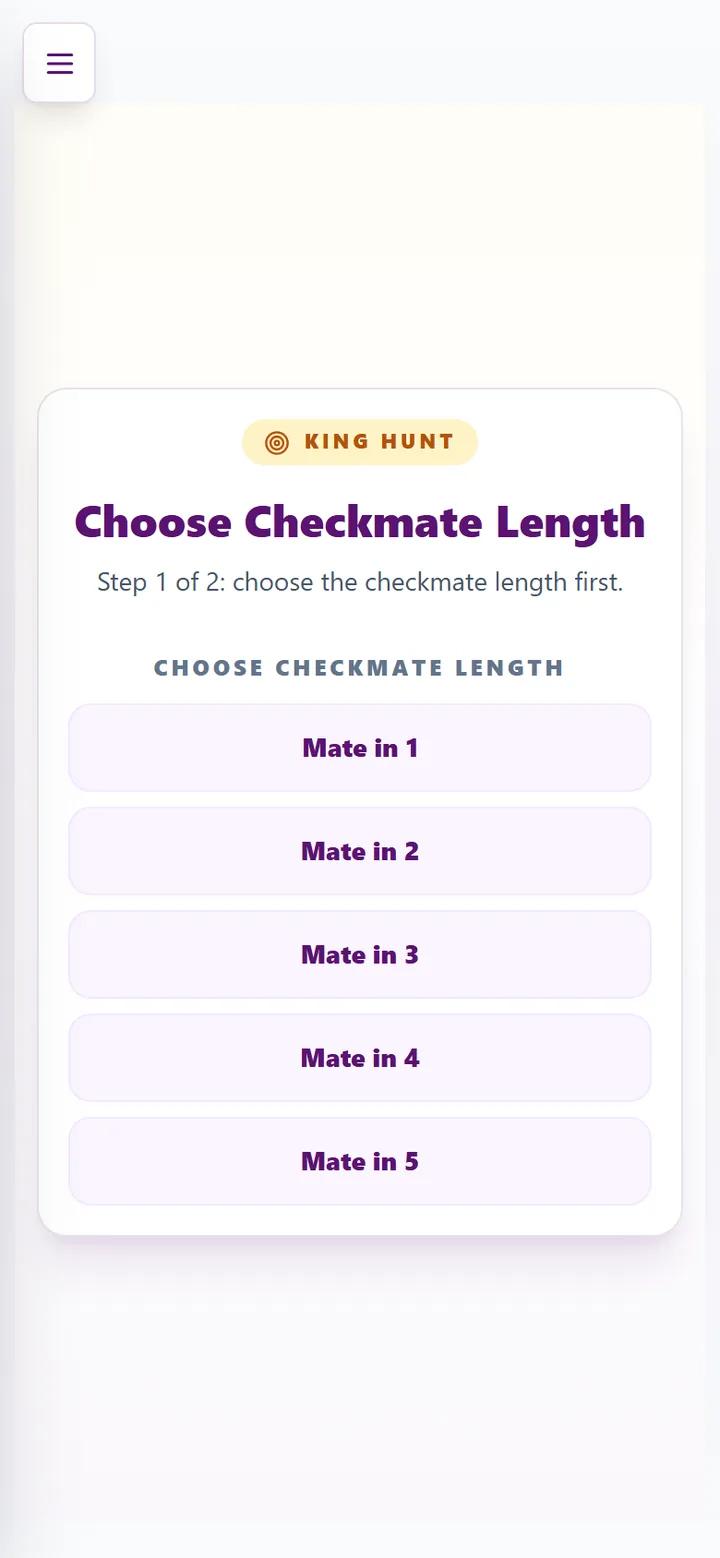
King Hunt is a puzzle trainer made only of checkmates. It takes two steps: first choose the checkmate length - Mate in 1, 2, 3, 4 or 5 - then choose the difficulty, using the same five levels as Tactics Trainer. Every puzzle ends with the enemy king trapped. Mate in 1 is perfect for beginners learning the basic mates; Mate in 3 and above trains calculation for stronger players.
Square Trainer: learn the board
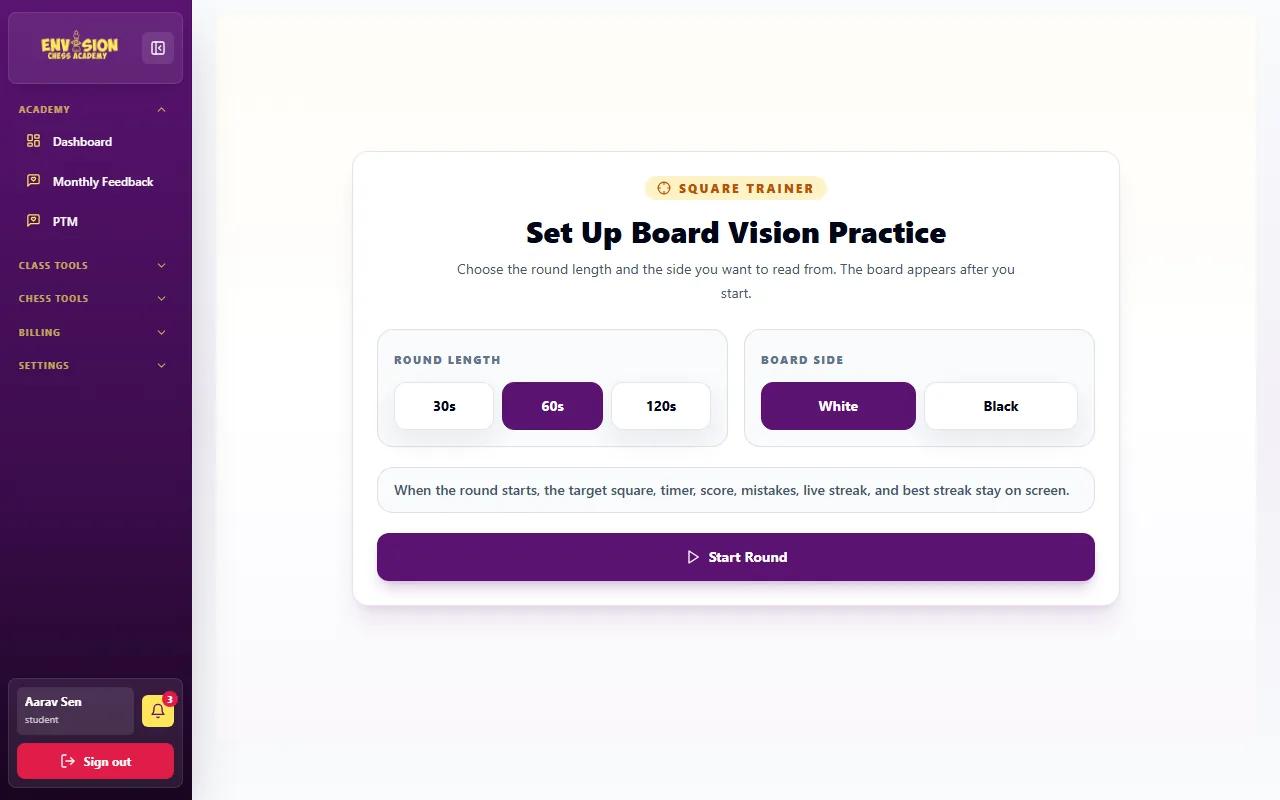
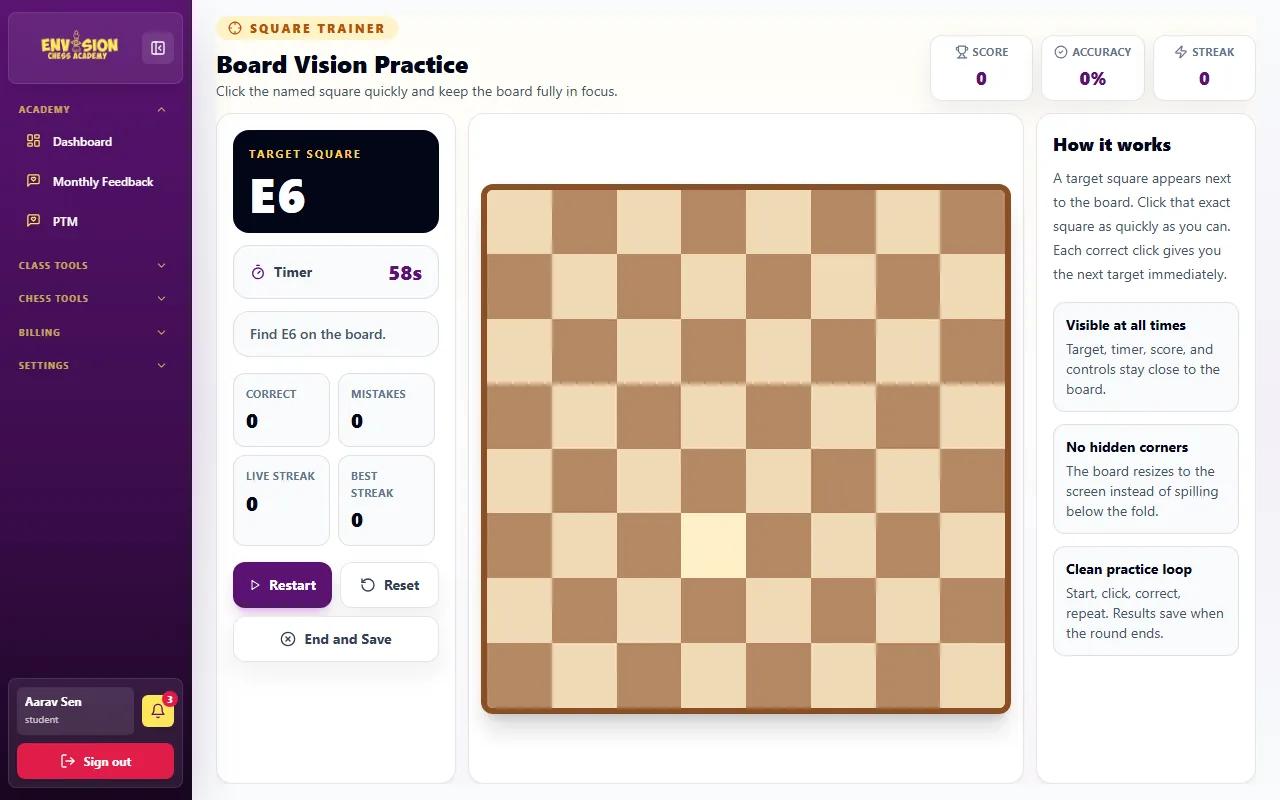
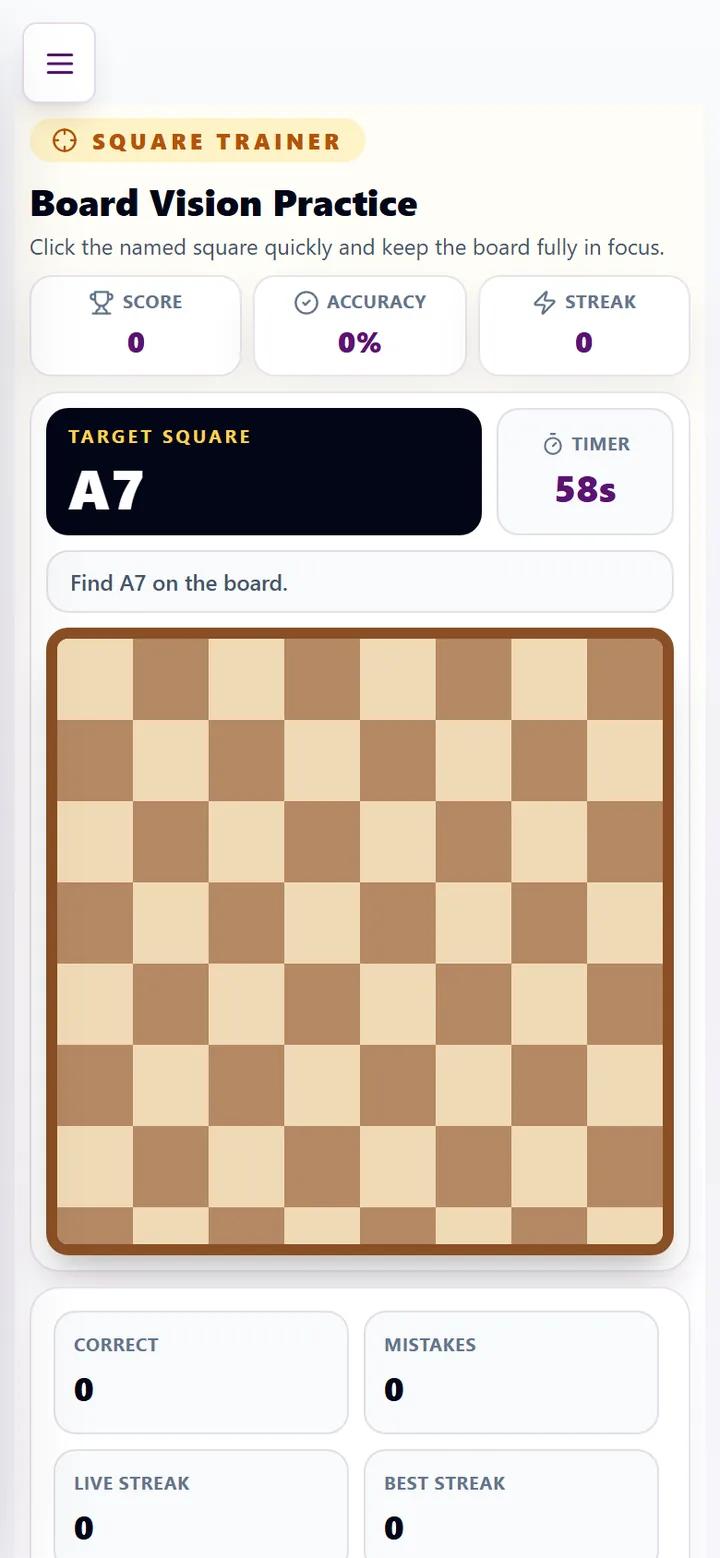
Strong players know every square's name instantly, which makes reading notation, following the coach and calculating much faster. Square Trainer turns that into a game. Choose a round length (30, 60 or 120 seconds) and the side you read the board from (White or Black), then press Start Round. A square name such as B8 appears; click that square on the board as fast as you can. The panel tracks your score, accuracy, mistakes and best streak, and End and Save records the round.
Play vs Computer
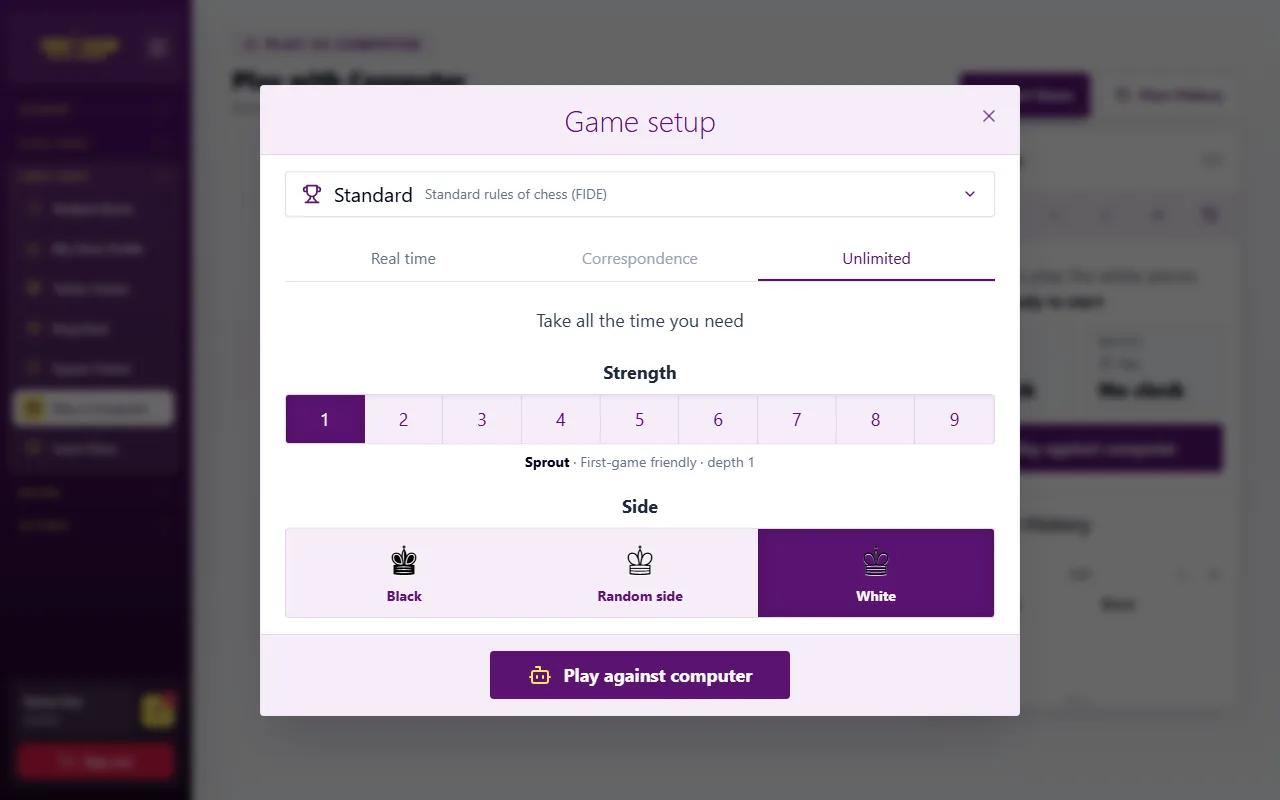
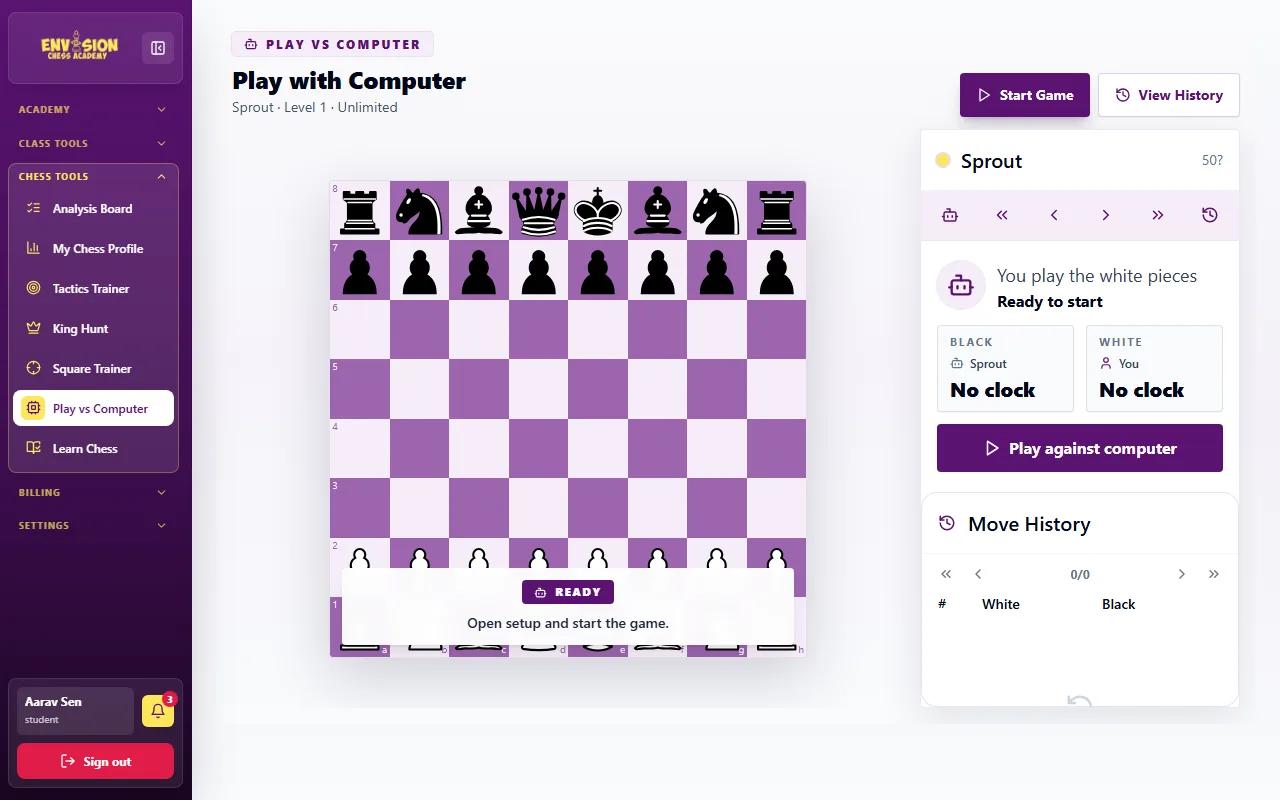
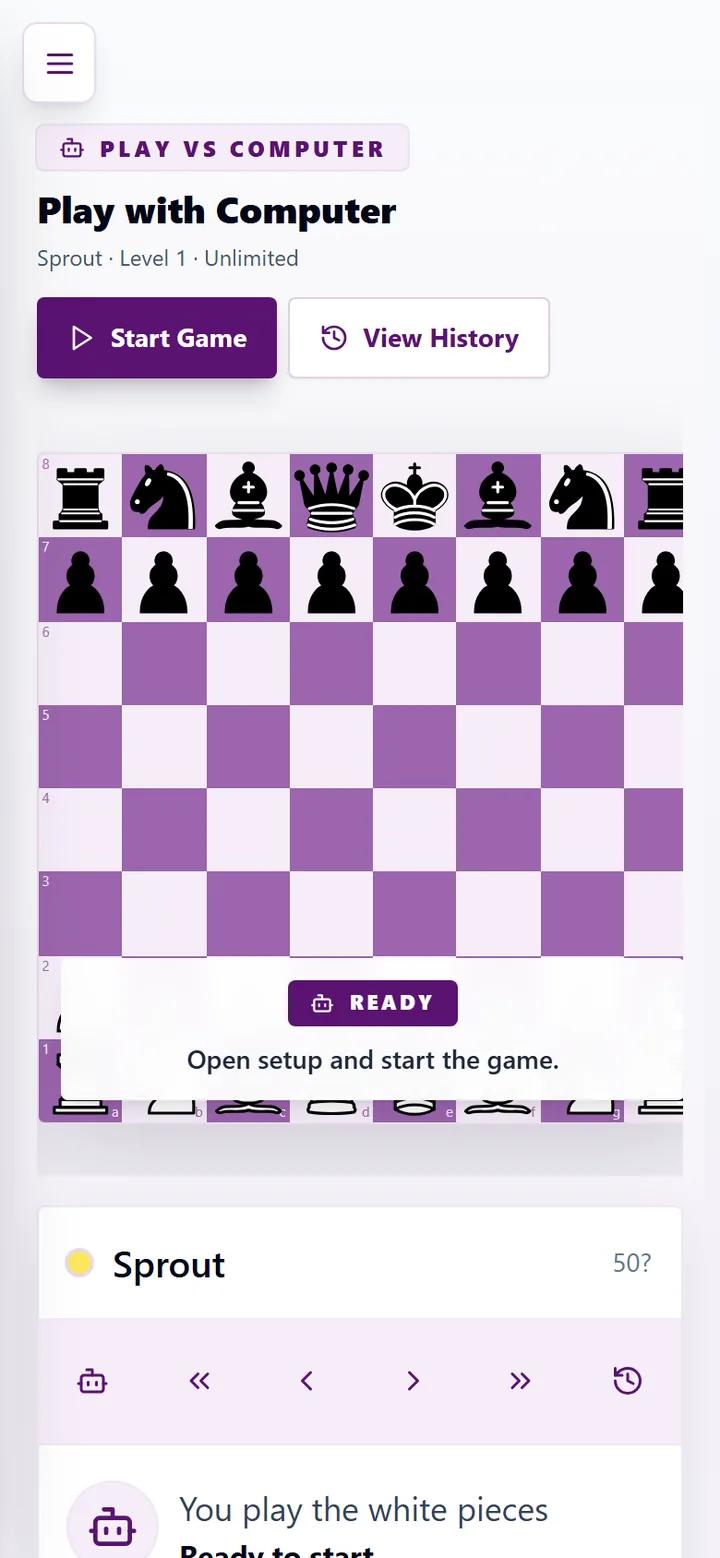
Play vs Computer is a full game against the computer at the strength you choose. Press Start Game to open the setup: choose real time, correspondence or unlimited time, a strength from 1 to 9 (level 1 is a friendly first opponent), and whether you play White, Black or a random side. Then press Play against computer. Moves are listed on the right, and Resign, Restart and View History are at the top. Moving up a level each time you win two or three games in a row is a good way to improve steadily.
A simple weekly practice plan
| Day | Practice |
|---|---|
| After each class | Finish the homework (our homework guide shows how) |
| Two days a week | Ten Tactics Trainer puzzles at your level |
| Two days a week | Five King Hunt puzzles: Mate in 1 for beginners, Mate in 2 or 3 for others |
| Once a week | Two Square Trainer rounds, then one game against the computer |
| Any day | One Learn Chess lesson if a rule or piece still feels shaky |
The practice tools are included for every Envision student, alongside live classes, homework and tournaments. You can see how the whole programme fits together in our guide to how online chess classes work.
Frequently asked questions
Which practice tool should a beginner start with?
Learn Chess, then King Hunt at Mate in 1. Once the basic mates feel easy, add Tactics Trainer at the Absolute Beginner or Beginner level.
Do practice puzzles count for anything?
Solved puzzles and finished games earn XP and coins, which appear on the academy leaderboard alongside homework and attendance.
How strong is the computer?
You choose a strength from 1 to 9. Level 1 is a gentle first opponent; move up a level after winning a few games in a row.
Can the practice tools be used on a phone?
Yes. Every tool works on a phone: tap a piece and then a square to move. A bigger screen helps for longer games.
How long should my child practise each day?
Ten to fifteen minutes on most days is plenty for beginners. Regular short sessions build patterns better than one long session a week.