
After most classes, your coach sets homework in the student portal. It usually mixes three kinds of task: quick multiple-choice questions, positions to solve on a chess board, and sometimes a game against the computer. You open it from the Homework page, work through each activity, press Submit assignment, and see your score, XP and the right answers straight away. This guide shows every screen on a computer and on a phone.
Homework is where the lesson sticks. The topic your coach taught on Monday is practised on Tuesday, while it is still fresh, and the coach sees exactly which positions caused trouble before the next class. It is also the best preparation for the level exam at the end of each level, which draws its questions from the same homework.
Step 1: Find your homework
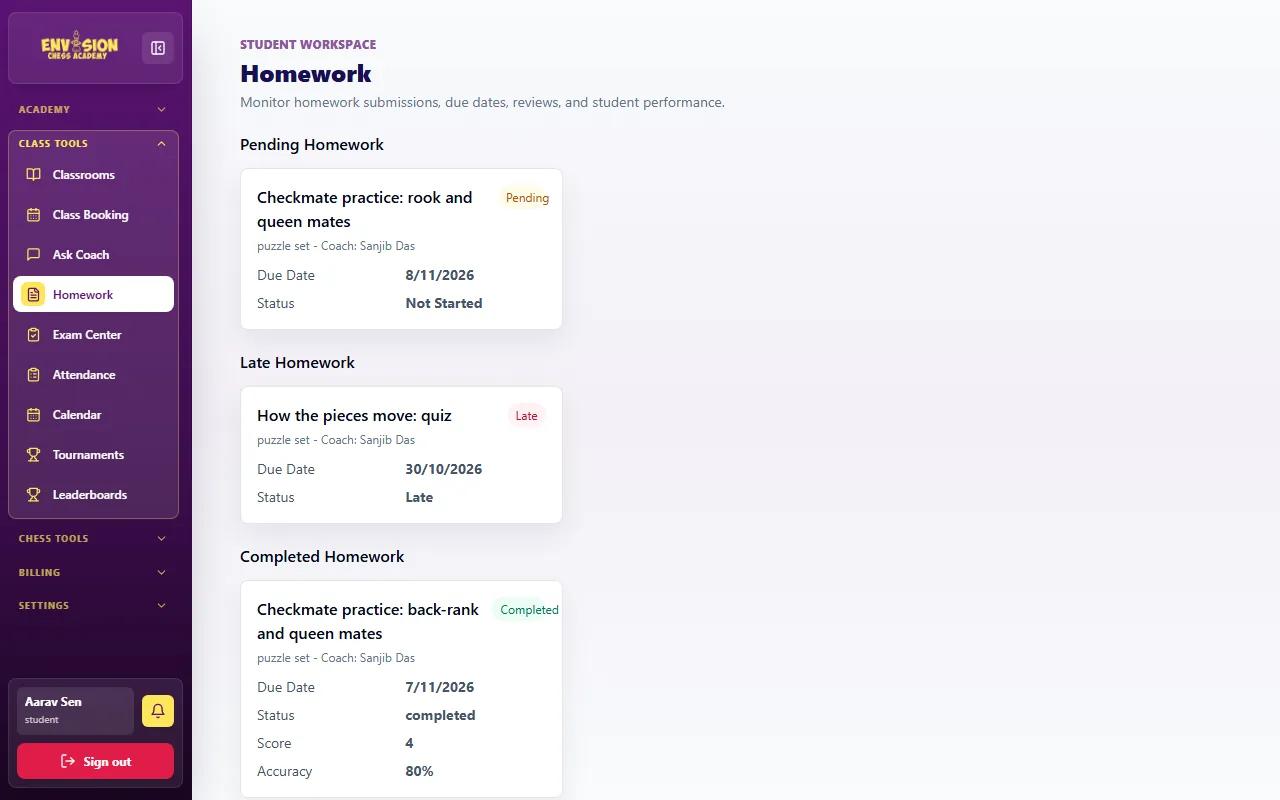
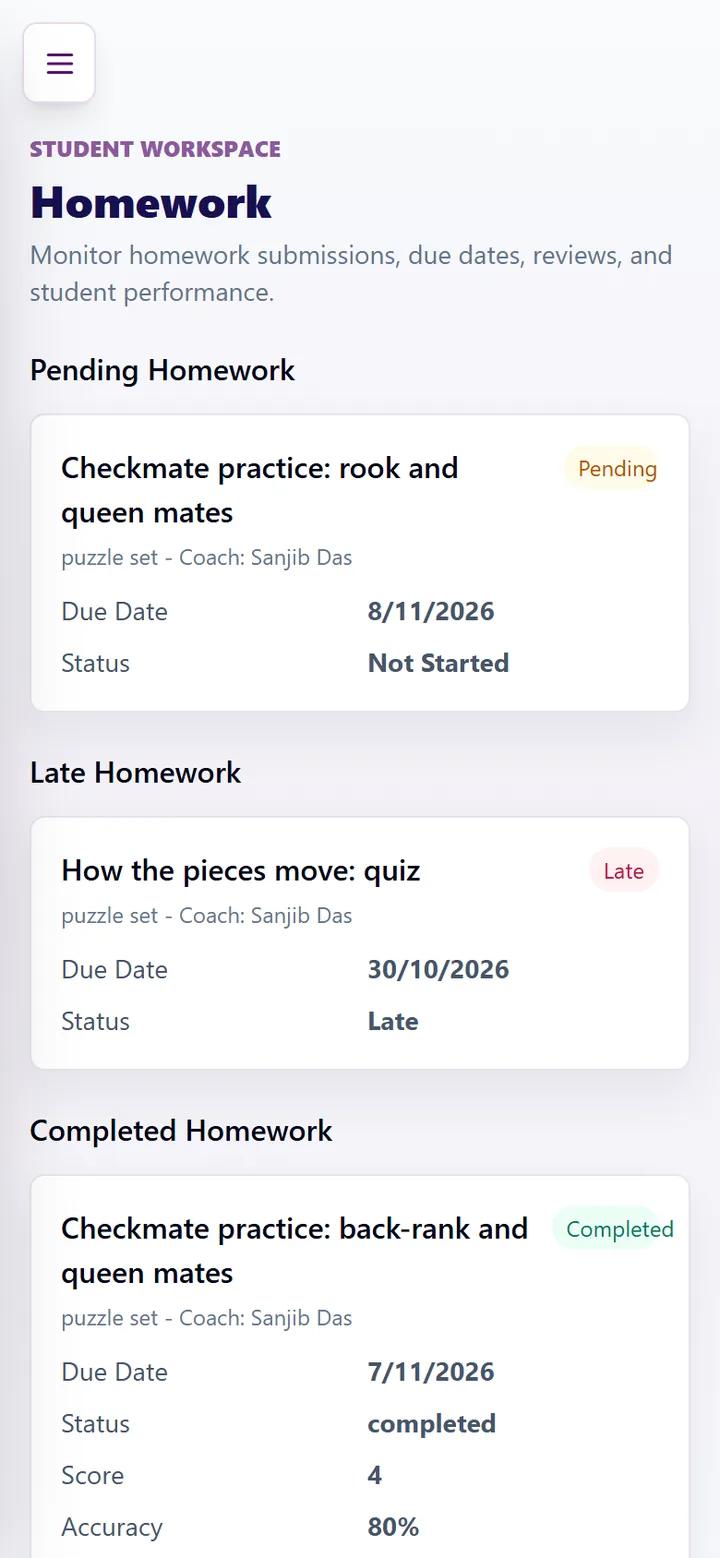
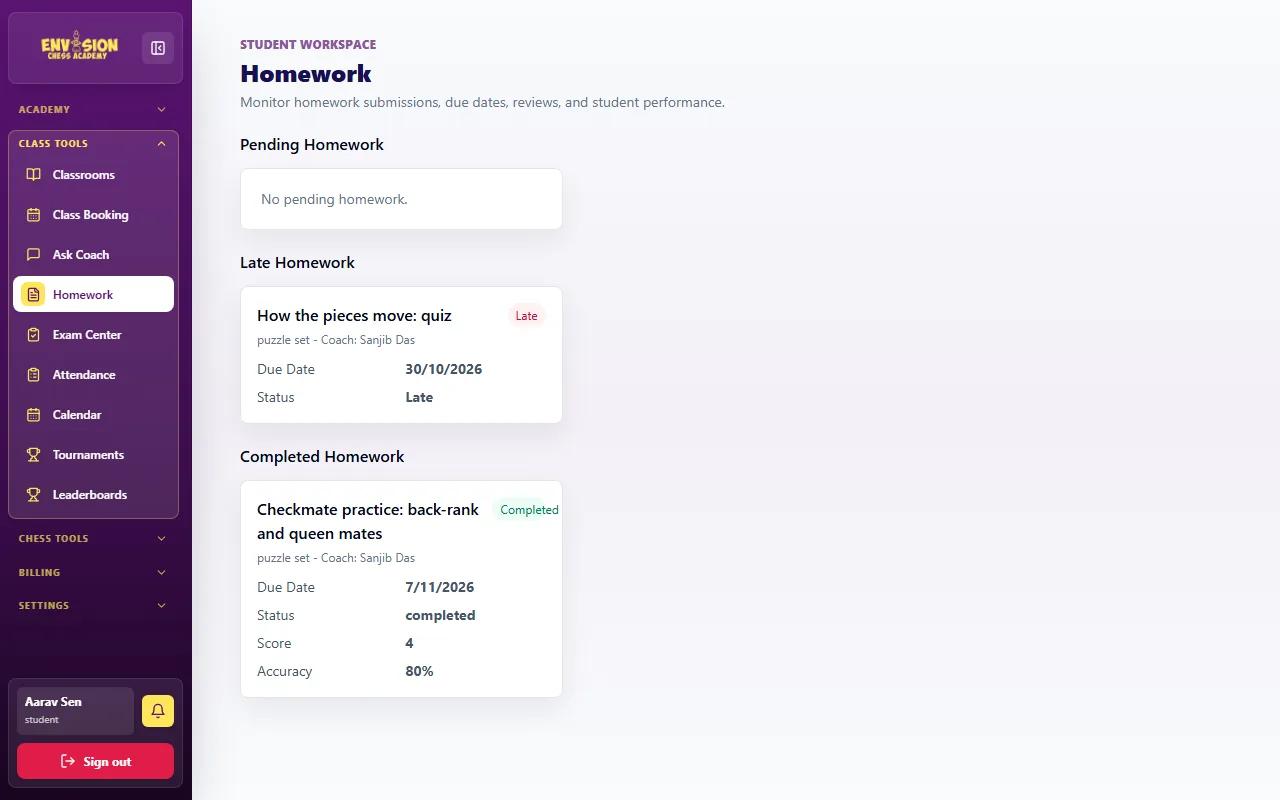
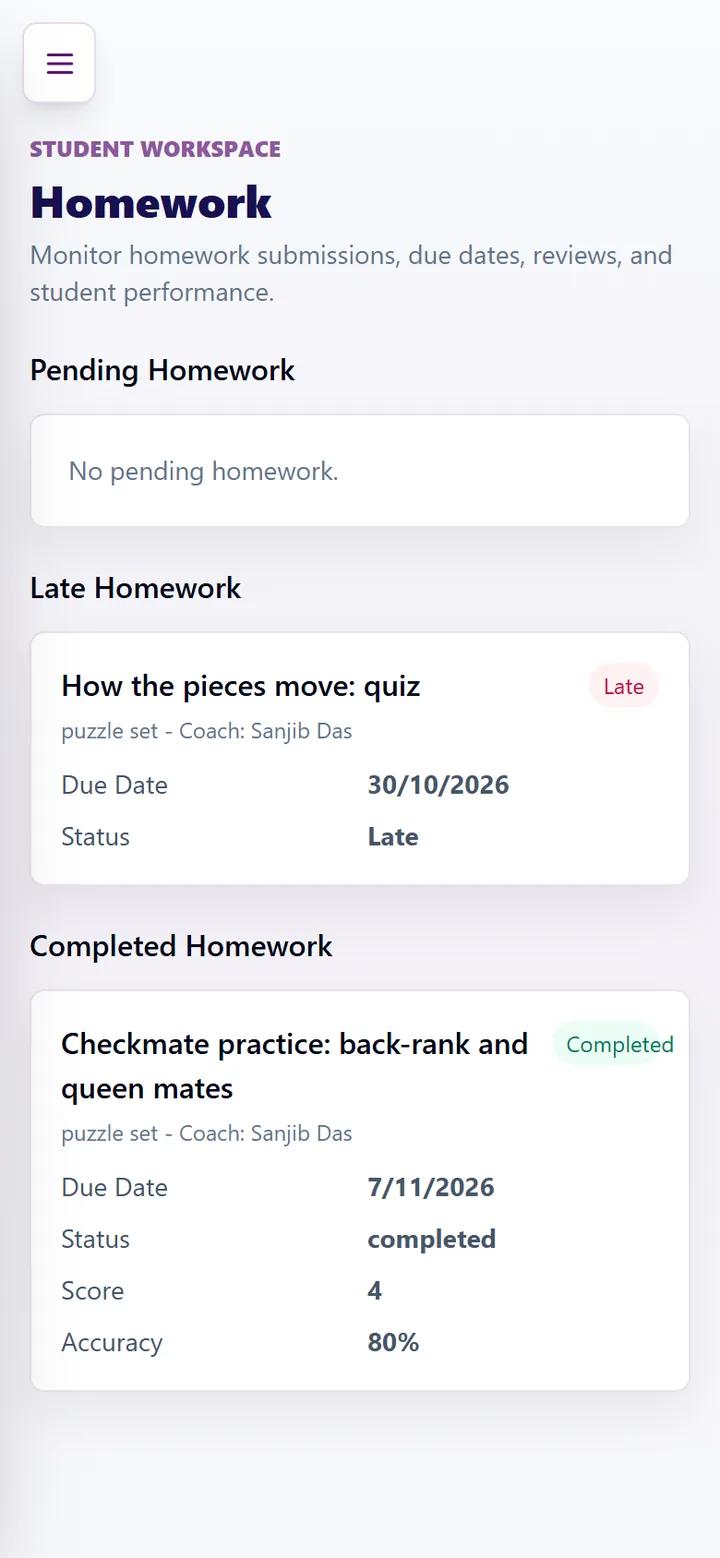
Open the menu and go to Class Tools → Homework. On a phone, tap the menu button at the top left first. The page has three lists:
- Pending Homework: set and not finished yet, with its due date and status (Not Started or In Progress).
- Late Homework: the due date has passed. Finish it as soon as you can and tell your coach if something stopped you.
- Completed Homework: everything you have submitted, with your score and accuracy.
New homework also appears on your dashboard under Due soon, and the bell shows a "New homework" message when your coach sets it. Click a homework card to open it.
Step 2: Open it and read the top bar
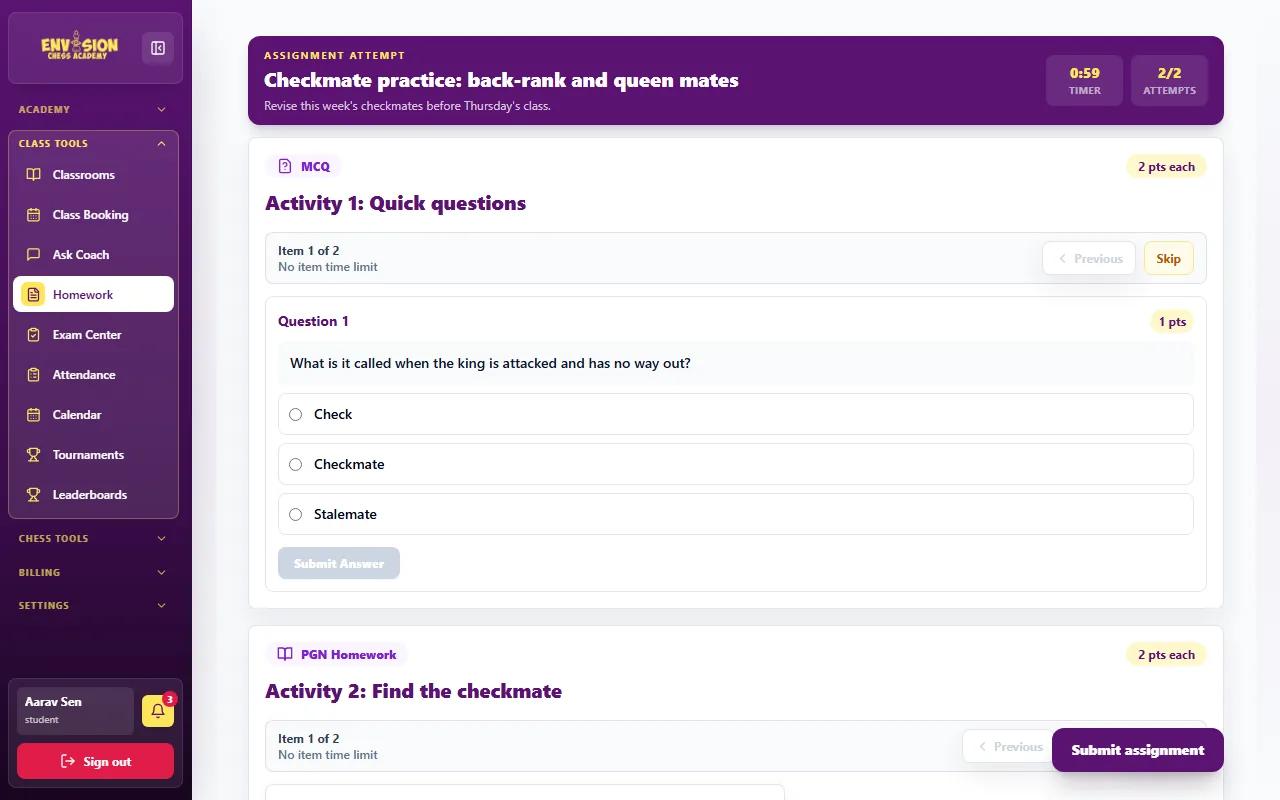
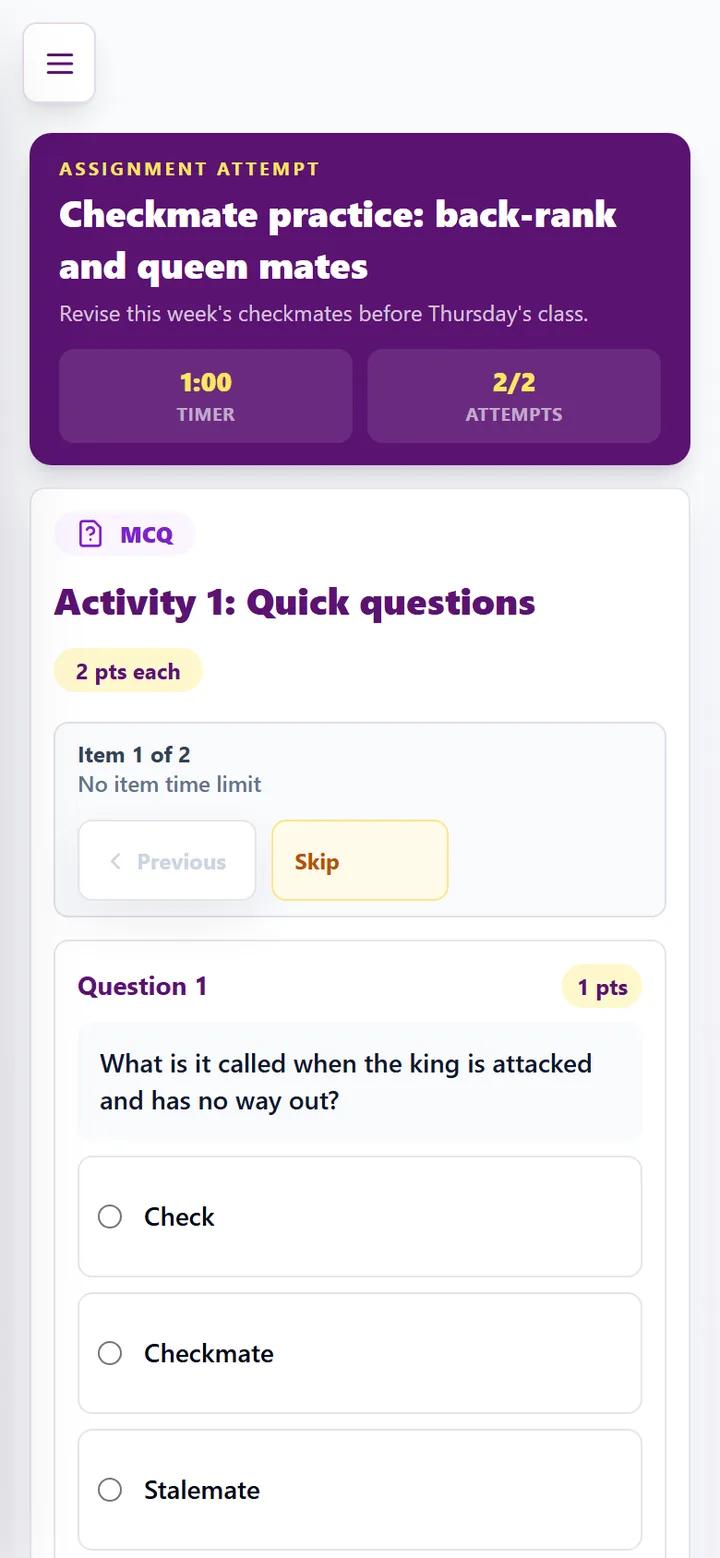
The purple bar at the top shows the homework title and the coach's note. The timer shows how long you have been working, and attempts shows how many tries you have left (your coach chooses the number). Below the bar, every activity has its own card with its points.
Step 3: Answer the questions
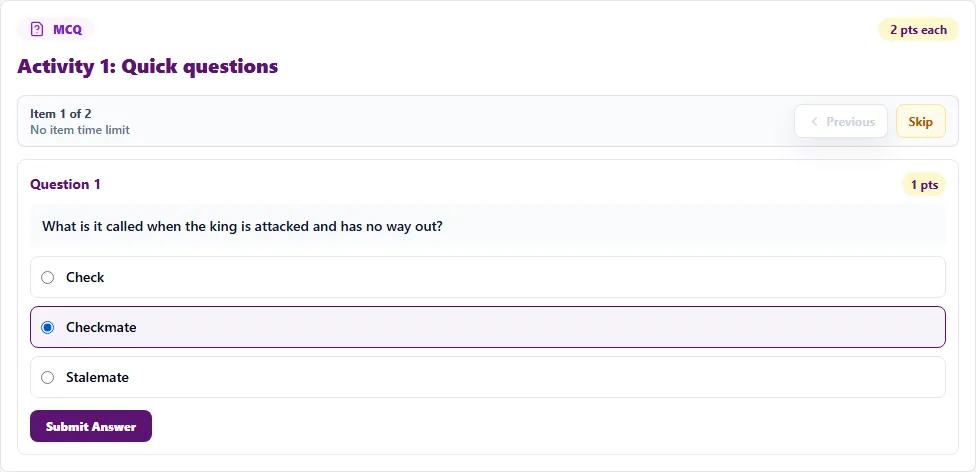
Multiple-choice activities show one question at a time ("Item 1 of 2"). Click or tap an answer, then press Submit Answer and the next question appears. Previous goes back and Skip moves on if you want to come back to a question later. Read each question twice: one word, such as "not" or "only", often changes the answer.
Step 4: Solve the positions on the board
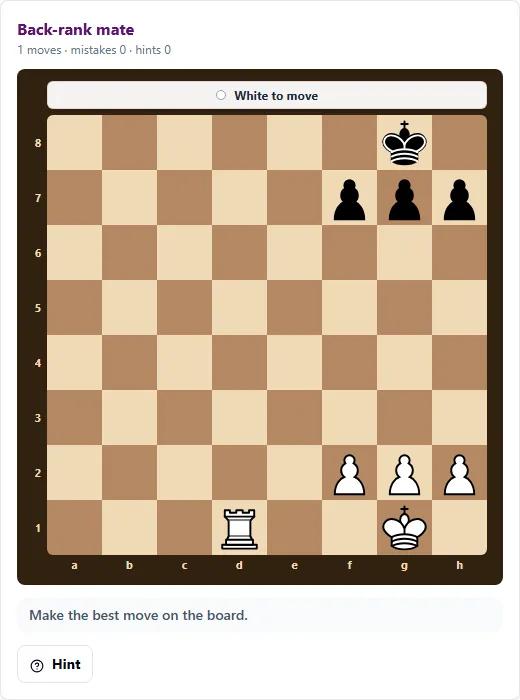
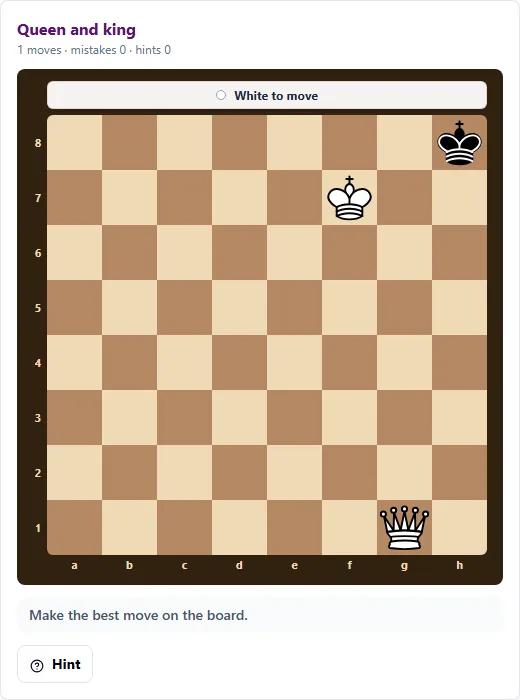
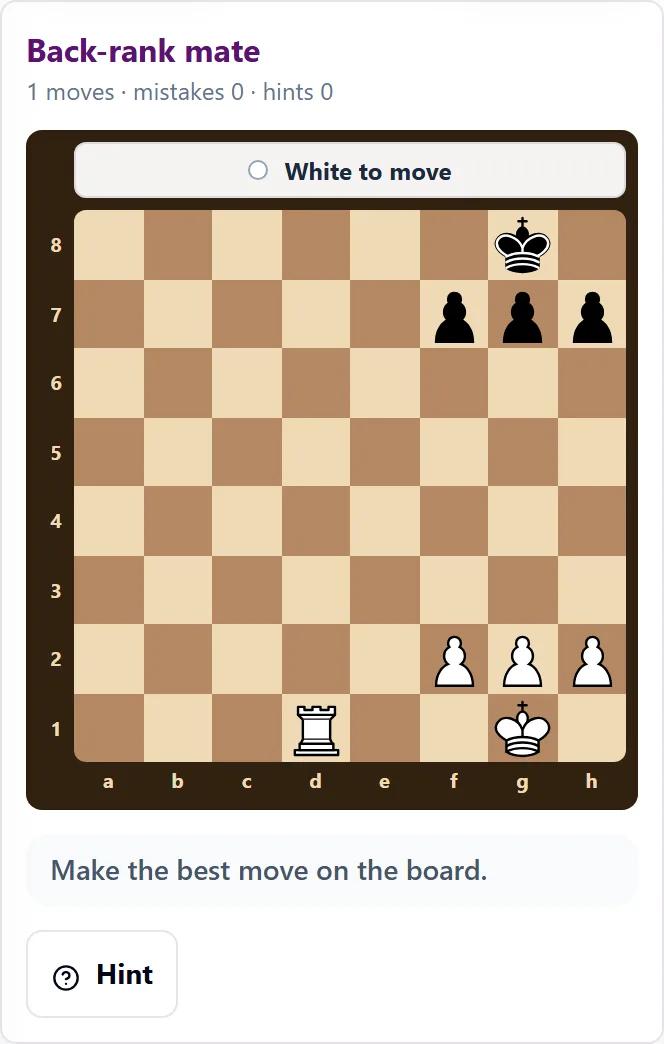
Position activities show a chess board with a task such as "Find the checkmate". Check whose turn it is above the board, then drag a piece or tap it and then the target square. A correct move moves you on to the next position; the counter under the title shows your moves, mistakes and hints. If you are stuck, the Hint button points you to the right idea, but hints and mistakes lower your score, so think first. If a position needs several moves, the computer answers for the other side after each of yours.
These positions use the same patterns as class. If back-rank or queen-and-king mates are new to you, our guide to basic checkmates explains them with diagrams.
Step 5: Play the computer (when set)
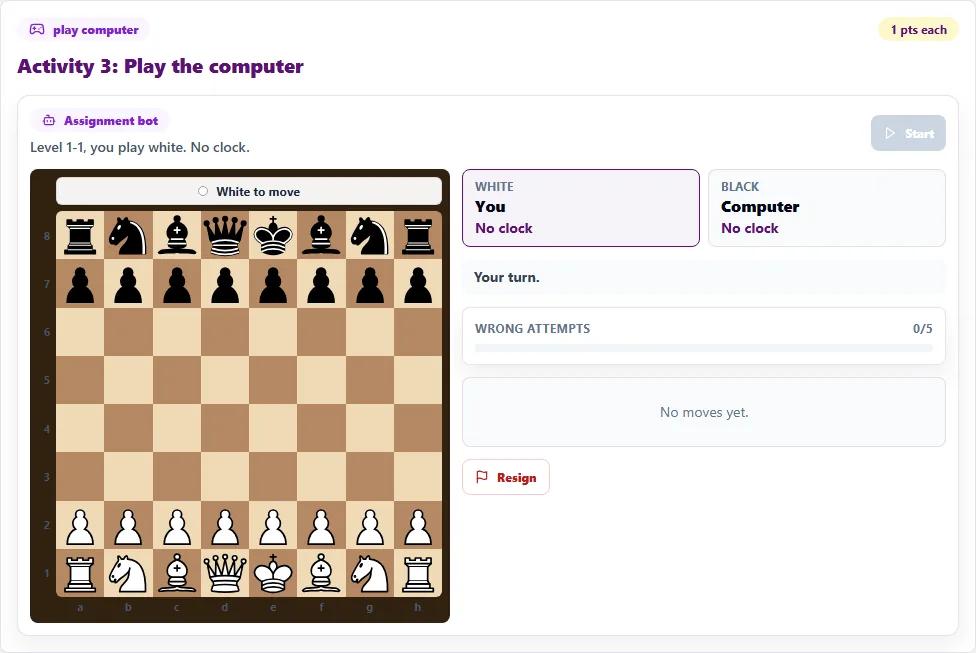
Some homework includes a game against the assignment bot. The card says the bot's level, which colour you play and whether there is a clock. Press Start and play your moves on the board; the moves are listed beside it. Your coach usually adds a goal, such as checkmating with the queen, so the game practises the week's topic. Resign ends the game if you need to stop.
Step 6: Submit and read your result
When every activity is done, press Submit assignment at the bottom right. Your result opens straight away:
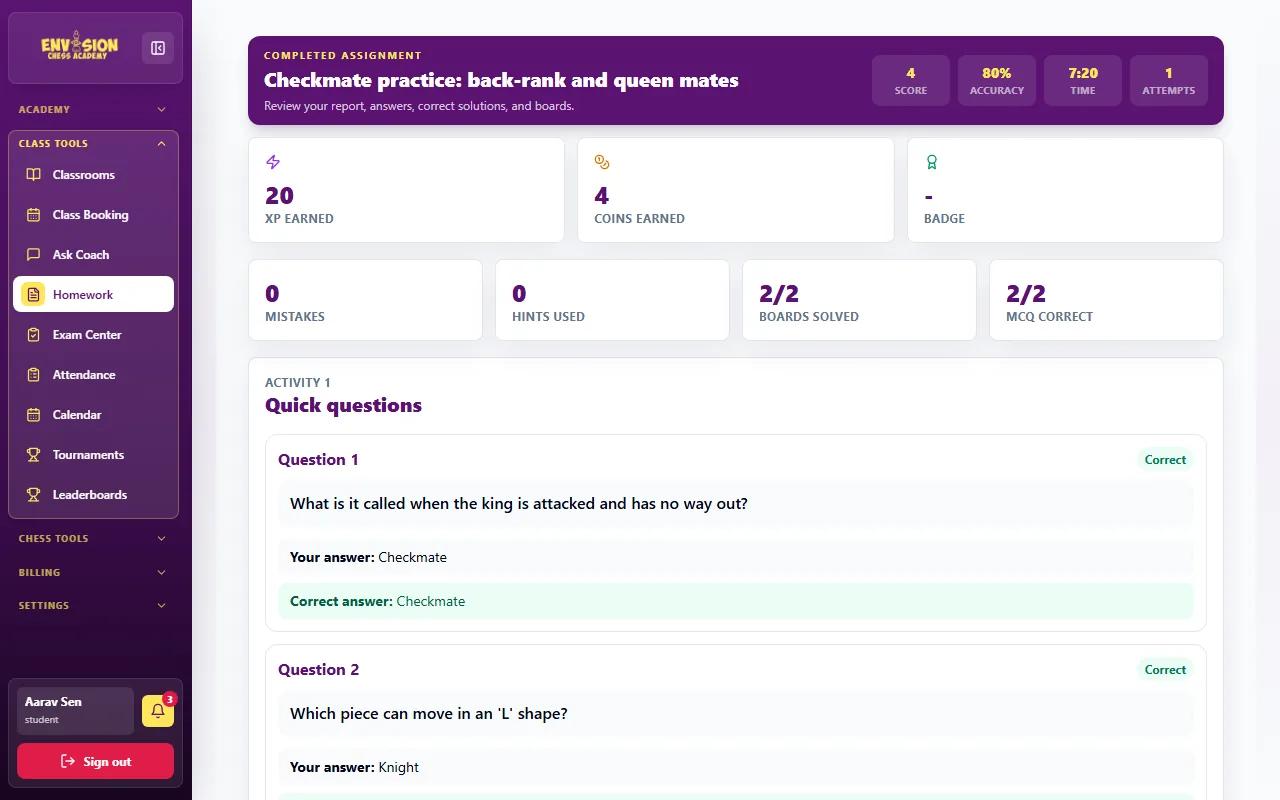
- Score, accuracy, time and attempt in the top bar.
- XP and coins earned, and any badge, which count towards the academy leaderboard.
- Mistakes, hints used, boards solved and questions correct.
- Every question again with your answer and the correct answer underneath, so you can see exactly where a mark was lost.
The homework then moves to Completed Homework with its score and accuracy. If your coach allowed more than one attempt, the attempts counter shows how many tries are left.
Tips for parents and students
- Do it the day after class. Ten to twenty minutes while the lesson is fresh beats an hour the night before the next class.
- Look before you move. On positions, check every check and capture first. Mistakes and hints cost marks.
- Read the review. The correct answers on the result page are the most useful part of the homework.
- Ask when stuck. Message your coach on Ask Coach instead of guessing.
- Keep practising between homeworks with the portal's practice tools: puzzles, King Hunt and games against the computer.
Homework is part of how every Envision course works, from the beginner chess course onwards. Coaches use the results to decide what to revise in the next class.
Frequently asked questions
How long does chess homework take?
Most homework takes 10 to 20 minutes: a few questions, a few positions and sometimes one game against the computer. The timer at the top shows how long you have spent.
What happens if homework is submitted late?
It moves to Late Homework on the Homework page. Finish it as soon as possible; your coach can see when it was done.
Can my child try the homework again?
Only if the coach set more than one attempt. The attempts counter at the top of the homework shows how many are left.
Do hints and wrong moves lose marks?
Yes. Hints and mistakes lower the score for that position, so it is worth thinking through checks and captures before moving.
Can homework be done on a phone?
Yes. Every activity works on a phone: tap a piece, then tap the square to move it. A computer or tablet gives a bigger board.