
At the end of every level, Envision students take one online chess level exam in the academy portal: 10 multiple-choice questions and 16 chess positions, 100 marks in 90 minutes. It stays open for 7 days, the result appears the moment you submit, and everyone who submits gets a certificate. This guide walks through every screen, on a computer and on a phone, so there are no surprises on exam day.
The exam is not a pass-or-fail test. It shows the student, the parents and the coach what has stuck from the level's classes and homework, and which topics need another look before the next level of the chess courses begins.
The level exam at a glance
| Detail | |
|---|---|
| Questions | 10 multiple-choice questions, 2 marks each, one try, no negative marking |
| Positions | 16 chess positions to solve on the board, 5 marks each |
| Total | 100 marks |
| Time | 90 minutes from the moment you press Start |
| When | Open for 7 days after it is given, until 11:59 pm India time on the last day |
| Result | Shown straight away, with the right answer for every question you missed |
| Certificate | Sent after you submit, whatever the score |
Every question comes from the level the student has just finished. A student completing the beginner chess course is asked about the board, how the pieces move, check and checkmate, and basic mates. Later levels, such as the intermediate chess course, test the tactics and plans taught there.
Before you start
Once you press Start you cannot pause, so begin only when you have 90 free minutes. Get these ready first:
- A computer or laptop if you can. The board is bigger and easier to use. A phone works too: hold it upright and keep it charged.
- Steady internet. Wi-Fi is best. If the connection is lost for 3 minutes, the exam submits itself.
- Your login. Your user ID (for example Aarav@ENV) or email, and your password. Log in before exam time, not at the last minute.
- A quiet place with no one helping. The exam measures what the student knows, so help only hides what needs more practice.
- Other apps and tabs closed. Turn off pop-up notifications. On a phone, silence calls and messages.
Step 1: Find your exam
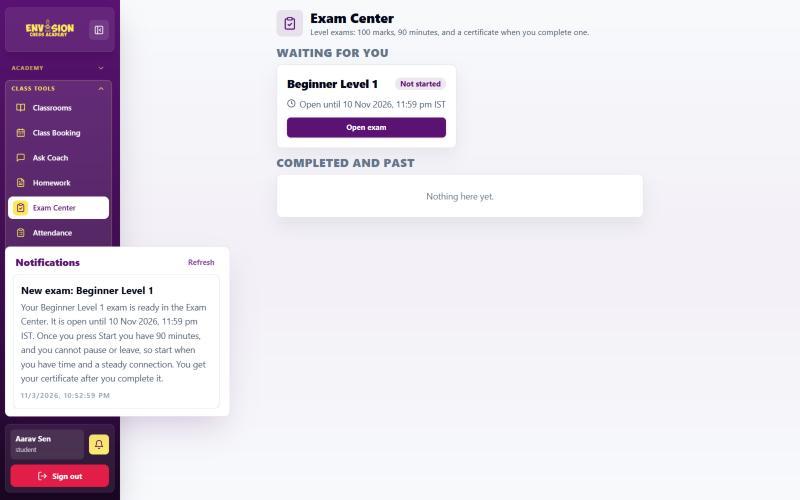
The exam appears in the Exam Center once the level is complete. The student also gets a "New exam" message in the portal bell, and the family gets an email and a WhatsApp message with the last day to take it.
- Log in to the portal.
- Click the bell at the bottom of the menu to read the "New exam" message.
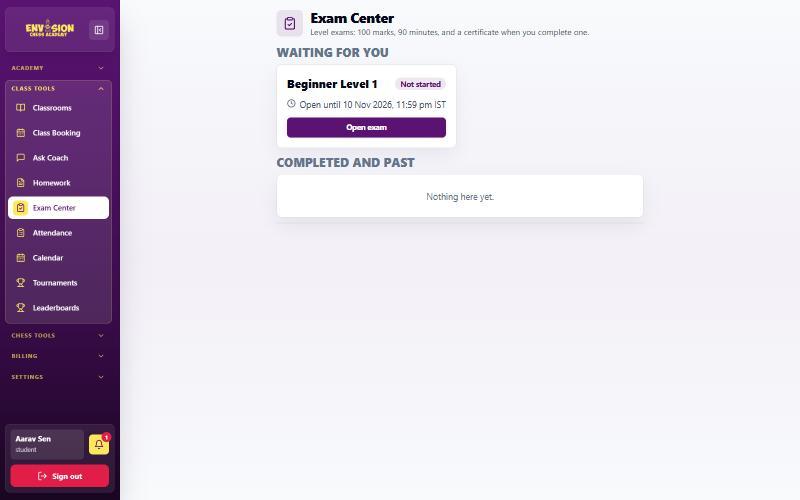
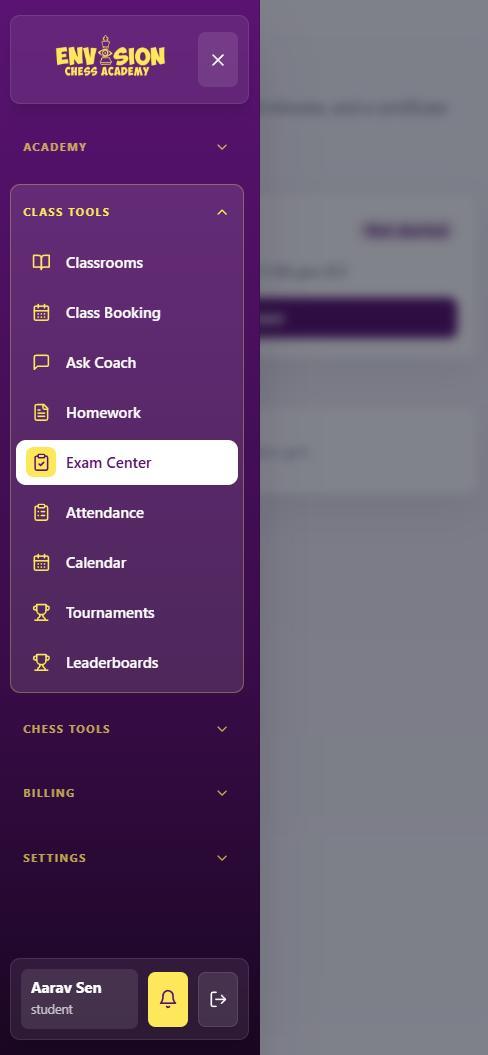
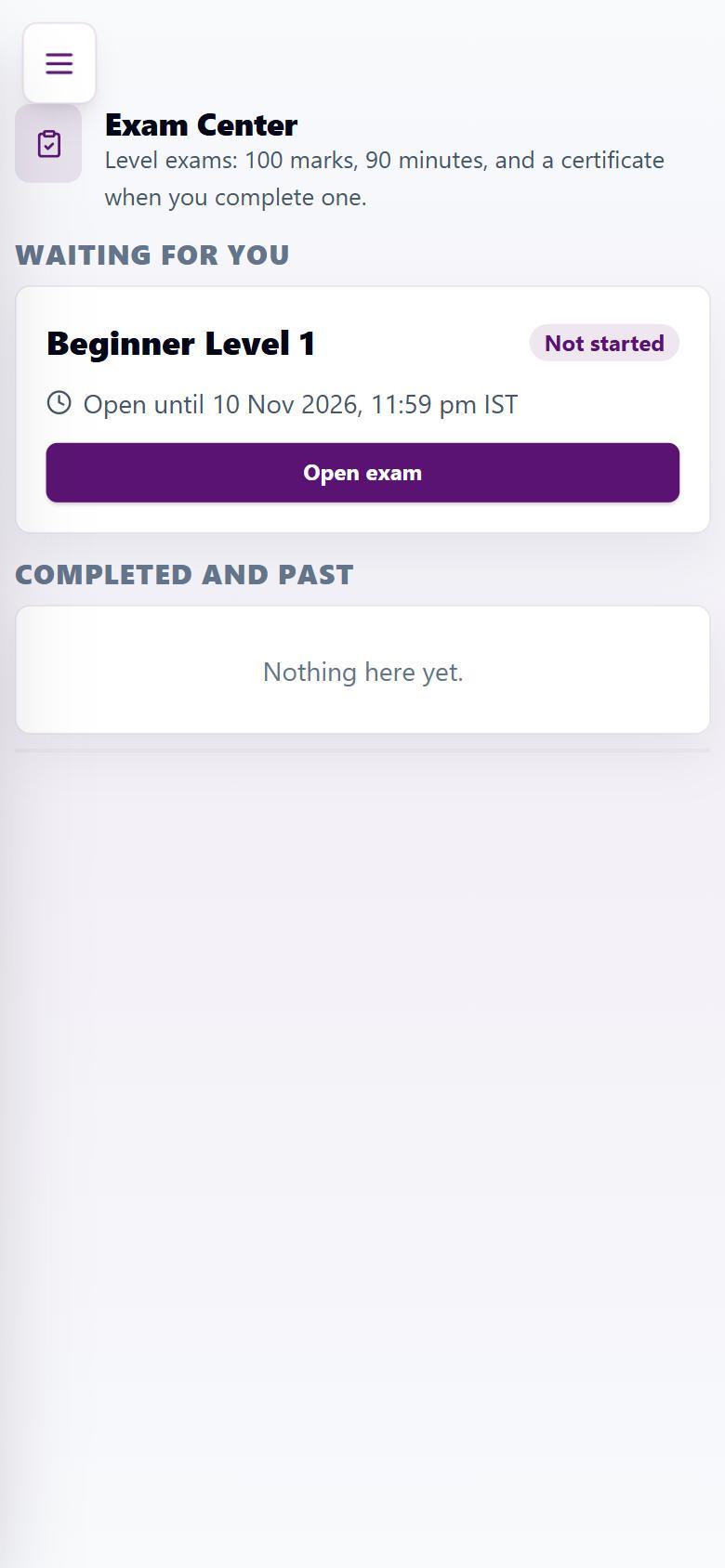
- Open the menu, then Class Tools → Exam Center. On a phone, tap the menu button at the top left first.
- The exam is under Waiting for you. Press Open exam.
Step 2: Read the rules and start
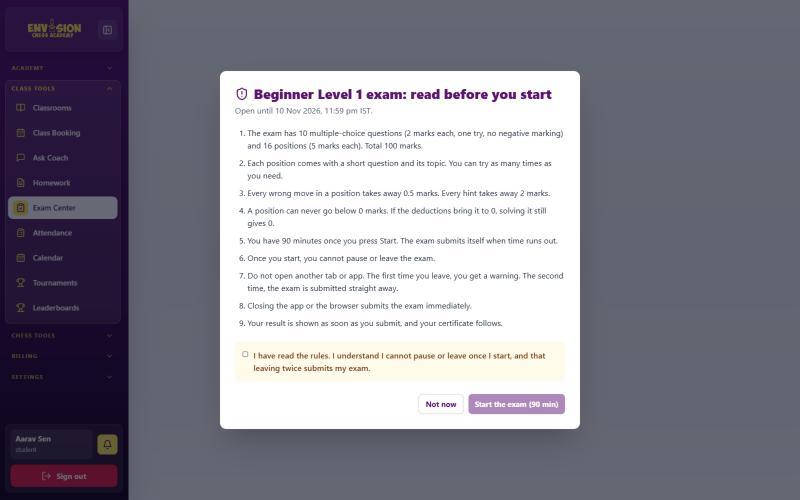
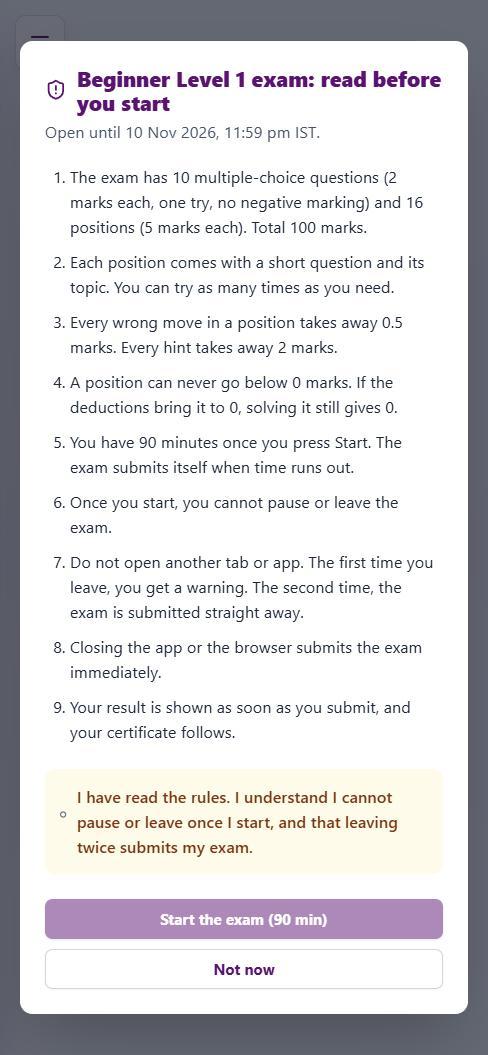
A rules box opens before the exam, and the 90 minutes start only when you press Start the exam. Read all nine rules. The two that matter most: you cannot pause, and leaving the exam twice submits it. Tick "I have read the rules", which unlocks the Start button, then press Start the exam (90 min). Not ready? Press Not now: the exam waits until its last day.
Step 3: Answer the multiple-choice questions
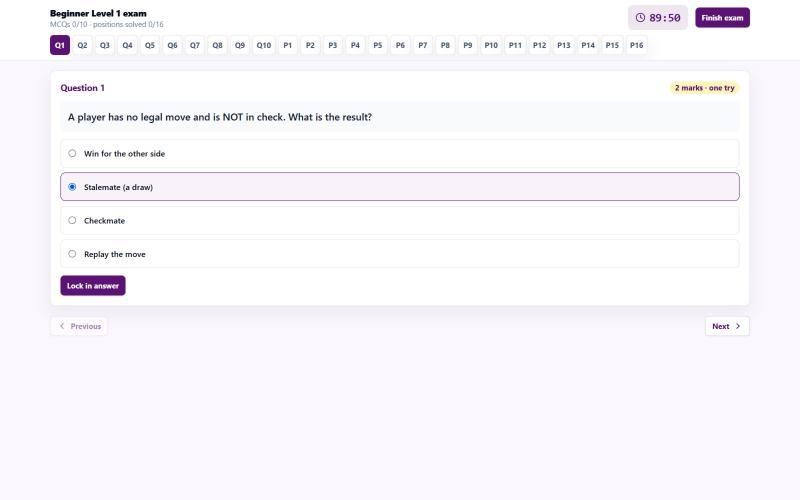
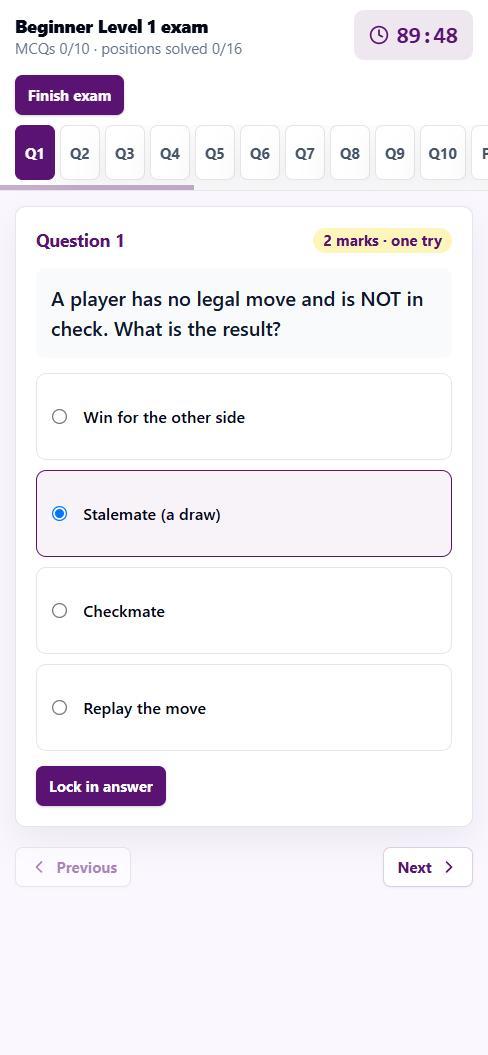
Questions Q1 to Q10 are worth 2 marks each, and each has one try. A wrong answer loses nothing, so answer every question. Click or tap an answer (it turns purple and can still be changed), then press Lock in answer. The next question opens by itself.
The bar at the top is the map of the exam. The clock shows the time left and turns red in the last five minutes. The numbers Q1–Q10 and P1–P16 jump straight to any question, and finished ones turn green. Previous and Next move one question at a time, so a hard question can be skipped and answered later.
Step 4: Solve the chess positions
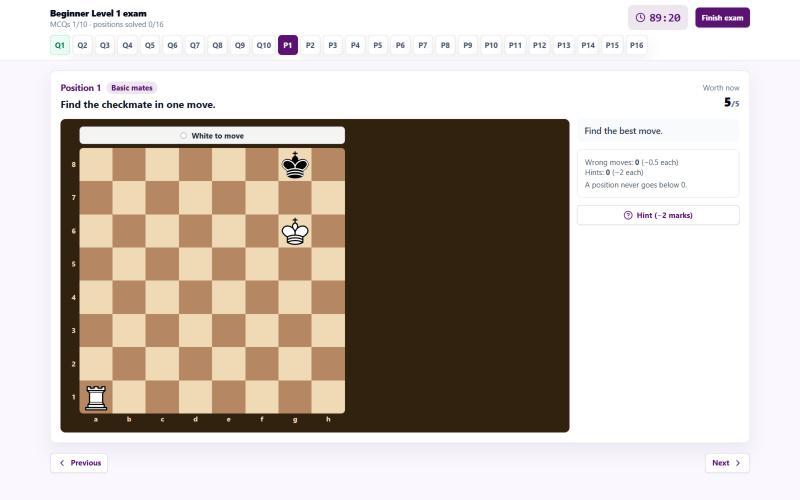
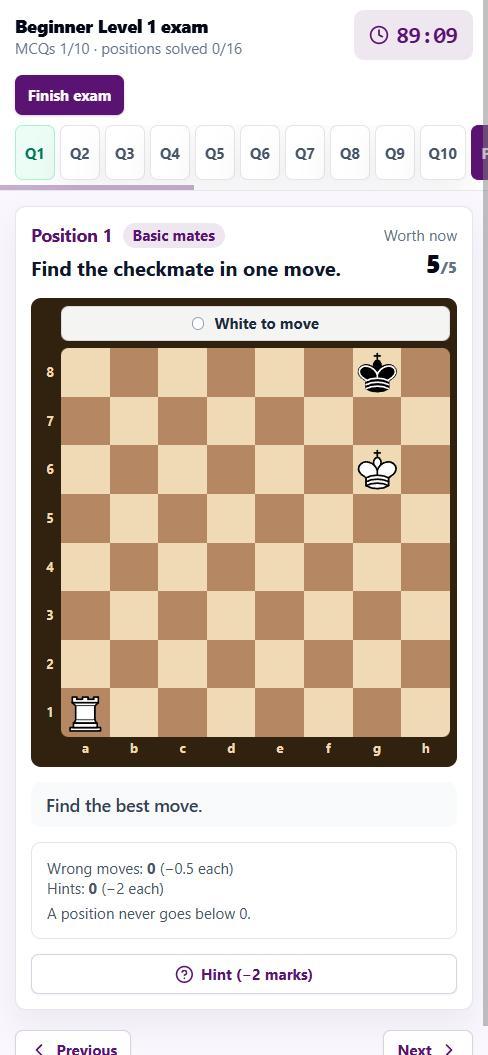
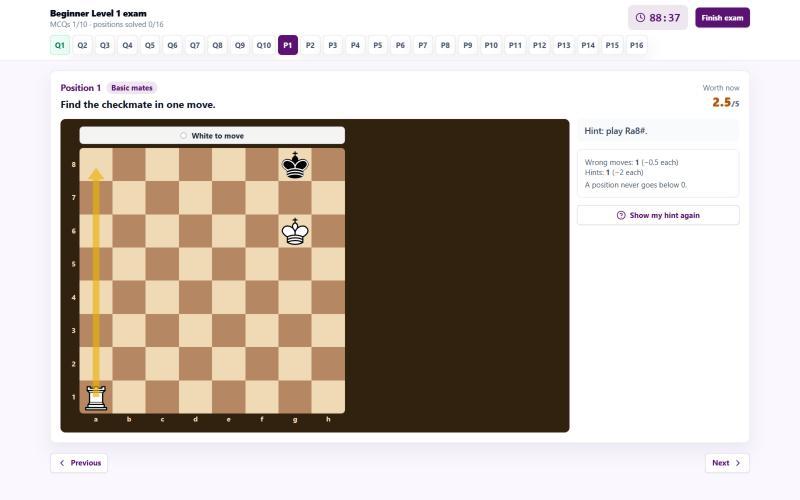
Positions P1 to P16 are worth 5 marks each. Every position has a short task above the board - for example "Find the checkmate in one move" - and a topic label. Check whose turn it is, then move a piece by dragging it or by tapping the piece and then the square. The board is turned so the student's side is at the bottom. When a line needs more than one move, the computer plays the other side's reply.
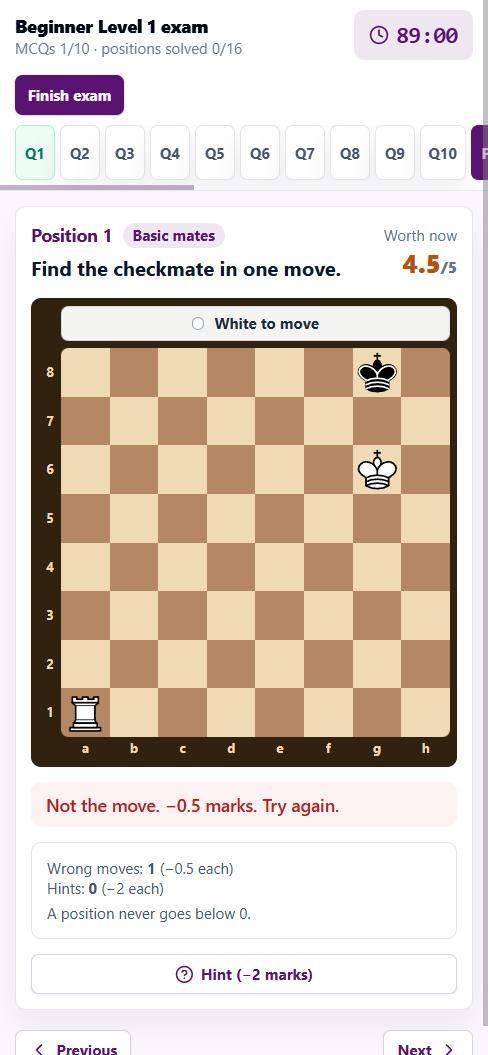
Students can try as many times as they need, but every wrong move takes away 0.5 marks and every hint takes away 2 marks. A position never goes below 0. Worth now at the top right shows the marks still left on it. These are exactly the patterns from class: if back-rank mates or queen-and-king mates feel shaky, our guide to basic checkmates is good revision before the exam.
When to use a hint
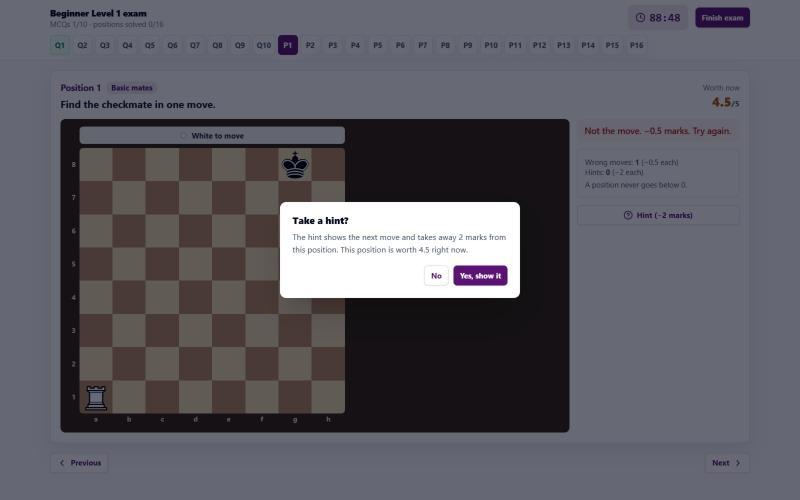
Pressing Hint (−2 marks) opens a box that asks you to confirm first. The hint then draws an arrow on the board and names the move. One hint costs as much as four wrong moves, so it is worth trying a couple of ideas first and keeping hints for positions where you are truly stuck.
Step 5: Finish and submit
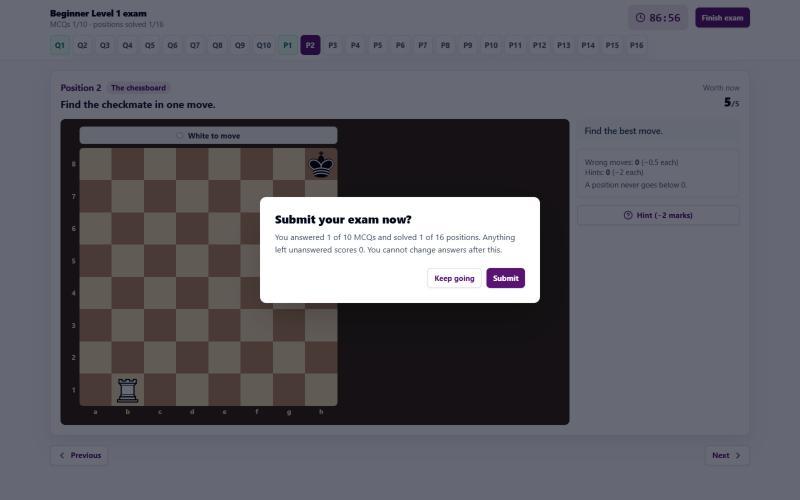
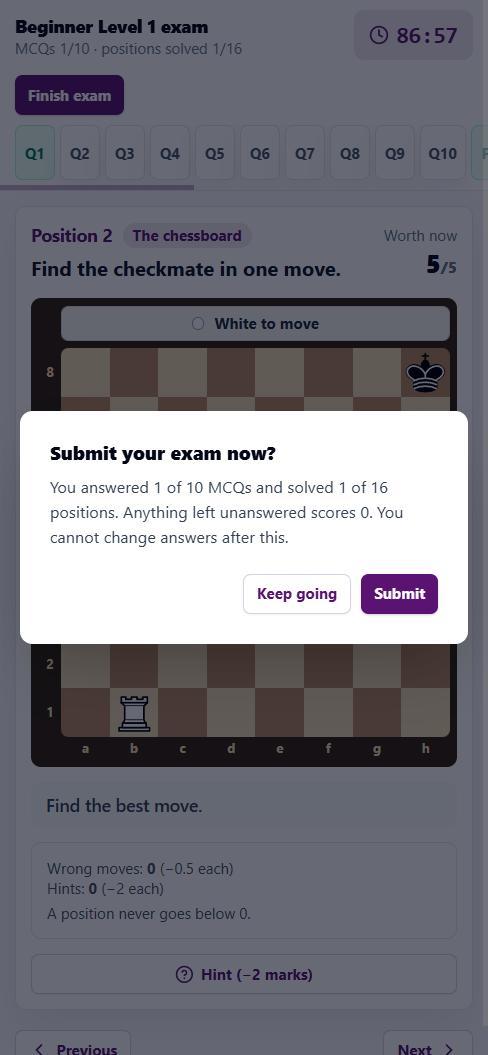
When everything is done, press Finish exam at the top right. A box shows how many questions are answered and positions solved; anything left blank scores 0. Keep going goes back to the exam, and the green numbers in the top bar show what is still missing. Submit ends the exam for good.
When the exam submits by itself
| What happens | Result |
|---|---|
| The 90 minutes run out | The exam submits with the answers so far |
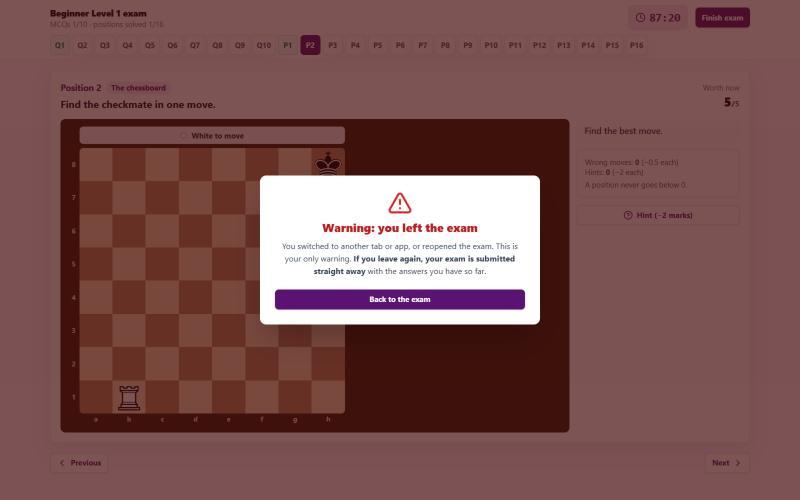
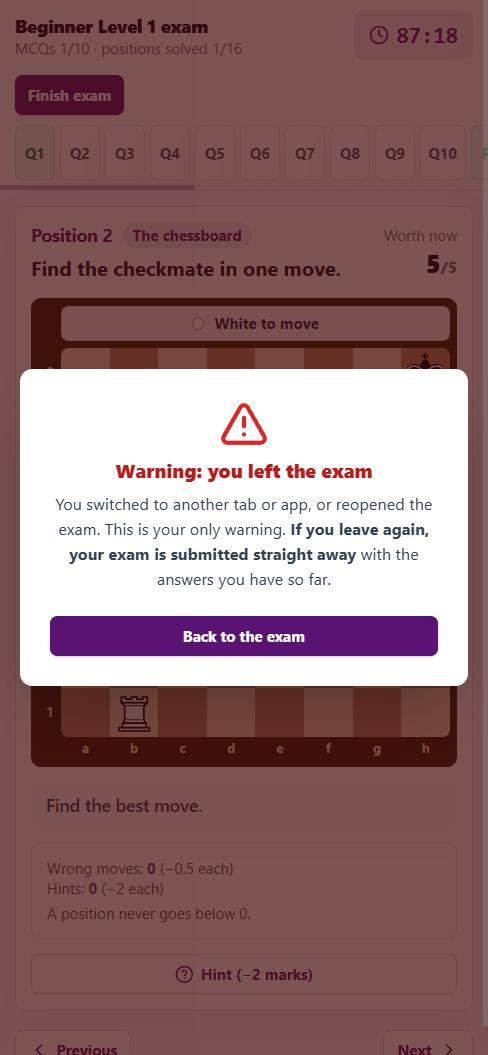
| Switching to another tab or app, the first time | A red warning appears; press Back to the exam and carry on |
| Leaving a second time | The exam submits straight away |
| Refreshing the page, or closing the tab, app or browser | The exam submits straight away (the browser first asks "Leave site?" - choose Stay) |
| The internet drops for 3 minutes | The exam submits with the answers saved so far |
Answers are saved the moment they are locked in, so an automatic submit never loses work already done. The Back button is blocked during the exam and shows a message instead.
Step 6: Your result and certificate
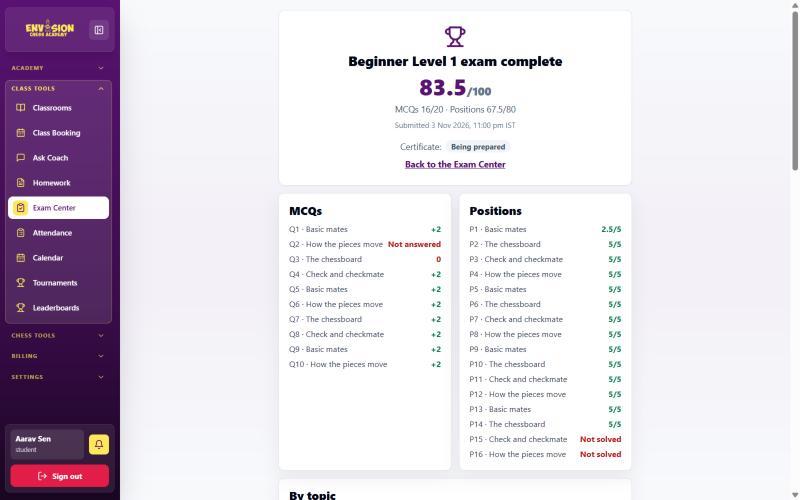
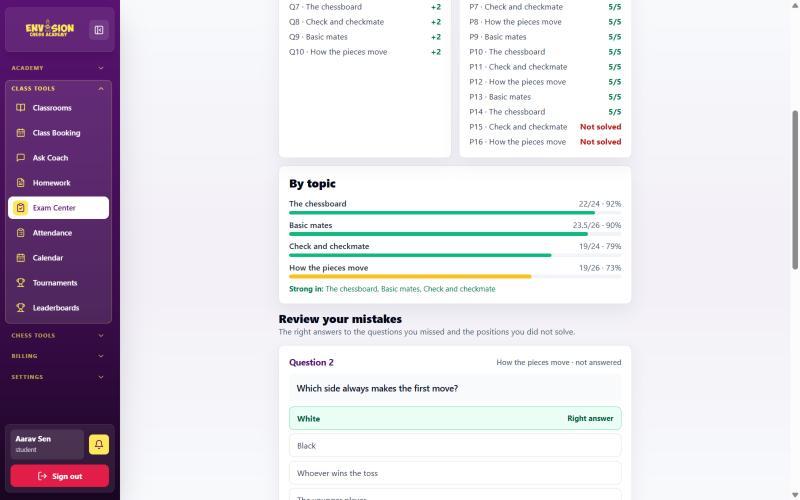
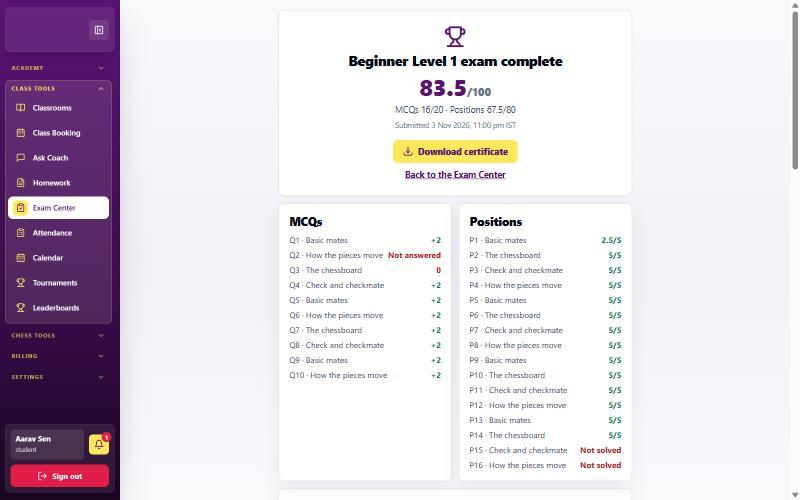
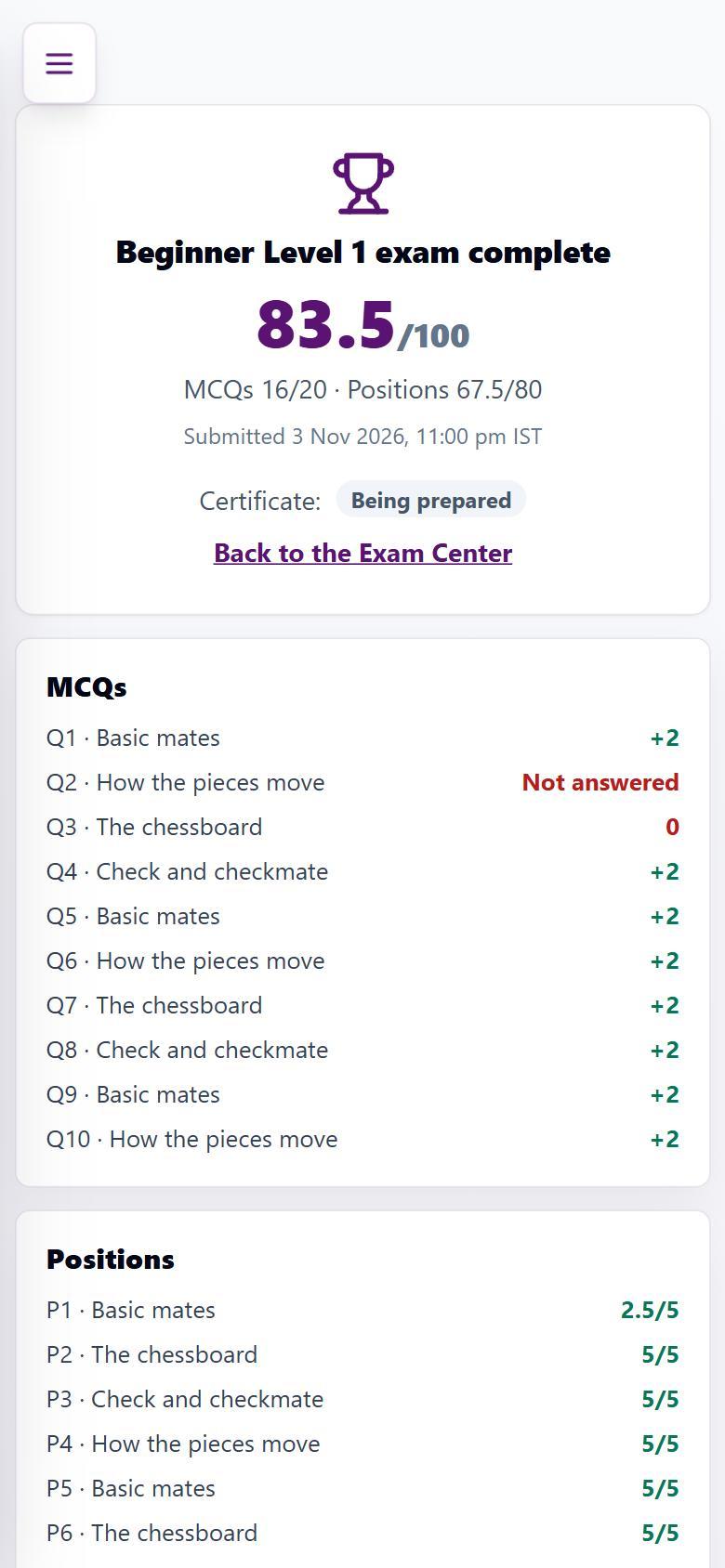
The score appears the moment the exam is submitted: the total out of 100, then the marks for the questions (out of 20) and the positions (out of 80). Below that, every question is listed with its marks, a By topic chart shows the strongest and weakest topics, and Review your mistakes gives the right answer for every missed question and the solution for every unsolved position. Going through that review with the coach is the most useful ten minutes after any exam.
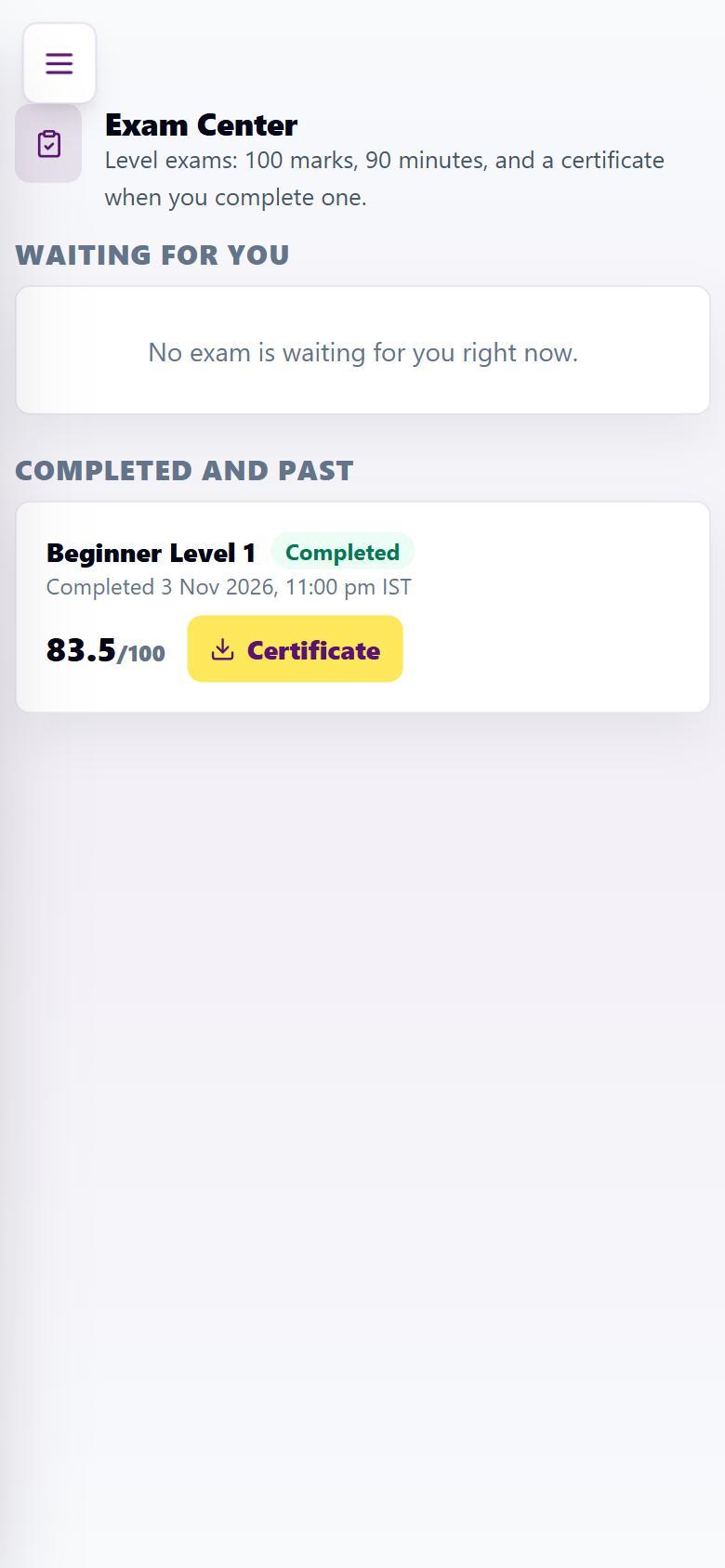
The certificate first shows as "Being prepared". When it is ready, a yellow Download certificate button appears on the result page and in the Exam Center.
Tips for a good exam
- Start early in the 7 days. A bad connection on the last night cannot be fixed.
- Answer every multiple-choice question. A wrong answer costs nothing.
- Think before each move. Every wrong move costs 0.5; a quick look for checks and captures saves marks.
- Skip and come back. Use the numbers in the top bar to return to a hard position later.
- Revise the rules first. A quick read of our chess rules for beginners covers stalemate, castling and promotion, which often come up.
- Stay on the exam page until you press Submit.
The exam is one part of how progress is tracked at Envision, alongside homework, tournaments and monthly reports from the coach. Our guide to how online chess classes work explains the rest of the journey from the first class to the next level.
Frequently asked questions
Can my child pause the exam and continue later?
No. Once Start is pressed, the 90 minutes run without a pause. Before pressing Start, the exam can wait: it stays open for 7 days, until 11:59 pm India time on the last day.
Is it better to take the exam on a phone or a computer?
Both work, but a computer or laptop is easier because the board is bigger. On a phone, hold it upright, keep it charged and silence calls and notifications first.
What happens if the internet stops during the exam?
Answers are saved as soon as they are locked in or a position is solved. If the connection is lost for 3 minutes, the exam submits itself with the saved answers. Contact your coach if that happens.
Does a wrong answer lose marks?
Not in the multiple-choice questions: a wrong answer simply scores 0. In the positions, each wrong move takes away 0.5 marks and each hint takes away 2, but a position never goes below 0.
Does every student get a certificate?
Yes. Everyone who submits the exam gets a certificate for that level, whatever the score. It appears as a Download certificate button once it is ready.