
Everything a family needs to follow a child's chess - and the fees - is in the Envision student portal. Monthly progress reports are under Academy → Monthly Feedback. Class credits and payments are under Billing → Credits & Payments, and every invoice, with a PDF and a Pay button, is under Billing → My Invoices. Your profile and password are in Settings → Account Settings. This guide shows each one on a computer and on a phone.
Monthly progress reports
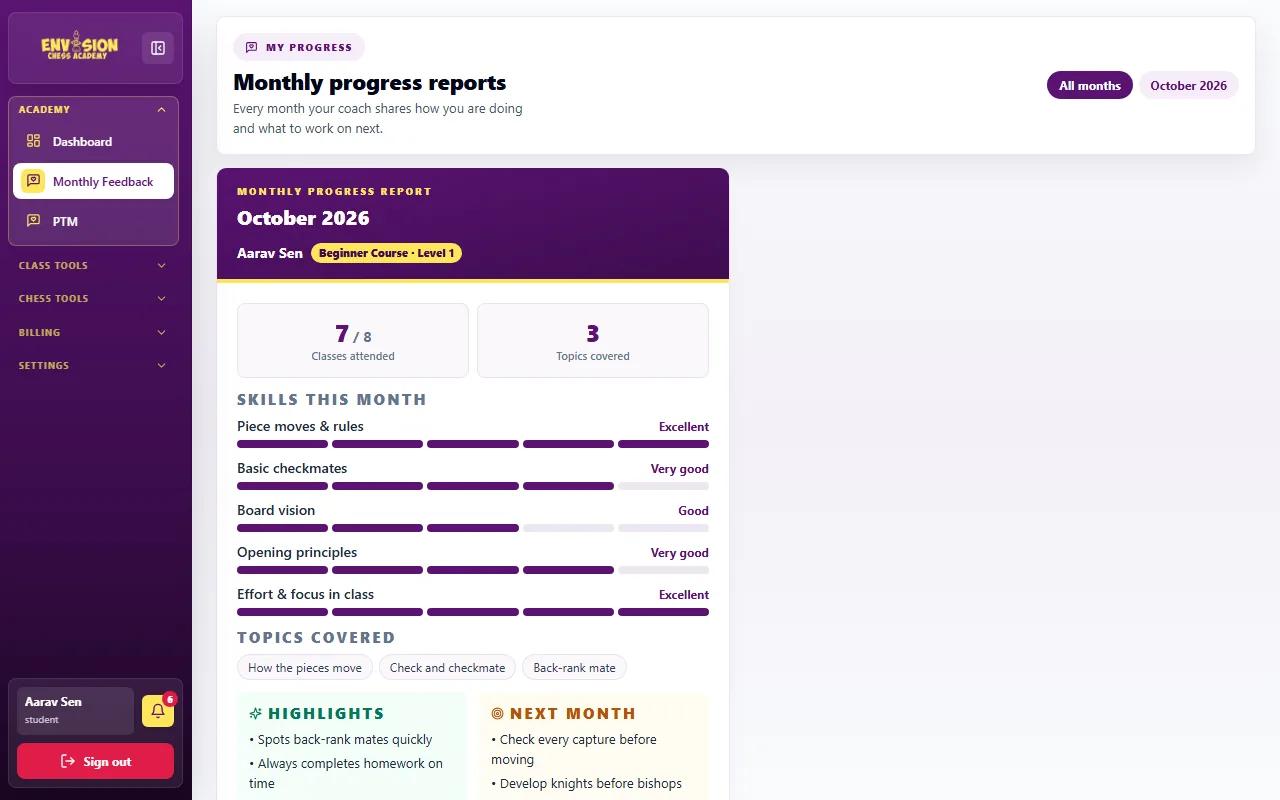
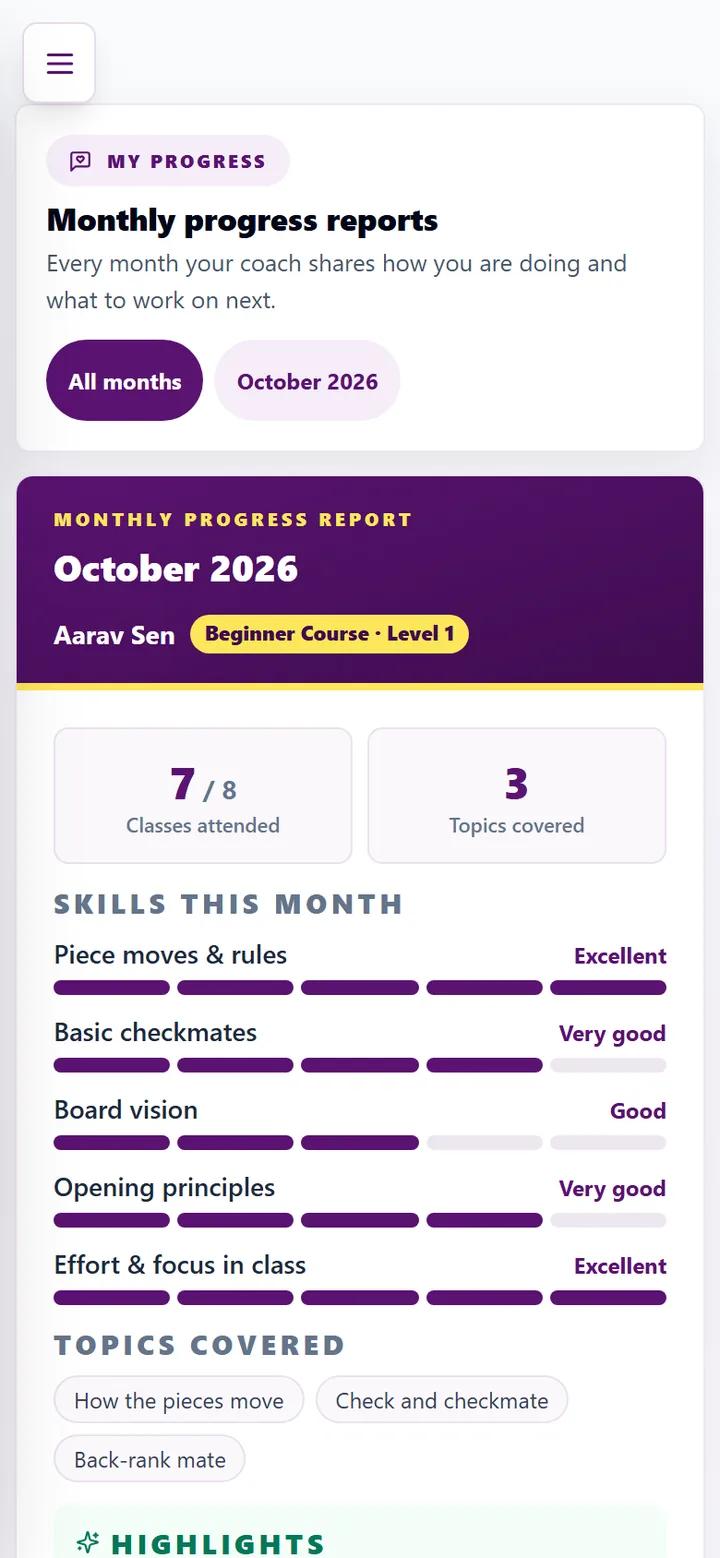
Every month, your child's coach writes a progress report. After the academy checks it, it appears on the Monthly Feedback page and is emailed to the family. Each report shows:
- Classes attended out of those scheduled, and the topics covered.
- Skills this month: each skill for the level (piece moves and rules, basic checkmates, board vision, opening principles, effort and focus) rated on one five-step scale: Needs support, Getting there, Good, Very good, Excellent.
- Highlights: what went well.
- Next month: the two or three things to work on.
- A note from the coach, written for parents.
Use All months to look back at earlier reports. The "Next month" points make a good home-practice plan, and a good list of questions if you book a parent-teacher meeting.
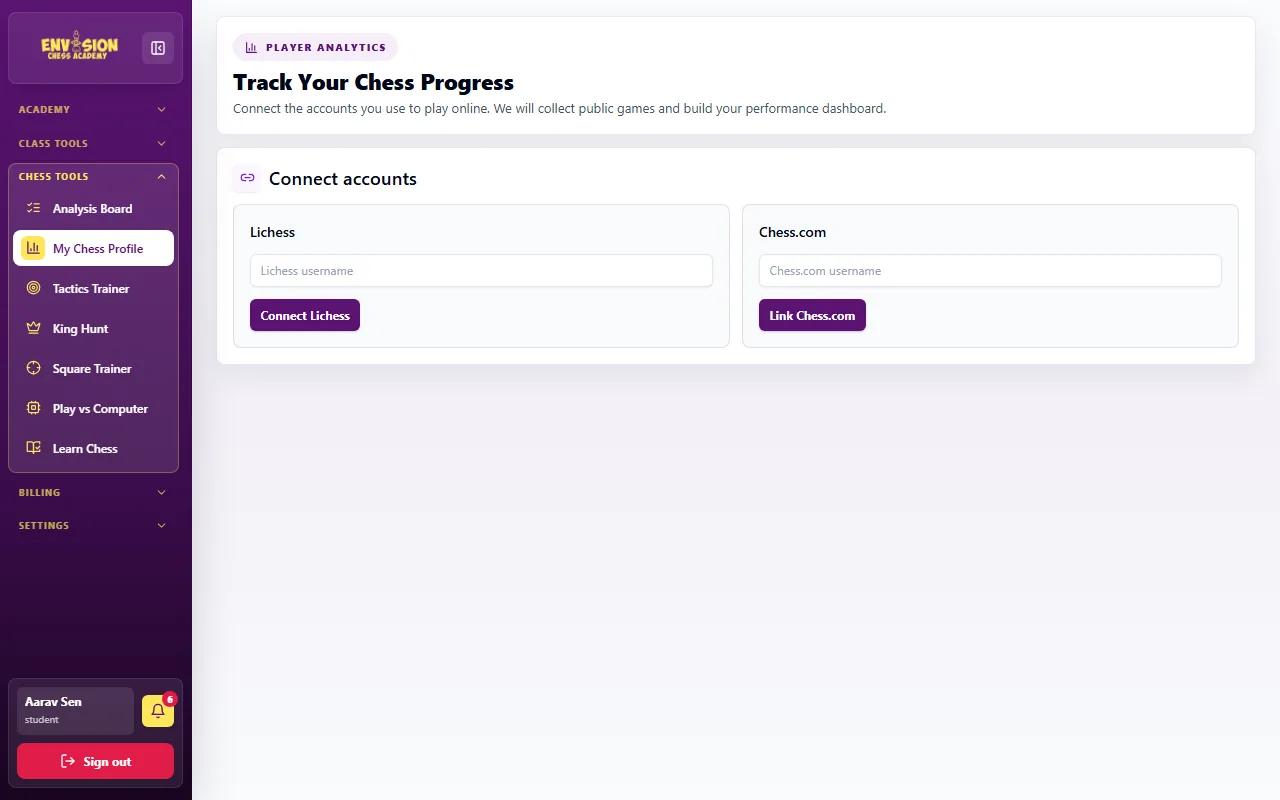
Chess profile: link Lichess and Chess.com
Many students also play online at home. Under Chess Tools → My Chess Profile you can connect a Lichess username or a Chess.com account. The portal then collects the public games from that account and builds a performance dashboard, so you and the coach can follow progress outside class too.
Class credits and payments
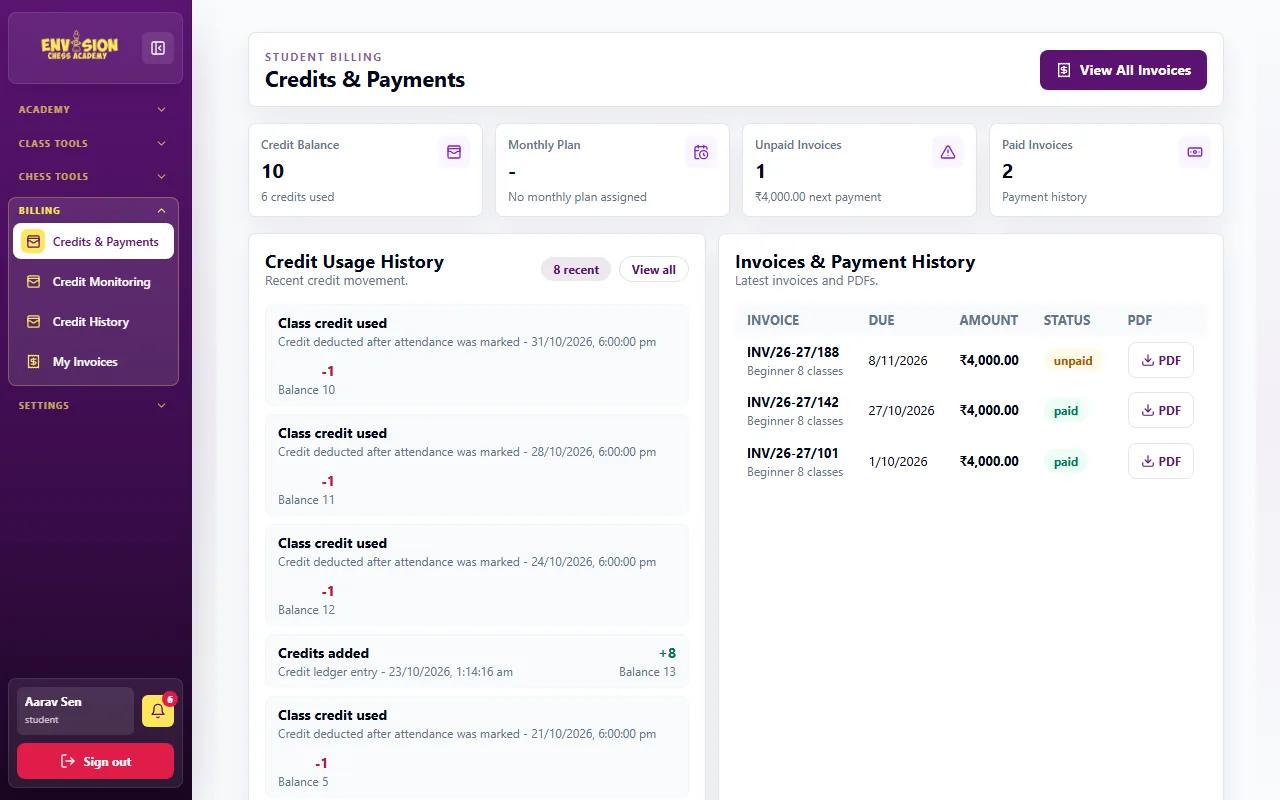
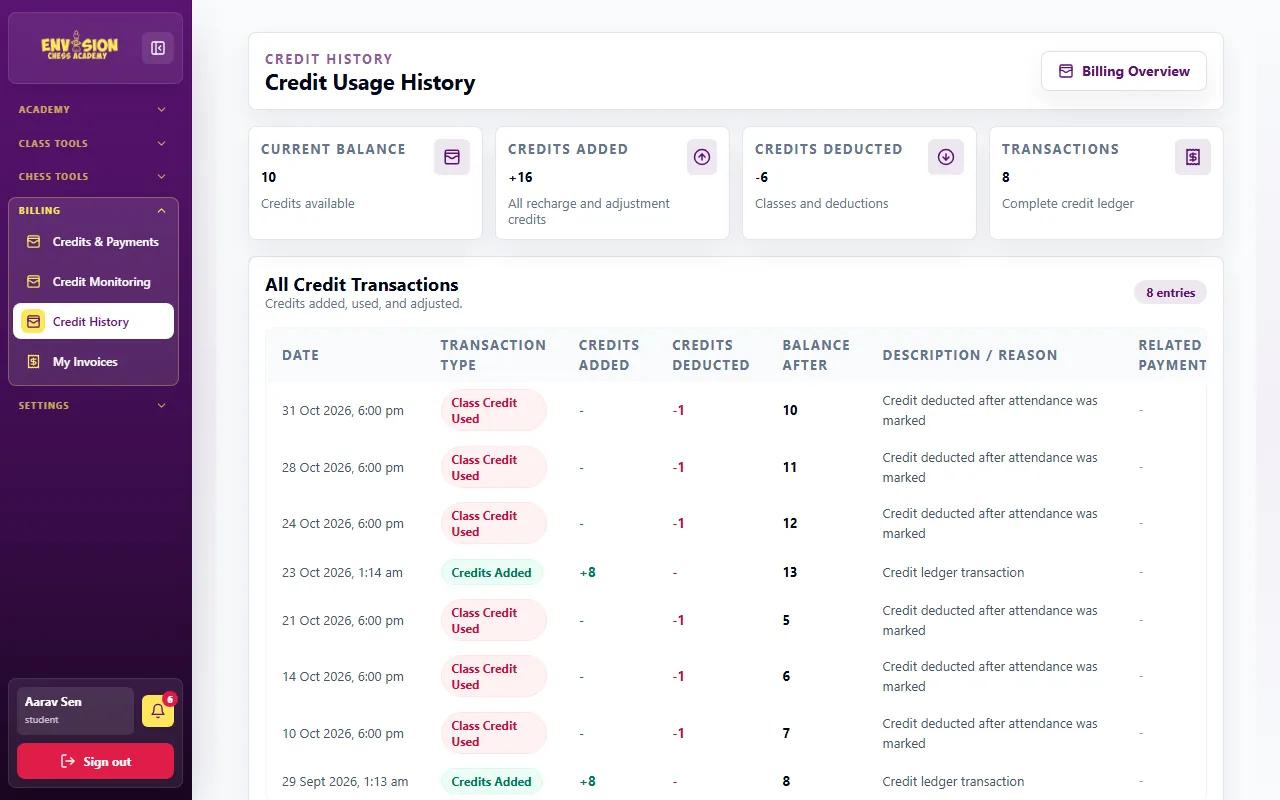
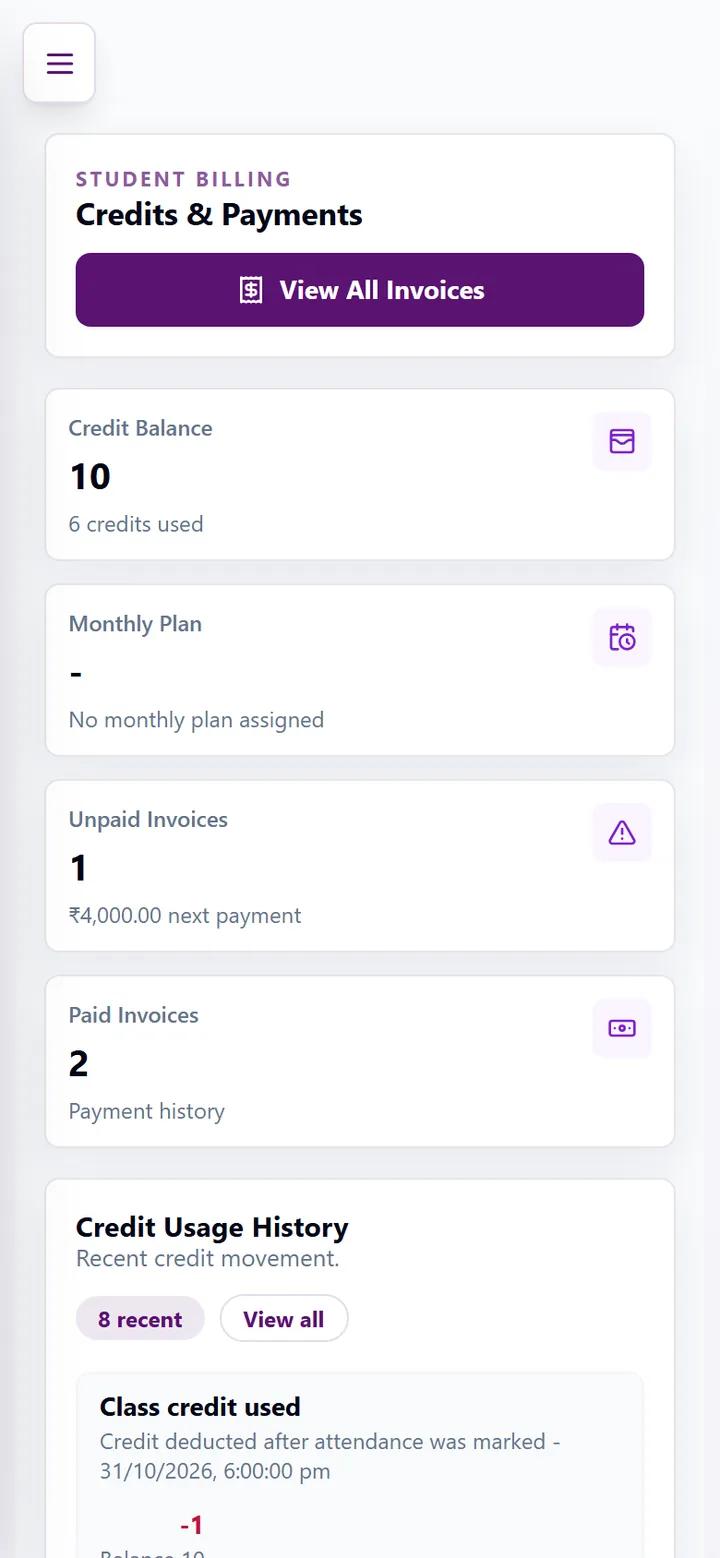
On a credit plan, each payment adds a number of class credits, and each class marked Present or Late uses one. Billing → Credits & Payments shows:
- Credit balance: classes left, and how many have been used.
- Unpaid invoices and the next payment amount; paid invoices for your records.
- Credit usage history: every class deduction and every credit added, with the balance after each one.
- Invoices and payment history with a PDF for each.
When credits run low, the portal and the academy remind you to recharge before the next class. If a class you attended is missing from the history, or one you missed has been deducted, check the attendance page and contact the academy.
Invoices: download, print and pay
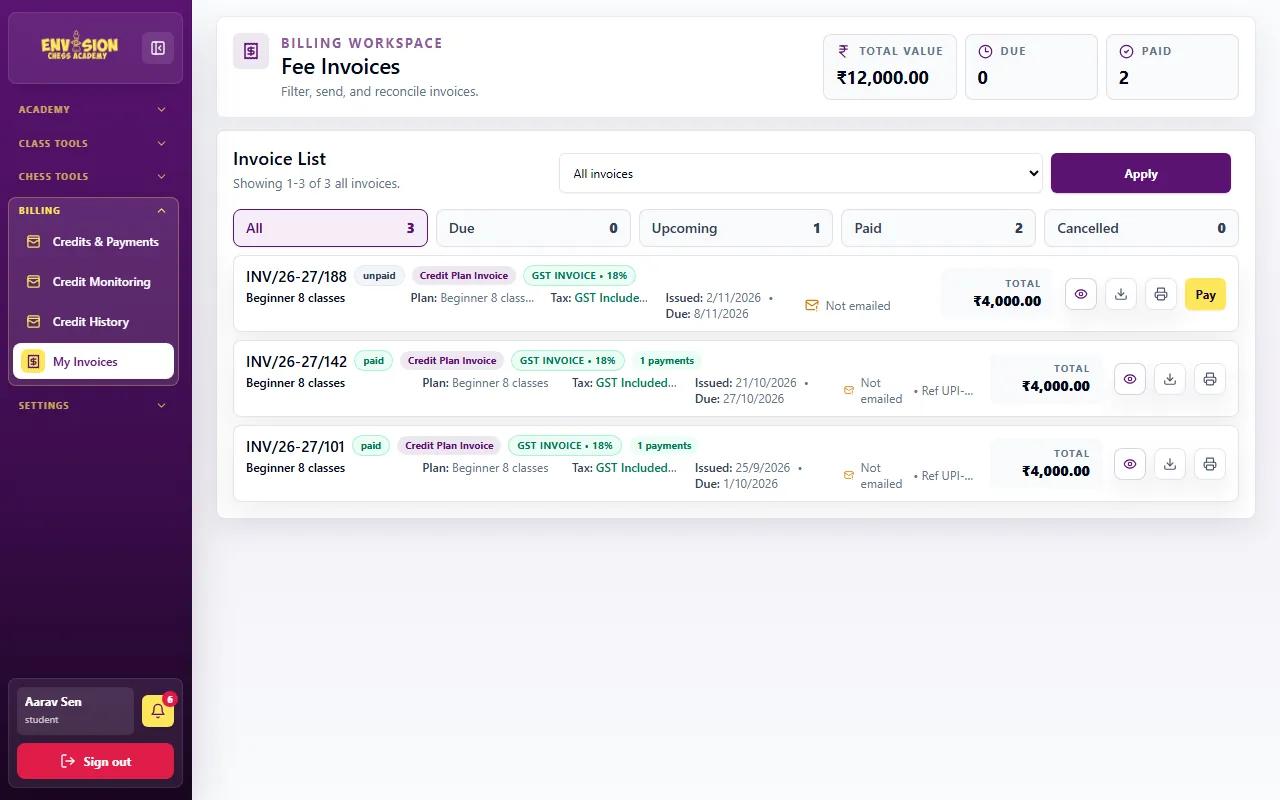
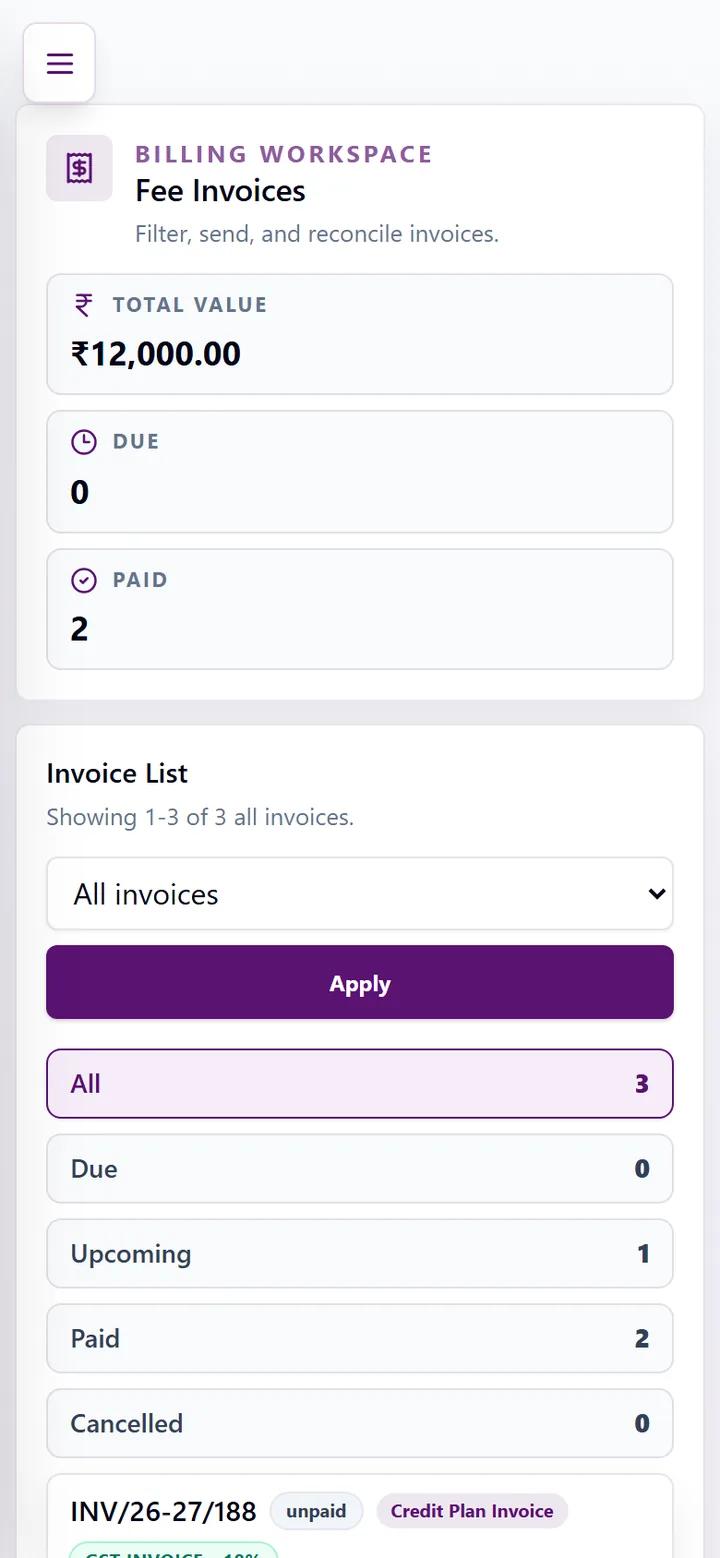
Billing → My Invoices lists every invoice with its number, status (unpaid, paid or overdue), whether it is a GST invoice, the issue and due dates and the total. Use the icons to view, download or print the PDF. An unpaid invoice has a Pay button for paying online; a payment shows in the portal as soon as it is confirmed. The filters at the top show only due, upcoming, paid or cancelled invoices.
Paying an invoice online
- Open Billing → My Invoices and find the invoice marked unpaid.
- Check the plan, the amount and the due date. GST invoices show the tax included.
- Press Pay and complete the payment in the secure payment window.
- When the payment is confirmed, the invoice changes to paid and, on a credit plan, the new credits are added to your balance.
- Download the PDF for your records using the download icon.
If you paid another way, such as a bank transfer, the academy records the payment against the invoice and it shows as paid once it has been matched.
Account settings and notifications
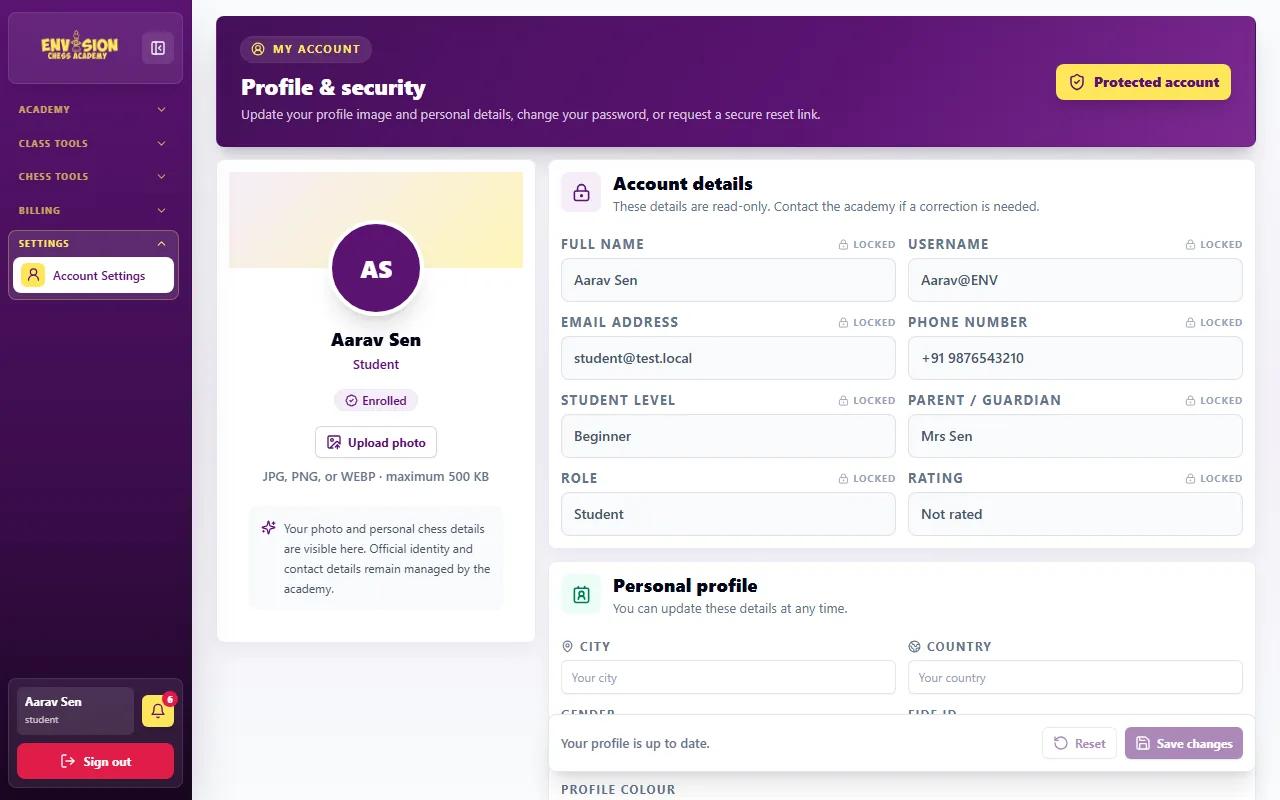
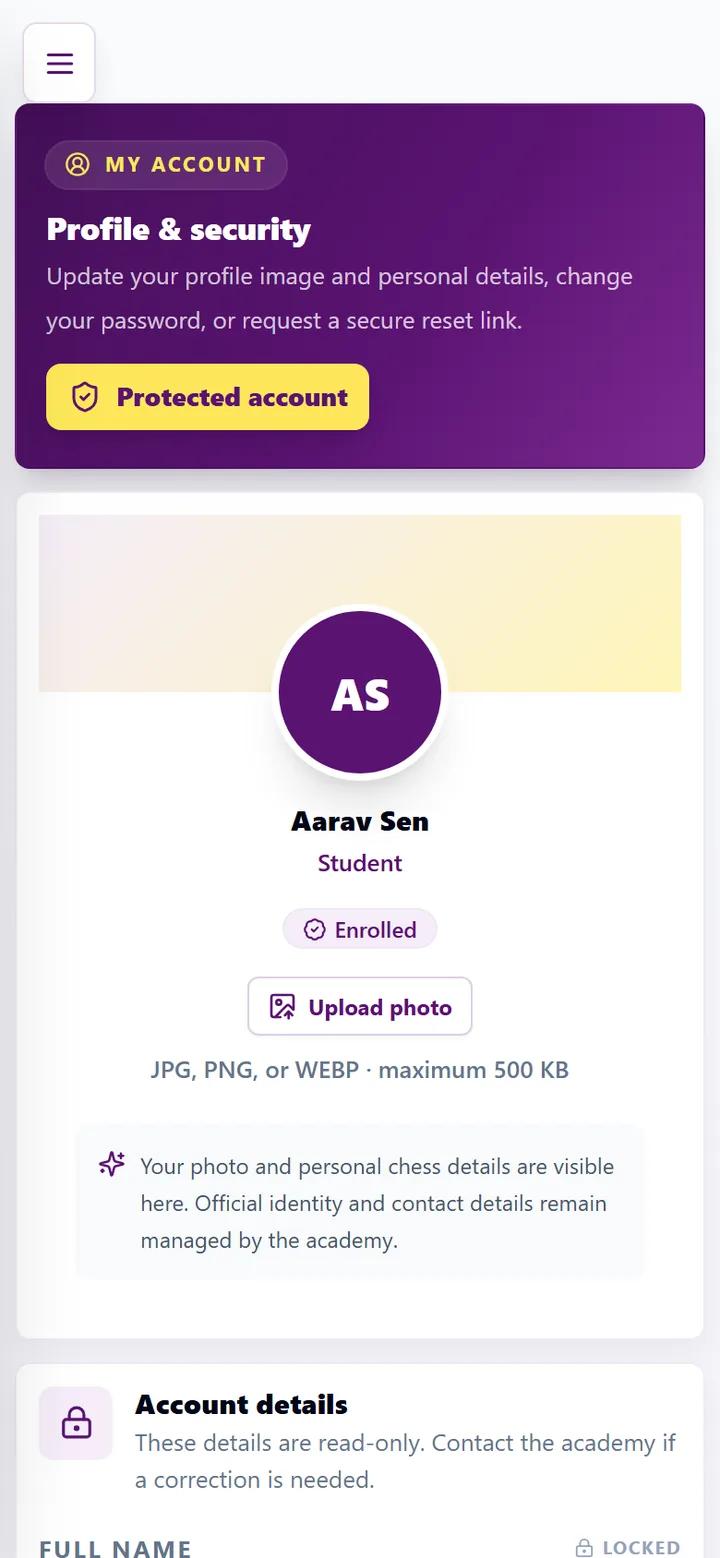
Settings → Account Settings shows your account details - name, user ID, email, phone, level and parent's name. These are locked and kept up to date by the academy; ask the academy if anything is wrong. You can upload a profile photo (JPG, PNG or WEBP, up to 500 KB), fill in a personal profile, change your password or have a reset link emailed to you.
The bell at the bottom of the menu collects notifications: new homework, reports, tournaments, PTM updates and payment reminders. Click one to go straight to the right page.
A five-minute monthly check for parents
- Read the monthly report and agree one goal with your child.
- Check attendance and credits match the classes attended.
- Pay any unpaid invoice before its due date.
- Look at the leaderboard and homework results together.
- If something needs a longer talk, book a PTM.
Chess progress is steady rather than sudden, especially around school exams; our guide to balancing chess and studies has a practical plan. Each course level, from the beginner chess course onwards, ends with a level exam and certificate.
Frequently asked questions
When do monthly progress reports arrive?
Coaches write reports at the end of each month. After the academy checks them, they appear on the Monthly Feedback page and are emailed to the family early in the next month.
How are class credits used?
Each class marked Present or Late uses one credit. An absent class does not. The Credits & Payments page shows every deduction with the balance after it.
Where can I download an invoice?
Open Billing → My Invoices and use the download or print icon on the invoice. GST invoices are labelled as such.
What happens when class credits run out?
The portal and the academy remind you when the balance is low. Paying the recharge invoice adds the new credits so classes carry on without a gap.
Can I change my child's name or phone number in the portal?
No, account details are locked and kept by the academy. Contact the academy to correct them. You can change the photo, personal profile and password yourself.